Editing Your Public Page Content
Written By Edith Henry
Last updated About 2 months ago
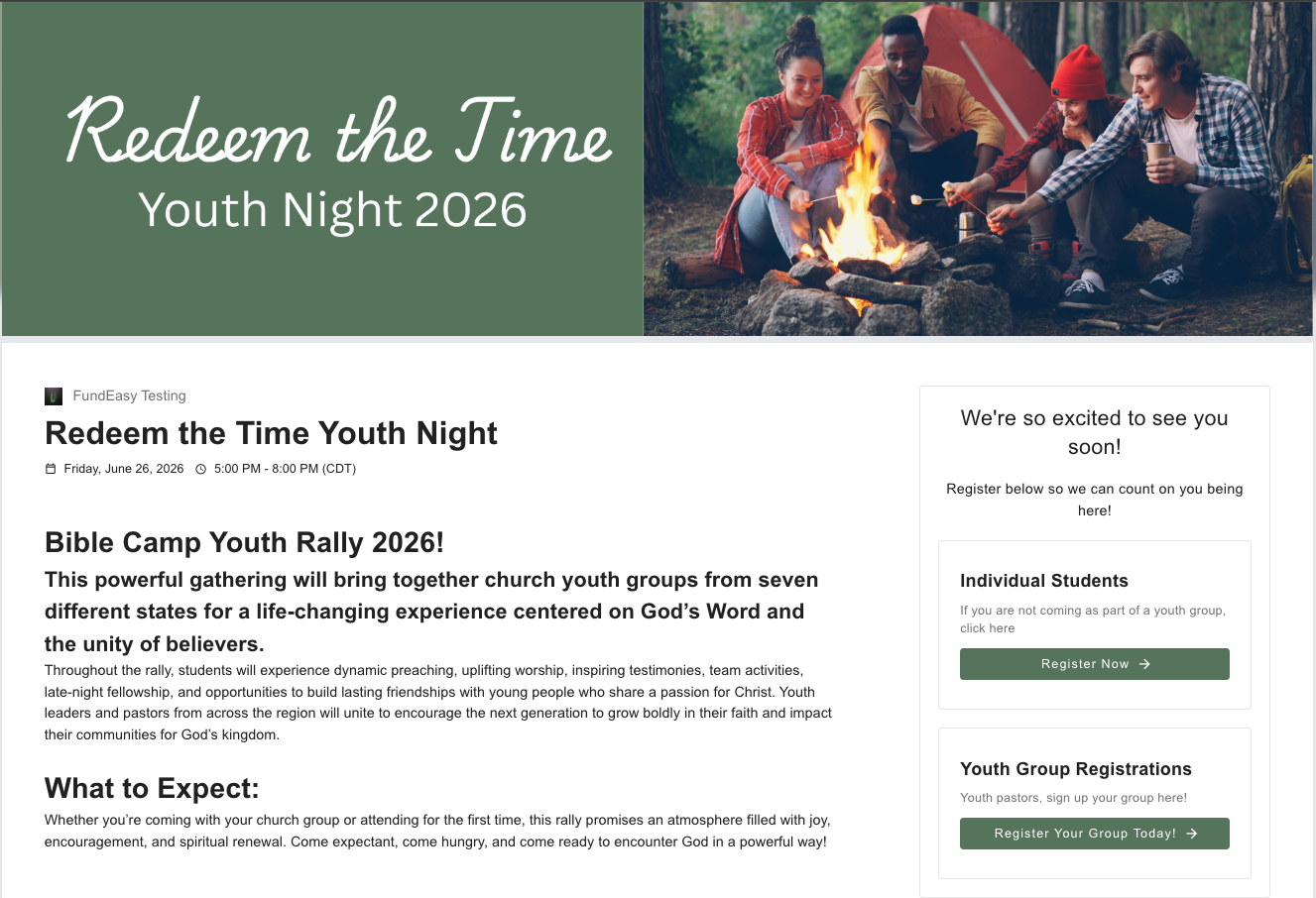
In addition to customizing your public event page with a custom banner image and event description, you can also personalize the registration section text that attendees see when they visit your event page.
How to Edit Public Page Registration Text
Step 1: Open Your Event Setup Dashboard
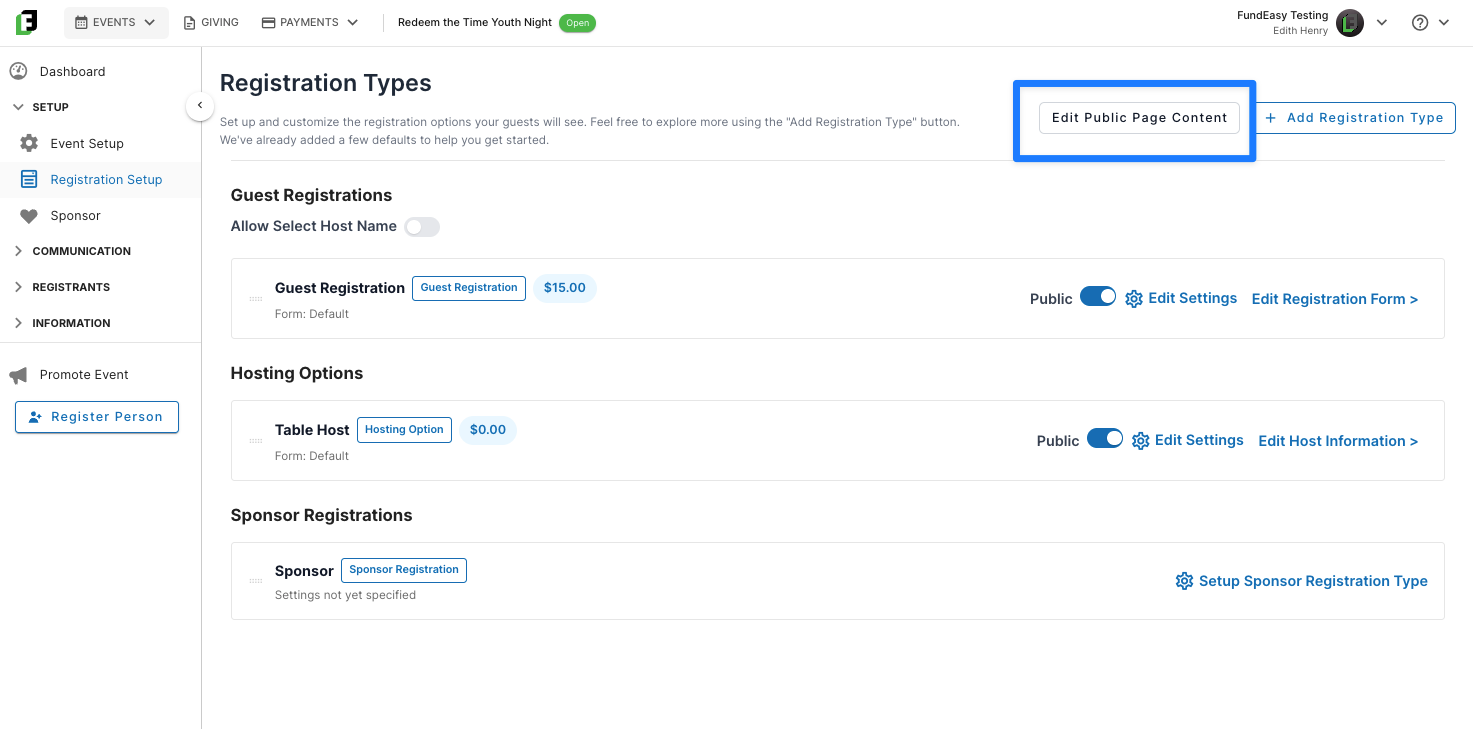
Once there, select the “Edit Public Page Content” button. This allows you to update Section headers, Helper text, Registration option titles, Button text, and Calls to action. Customizing this wording helps create a more personalized and event-specific experience for your attendees.
Step 2: Update the Content to Suit Your Event
You can replace default wording with messaging that better reflects your event and audience. For example, you might change “How would you like to participate?” to “We’re so excited to see you soon!” or rename “Guest Registration” to “Individual Students.” You can also customize button text such as “Register Now” or “Register Your Group Today” to create a more engaging and personalized experience for attendees. Once your updates are complete, click Save Changes and refresh your public event page to see the changes live.
Before:
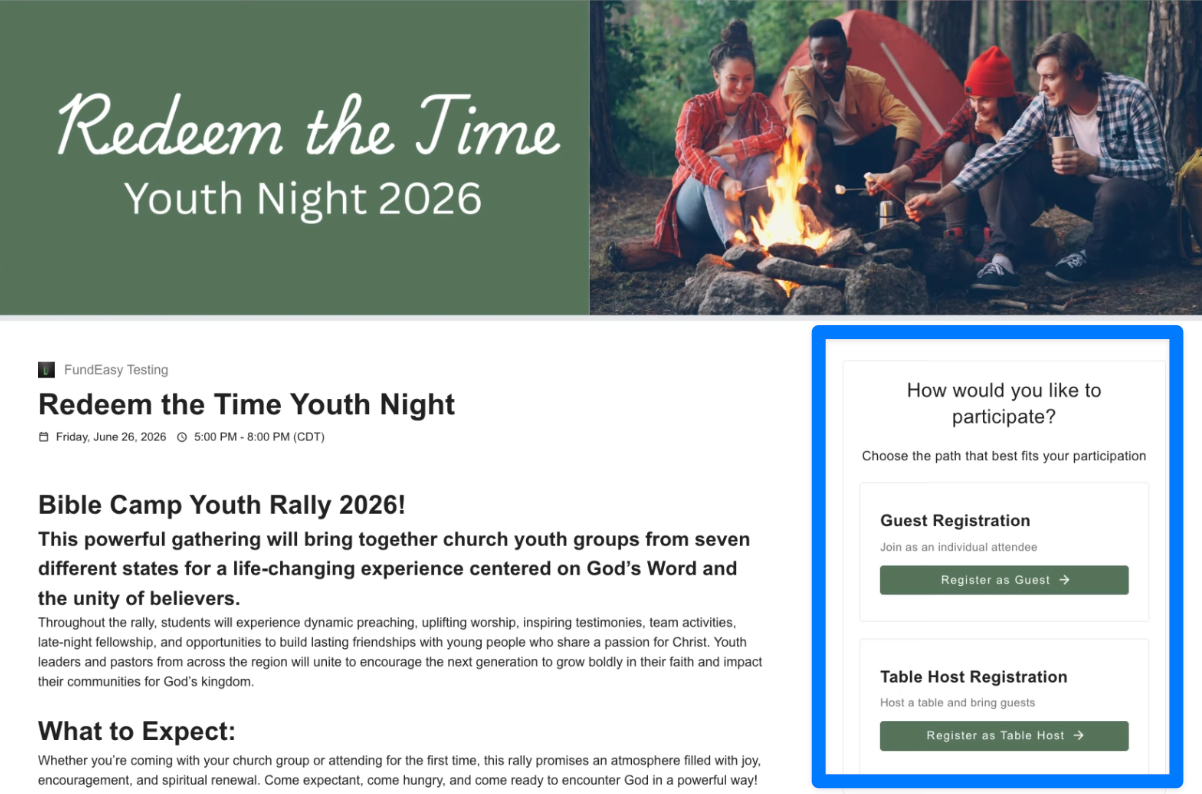
After: