Adding Offline Transactions for a Giving Page
From the FundEasy Giving Dashboard, you can add offline payments to any active giving page in just a few steps.
Finding the Giving Page
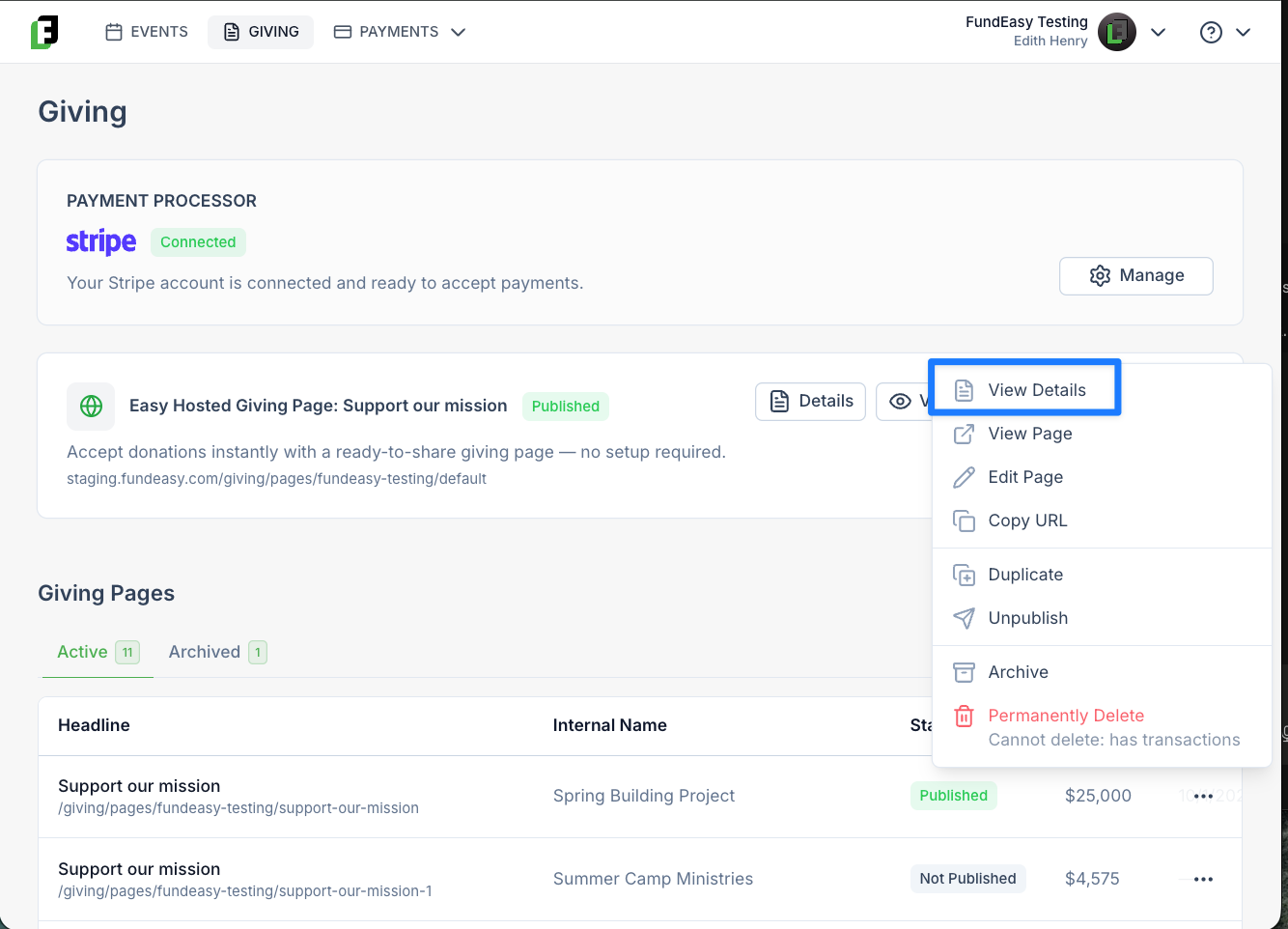
Find the giving page you'd like to associate an offline transaction with and click into View Details.
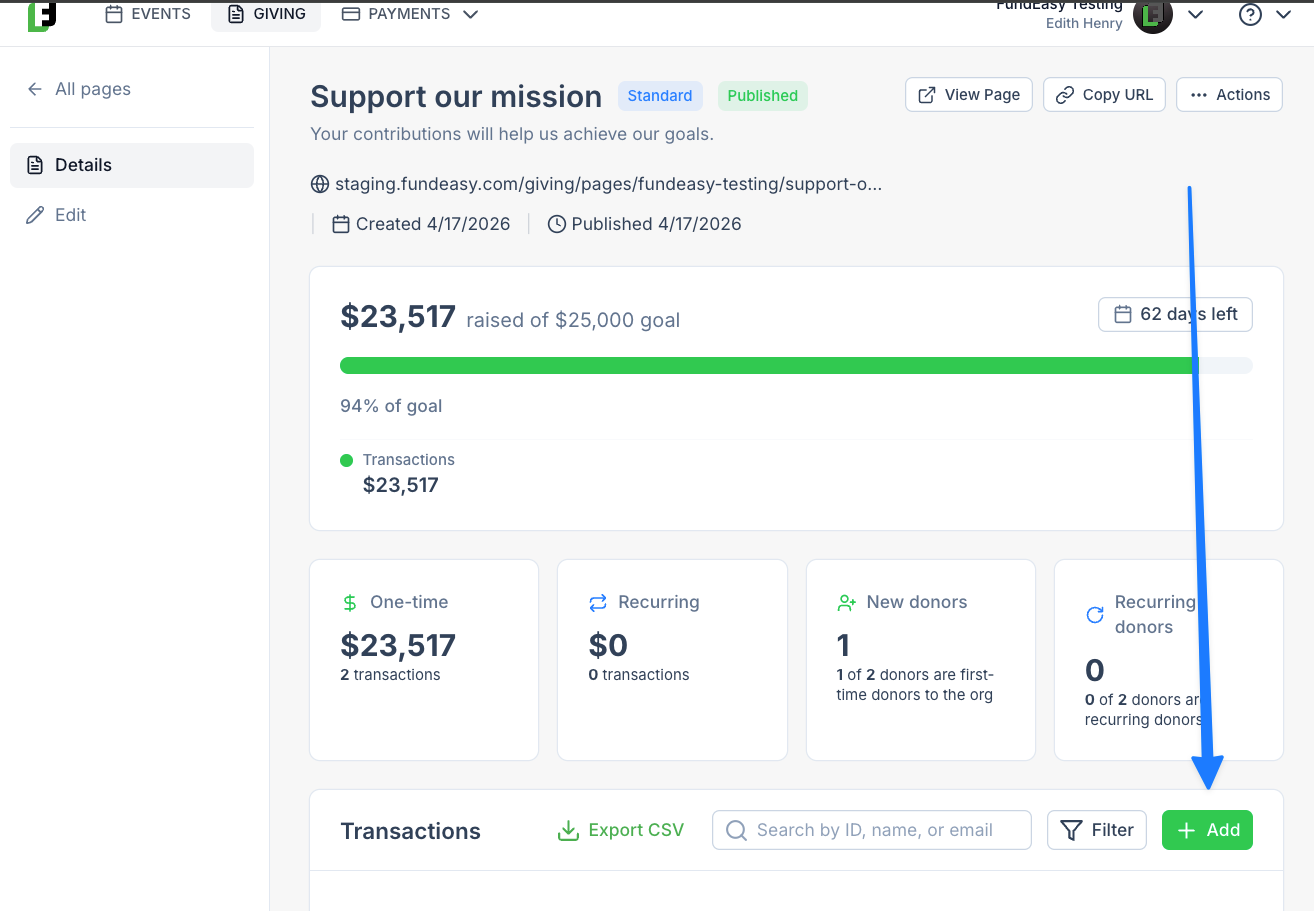
Scroll past the stats at the top of the page until you reach the Transaction Summary — this shows every transaction already tied to that page, along with a green Add button on the right.
Entering the Payment
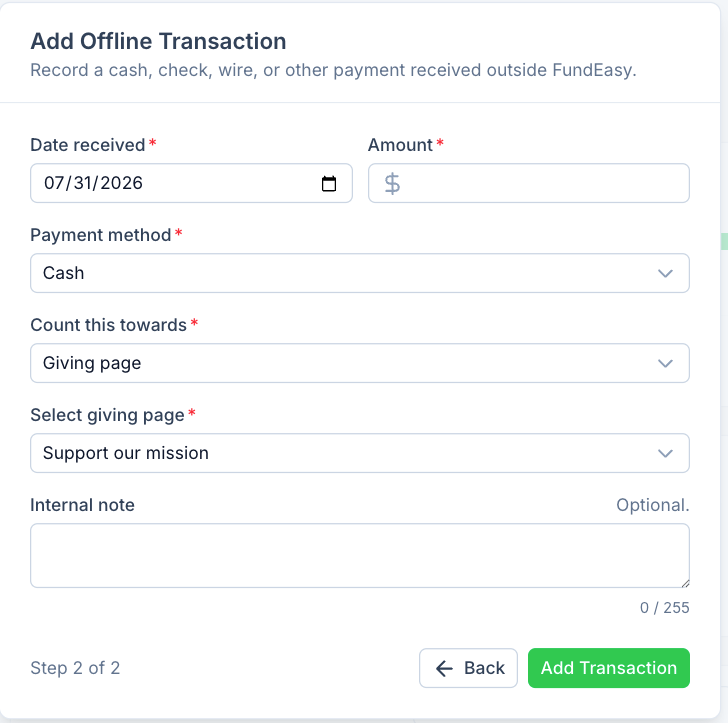
Clicking Add opens the offline payment form. Search for the donor, then fill in:
Date received
Amount
Payment method (online, cash, check, wire, or other)
If you select check, you'll also be asked for the check number.
Allocating the Transaction
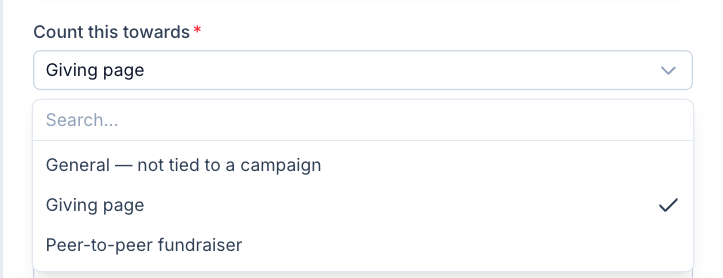
Even though you started from a specific giving page, you're not locked into it. You can choose to:
Leave it general, not tied to any campaign
Keep it associated with the giving page (the default, since that's where you started)
Assign it to a peer-to-peer fundraiser, in which case you'll select which fundraiser it belongs to
If you're allocating to a giving page, it defaults to the page you started from, but you can switch to a different page here if needed. You can also add an internal note before saving.
Where It Shows Up
Once you click Add, the transaction is recorded. If it's allocated to a giving page, it shows up immediately in that page's Transaction Summary, and it will also appear in your master transactions log under Payments Dashboard > Transactions.
These offline payments will also update your progress meters if you have those enabled for the giving page.
Was this helpful?
Still need help? Ask the team