Resetting Your Account Password
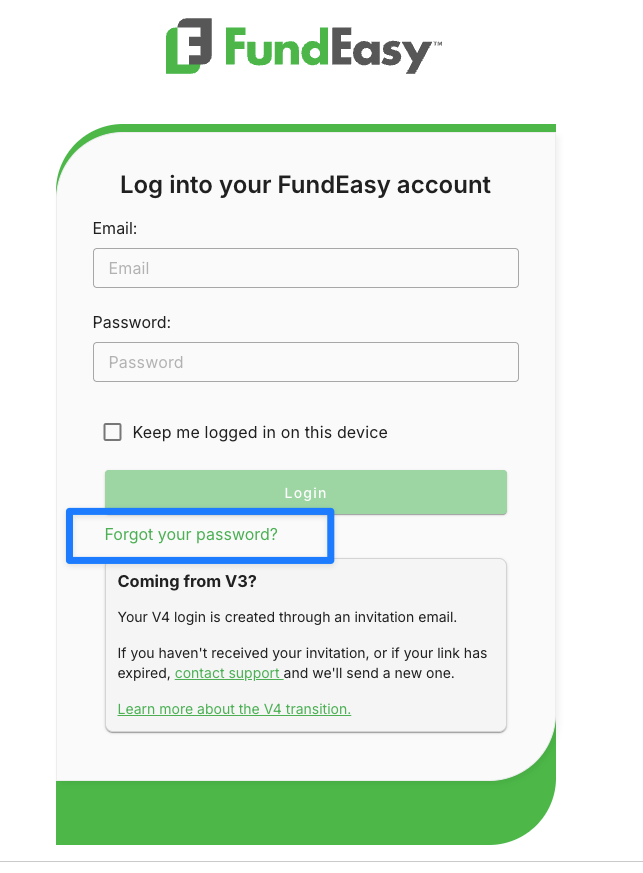
If you’re trying to log in and can’t remember your password, you can follow these steps:
Click Reset Password again to generate a new password reset email.
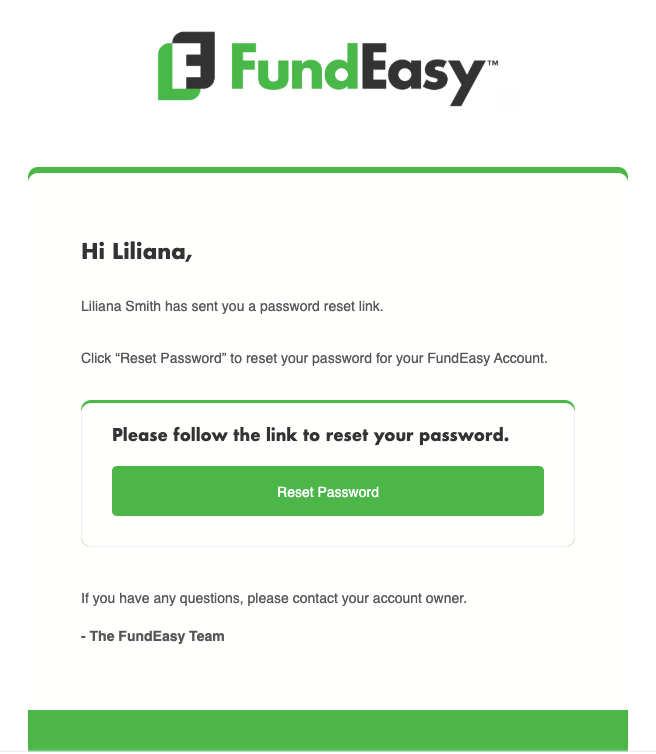
Wait for the new email to arrive; if you have tried to reset your password multiple times, be sure to use the most recent reset email, as older reset links may no longer be valid.
Create a new password that meets all of the following requirements (HINT: You can hover over the word “password” to see the requirements on your screen):
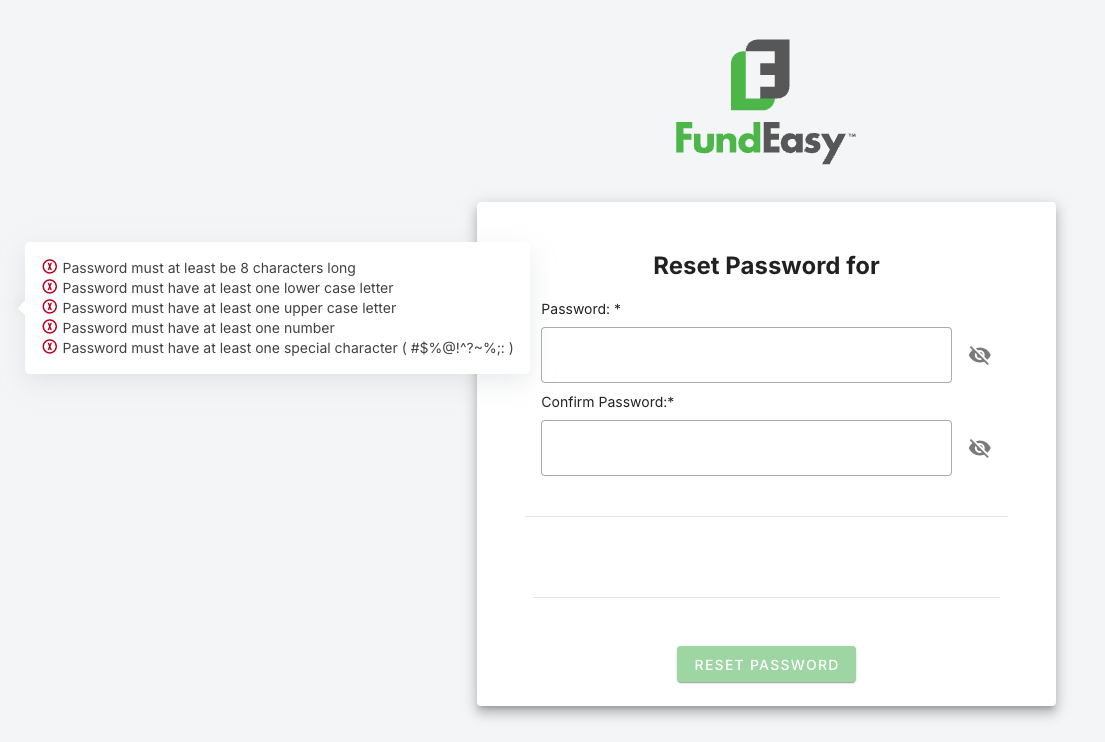
At least 8 characters long
At least one lowercase letter
At least one uppercase letter
At least one number
At least one of the following special characters:
# $ % @ ! ^ ? % ; :
Re-enter the password to ensure it matches exactly.
Please note that the Continue button will only become enabled after all security requirements have been satisfied. If you have entered your password and still cannot proceed, please double check that you satisfied all five of the requirements.
Was this helpful?
Still need help? Ask the team