The Recurrings Dashboard
The Recurrings Dashboard provides a centralized view of all recurring donations for your organization. From this dashboard, you can monitor recurring revenue, review active and canceled recurring donations, and manage individual donor subscriptions.
Navigating to the Recurrings Dashboard
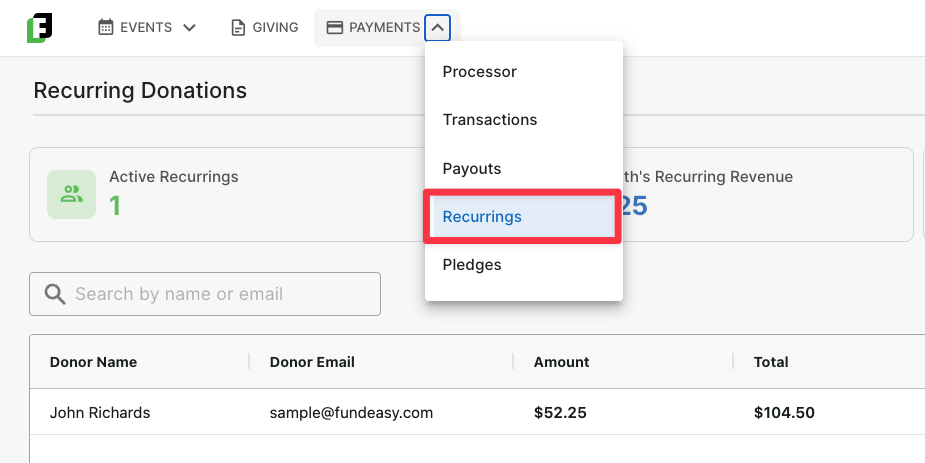
To access the Recurrings Dashboard:
From the navigation menu, select Payments.
Click Recurrings.
The dashboard displays all recurring donations for your account, including both active and canceled recurring gifts, allowing you to view your complete recurring donation history in one place.
Understanding My Active Recurring Revenue

At the top of the dashboard, summary cards provide a quick snapshot of your recurring giving program.
These cards allow you to see:
Active Recurring Donations – The total number of currently active recurring donations.
Last Month's Recurring Revenue – The total amount received from recurring donations during the previous calendar month.
This Month's Recurring Revenue – The amount collected from recurring donations so far during the current month.
These metrics make it easy to track the performance of your recurring giving program and monitor how much recurring revenue has already been received each month.
Seeing Recurring Donations by Donor Name
Below the summary cards, you'll find a list of every recurring donor. For each recurring donation, the dashboard displays:
Donor Name
Email Address
Recurring Donation Amount
Lifetime Total Raised from that recurring donation
Last Payment Date
Next Scheduled Payment Date
Donation Frequency (such as Monthly)
Current Status (Active or Canceled)
For example, if a donor has committed to giving $52.25 each month and has successfully completed two recurring payments, the dashboard will display a lifetime total of $104.50.
This information allows you to quickly understand each donor's recurring giving history and upcoming payment schedule.
Editing a Donor’s Recurring Donation
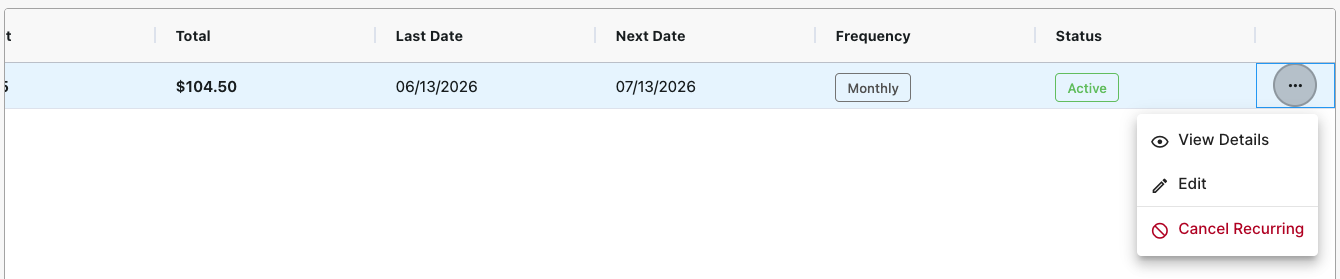
If a donor would like to update their recurring gift, you can edit the recurring donation directly from the dashboard.
To edit a recurring donation:
Locate the donor in the Recurrings Dashboard.
Click the ellipsis (⋯) menu next to the recurring donation.
Select Edit.
From here, you can update the recurring donation amount. For example, if a donor would like to increase their monthly gift from $52.25 to $60.00, you can make that change on their behalf.
You can also select View from the ellipsis menu to see additional details about the recurring donation, including:
Donor name
Email address
Date the recurring donation was created
Recurring donation amount
Complete transaction history for the recurring donation
Cancelling a Donor’s Recurring Donation
If a donor requests to stop their recurring giving, you can cancel their recurring donation from the Recurrings Dashboard.
To cancel a recurring donation:
Locate the donor in the Recurrings Dashboard.
Click the ellipsis (⋯) menu next to the recurring donation.
Select Cancel.
Once canceled, no future recurring payments will be processed for that donation. The recurring donation will remain visible on the dashboard with a Canceled status, allowing you to retain a complete history of the donor's recurring giving.
Was this helpful?
Still need help? Ask the team