Live Check-In
Written By Edith Henry
Last updated 3 months ago
What Is Live Check-In?
Live Check-In is a mobile application for managing guest arrivals quickly and efficiently from your phone or tablet on event day. Easily search registrations, check in attendees, and eliminate paper sign-in sheets.
Guest Check-In mode provides a fast, simple way to mark attendance as guests arrive, while Guest Management mode lets you register walk-ins, locate available seats, assign tables, and update attendance in real time. Event data is synchronized across devices through the Hub app, ensuring your team stays up to date throughout the event.
How Does V4 Live Check-In Compare to V3?
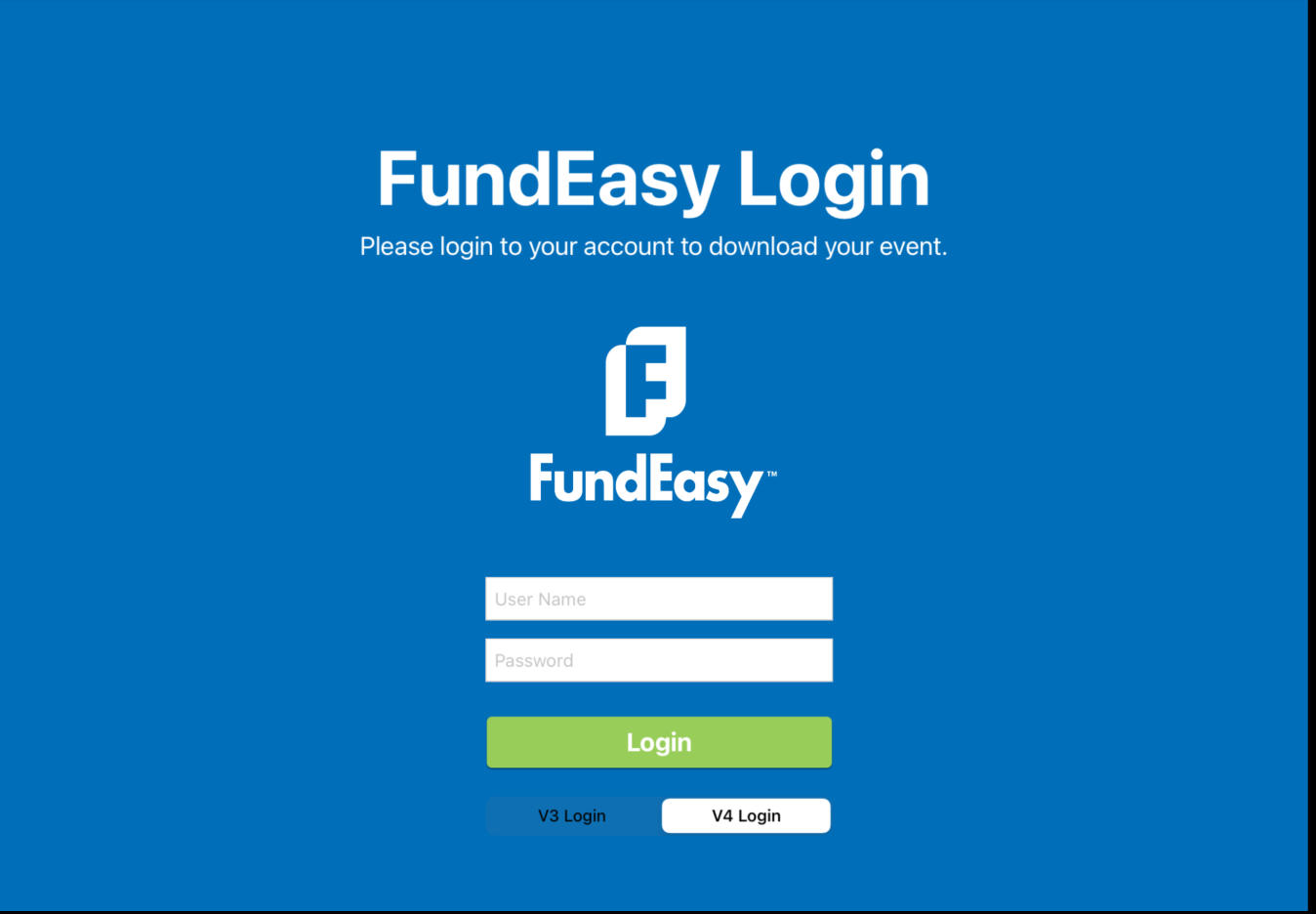
V4 Live Check-In uses the same setup, equipment, and workflow as V3; so if you've used Live Check-In before, the process will feel very familiar. There is now a selector on the hub login to allow you to indicate that you are connecting to a V4 event.
Before you get started, there are a few important differences to be aware of:
The Live Check-In section looks different in V4. You won't see a “Live Check-In” sidebar option in the navigation menu the way it appeared in V3. However, the functionality is still available. There is no longer a need to place an order in advance. Instead, events will automatically be available for download in the app and ready to use.
Both the client and the hub app need to be updated to version 4.0.0. You may have seen a V4 app that includes QR code functionality, but that version had limited functionality and is no longer supported. Make sure to update both the client and the hub app to the newest version—they will not work correctly if they are mismatched.
Everything else remains the same. The hub device, router, check-in devices, and overall event-day setup process work exactly as they did in V3. Existing V3 Live Check-In documentation is still accurate for setup and practice, and we encourage you to use it to familiarize yourself with the process before your event.
There are a few improvements for V4 events (will not apply to legacy events).
V4 events no longer lock the same way as in V3; instead we show a warning that LCI is active, but we don’t prevent you from viewing or making changes in your event.
V4 supports non-grid table layouts, allowing greater flexibility for managing your venue.
V4 does not use gender as a field, so language has been updated to be gender neutral.
Training and Setup Resources:
Off-Site Setup Instructions
PREPARE The Hub (Internet is required to set up your hub, so you should do this prior to your event)
Designate an iPad to be the Hub for your event.
Download and install the ‘Attendance Live Check-in Hub’ app from the App store.
Launch the app.
Enter your FundEasy username and password into the app.
Follow instructions on the screen to download your event data onto the Hub.
Put the iPad Hub to sleep when the Hub app says, "Go to Your Venue".
PREPARE Guest Check-In and Guest Management
Download and install the ‘Attendance Live Check-in’ app from the App Store.
Designate which iOS Devices you will use for Guest Check-In and Guest Management, remember that you must use an iPad for Guest Management.
On-Site Setup Instructions
Setup the Offline Wireless Network
Find a power outlet that is centrally located to where you will be using Attendance Live Check-in.
Plug in the device.
Wait for a yellow light to flash on the device... that’s it!
Join All Your Devices to the Offline Wireless Network
Power on all your devices.
Find and launch the “Settings” app on each device.
Tap on “Wi-Fi” within settings.
Join the network for your router.
Start the Hub app
Make sure the iPad Hub has joined the Offline Wireless Network. Follow steps above to Join.
Launch the red app called ‘Hub’ and follow the on-screen instructions.
Once you see "Good to Go!", plug the power cable for the iPad Hub into a wall outlet.
Failure to do this could result in the iPad Hub running out of battery during my event, causing Attendance Live Check-in to stop working.Keep the iPad Hub in a central location. Next to the Offline Wireless Network would be ideal.
If your iPad has a cover, keep it open! Closing the cover could turn the device off, so be careful.
Start the Attendance Live Check-in app on All the Other Devices
Make sure each device has joined the Offline Wireless Network. Follow steps above to Join.
Launch the app called: ‘Attendance Live Check-in’.
Select a role for the device: Check-in Guests or Manage Guests (for special registration table - iPads only).
The app should sync up with the iPad Hub and display your event guests.
Post-Event Instructions
Tear Down After Your Event
Go to the iPad Hub and tap the red “Finish Attendance Live Check-in” button.
Pack up all the devices and unplug the Offline Wireless Network.
Post Event: Uploading Your Attendance Data back to FundEasy
If you have Wi-Fi internet at the venue, you can upload your attendance data immediately.
Take the iPad Hub to a place with Wi-Fi internet (Starbucks, home, office).
Find and launch the “Settings” app.
Tap on “Wi-Fi” within settings.
Join the network that has internet.
Launch the Hub app again and follow the onscreen instructions to upload your attendance data back to FundEasy.
When you are finished, be sure to leave feedback so we know how you enjoyed Attendance Live Check-in!
Additional Resources: