Revenue Attribution and Reporting in a Peer-to-Peer Event
Written By Edith Henry
Last updated 4 months ago
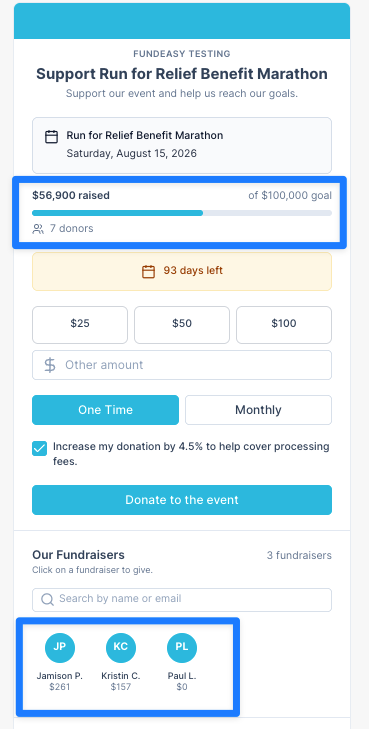
In an Event with Peer-to-Peer Fundraising, donations are automatically connected to both the overall event and individual participant fundraising pages. This makes it easy to see how participants are performing and how much the event has raised overall.
How Donation Attribution Works
Donation attribution in FundEasy follows a simple rule: every donation belongs to the event, and some donations are also credited to a participant.
Donations made through a participant’s fundraising page are attributed to both the participant and the event.
Donations made directly to the event are attributed to the event only.
This ensures that participant contributions are visible and recognized without separating them from the overall campaign.
Event Reporting (Event Impact)
There are multiple ways to view the success of the Peer to Peer Fundraising event. For admins, the Event dashboard provides a clear and easy way to see registration and fundraising progress there on the dashboard.
Public-Facing Fundraising Metrics
In addition to your internal reporting, don’t forget the importance of your public-facing reporting! Keeping your peer-to-peer campaign updates visible to the public can play a major role in increasing engagement and driving donations. Enabling features like progress meters, donor counts, fundraising milestones, and days remaining create momentum and help supporters feel connected to the campaign’s success.
You can confirm these settings are enabled in your fundraising setup preferences. See https://helpcenter.fundeasy.com/articles/4990475-fundraising-setup#3xqq7d7wk1o.
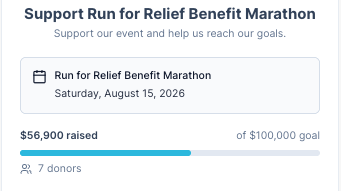
When potential donors can see that a campaign is active and making progress, they are more likely to donate, participate, and share the fundraiser with others. Public progress updates can also encourage friendly competition among participants, helping maintain excitement and motivation throughout the campaign.
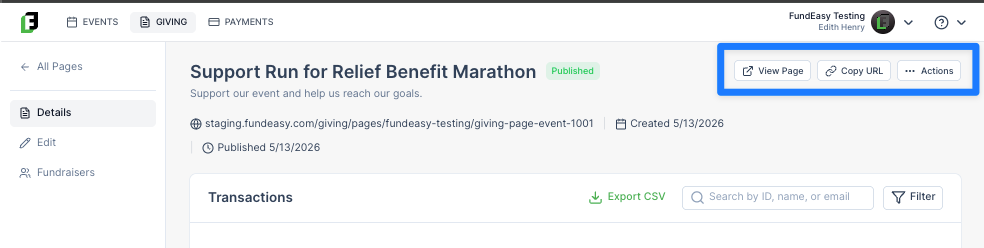
If your event is configured to display a progress bar, donors, registrants, and participants can also track fundraising activity by visiting the All Participants page for your Peer-to-Peer Fundraiser. A link to this page is available under Setup > Fundraising Settings > Details. Sharing this page regularly can help supporters stay informed and engaged throughout your campaign.
Fundraiser Reporting (Individual Participants)
Admin users can view the progress of each individual participant fundraiser by navigating within the event to Setup > Fundraisers.
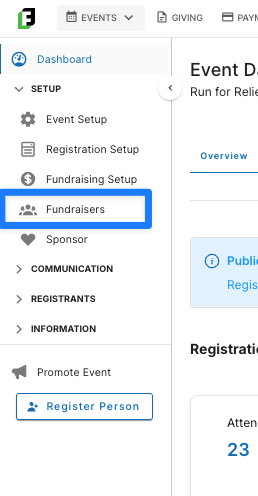
From here, admin users can drill down into each participant fundraiser to see the individual transactions collected through each page. In order to do this, click on the Action menu and select View Transactions.
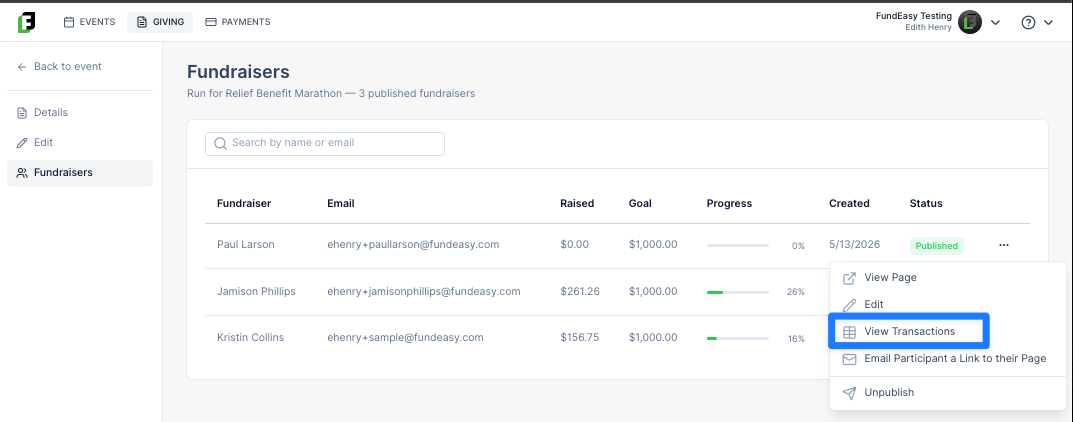
Event coordinators can understand which participants are driving the most engagement, while still maintaining a complete picture of total fundraising progress.
Transaction and Revenue Reporting (Accounting)
Visibility to all of the Peer-to-Peer event donations are accessible in both the Details page accessible via Setup > Fundraising Setup > Details,
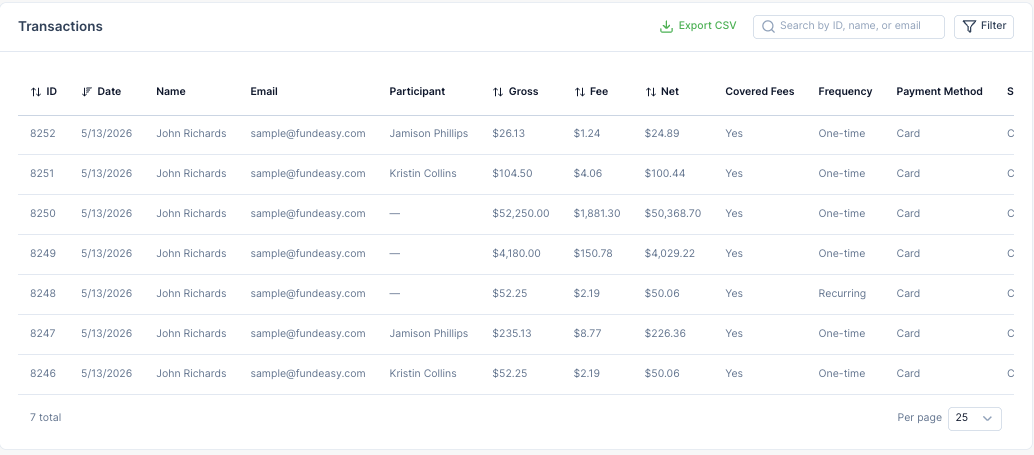
and via the Transactions page, which is found via Payments > Transactions.
All Peer-to-Peer event donations are recorded in the Transactions page under Payments > Transactions, where administrators can review fundraising activity in a single, centralized reporting view.
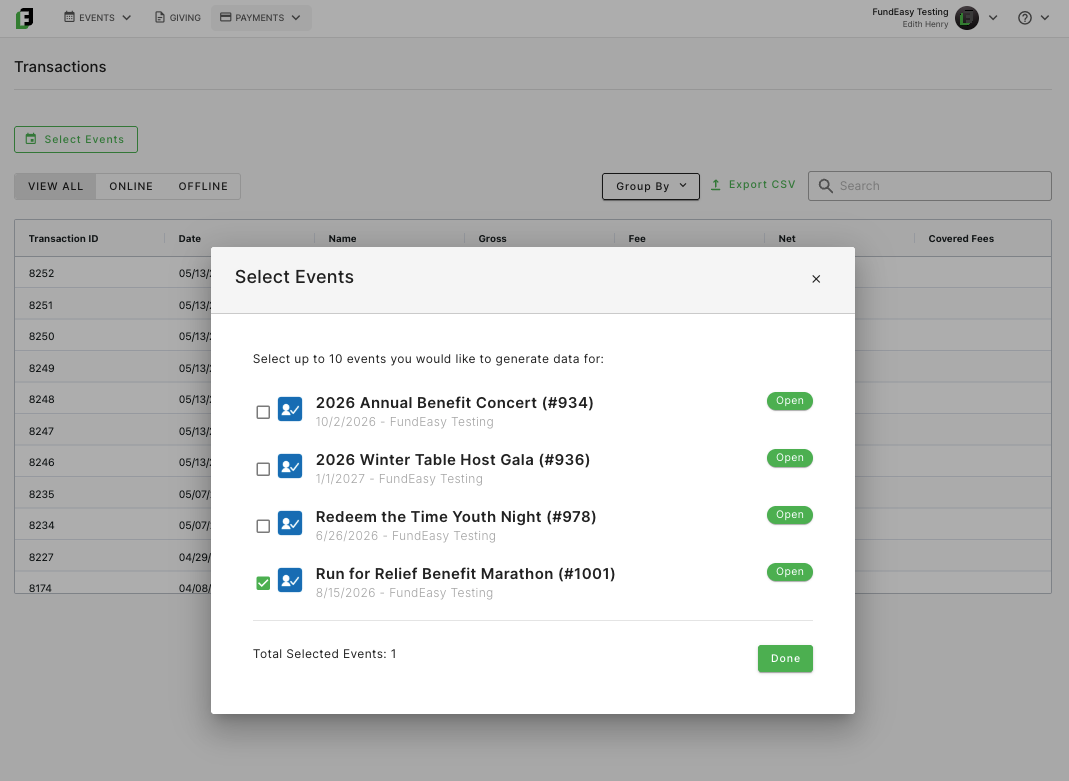
Each transaction includes clear attribution details identifying the event associated with the donation and, when applicable, the participant fundraising page through which the donation was made. This allows organizations to accurately track both participant-level and event-wide fundraising performance without requiring manual reconciliation.
Because all fundraising activity is centralized within FundEasy, reporting remains consistent across transaction records, dashboards, participant pages, event summaries, and public-facing progress meters. This unified attribution model makes it easier to audit donations, monitor campaign performance, and maintain accurate financial reporting throughout the event lifecycle.
For more details on how to report transactions, see https://helpcenter.fundeasy.com/articles/4133854-the-account-payments-dashboard.