Tagging Guests in Your Registration Manager
Written By Edith Henry
Last updated 5 months ago
If you are looking for more ways to group and label guests for easy sorting and reference, use the tags feature on the Group Guest List in the Registration Manager. This article covers the creation, editing, and assignment of tags, as well as how to group guests based on these tags for better organization.
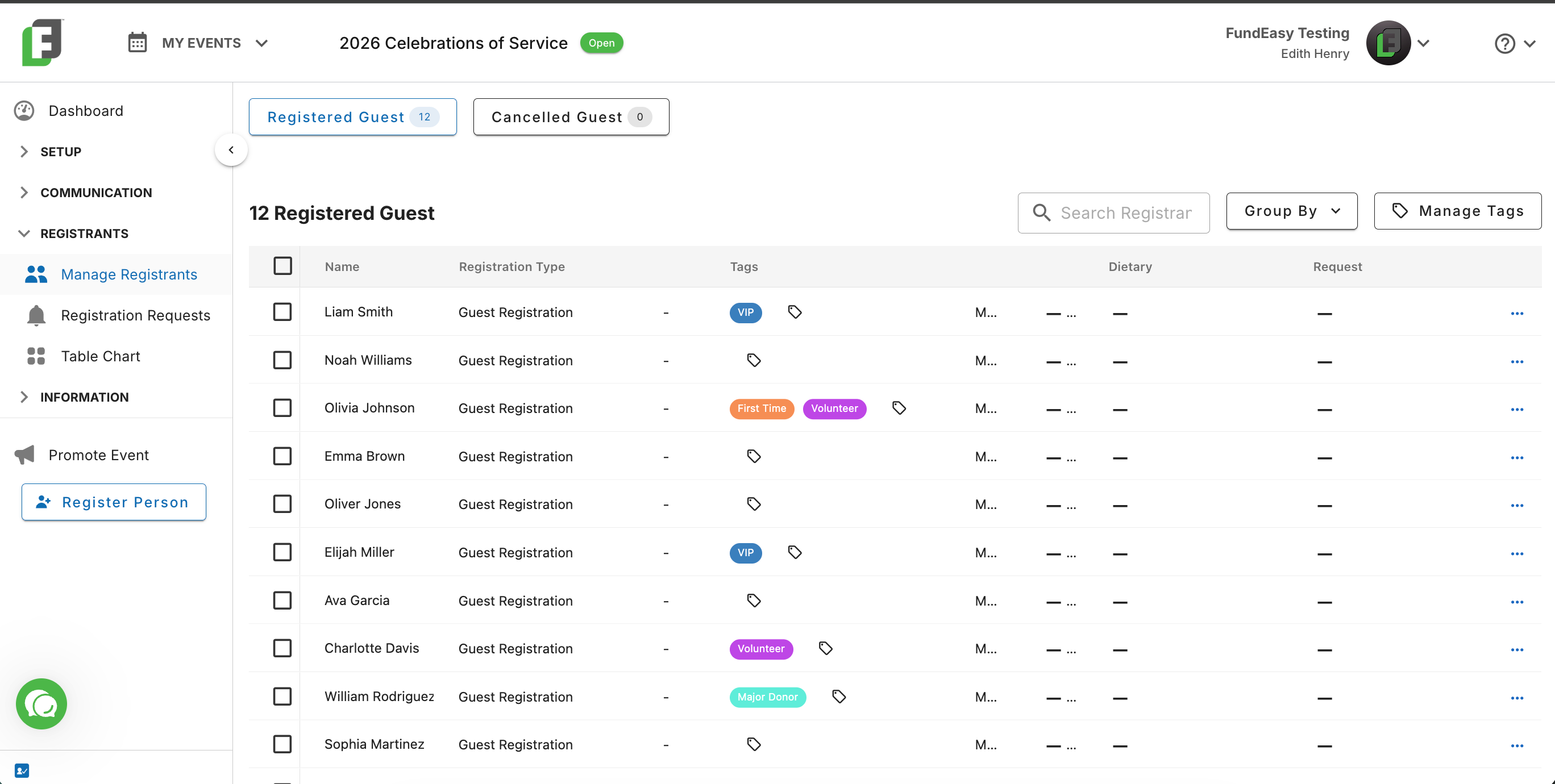
Managing Tags
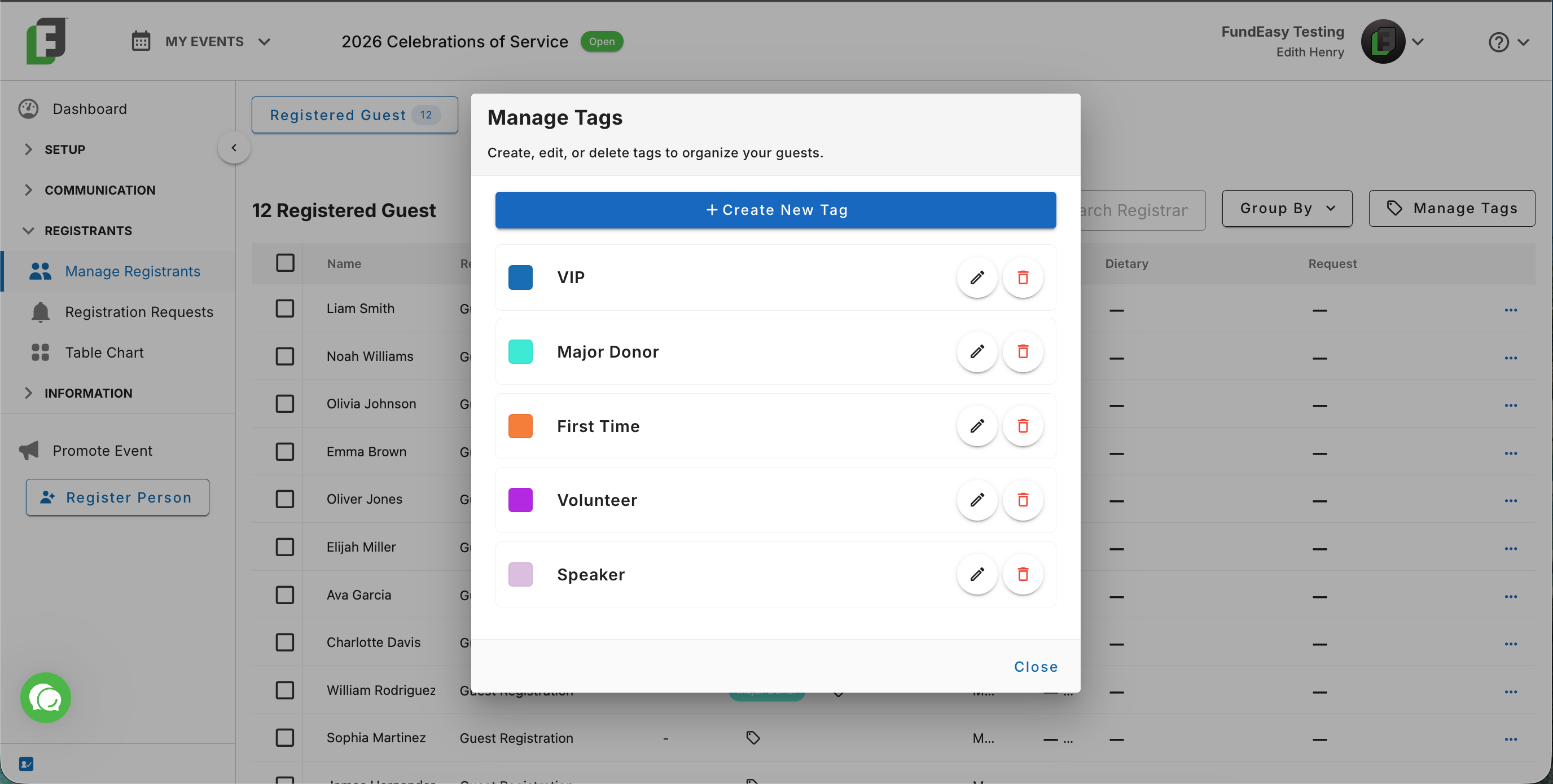
Every event, regardless of the event template, comes with a Manage Tags option on the Guest Registration view. To get you started with tagging, you can visit the Manage Tags modal to view the preset options, edit the preset options to have your preferred name or color, and even add brand new tags all your own!
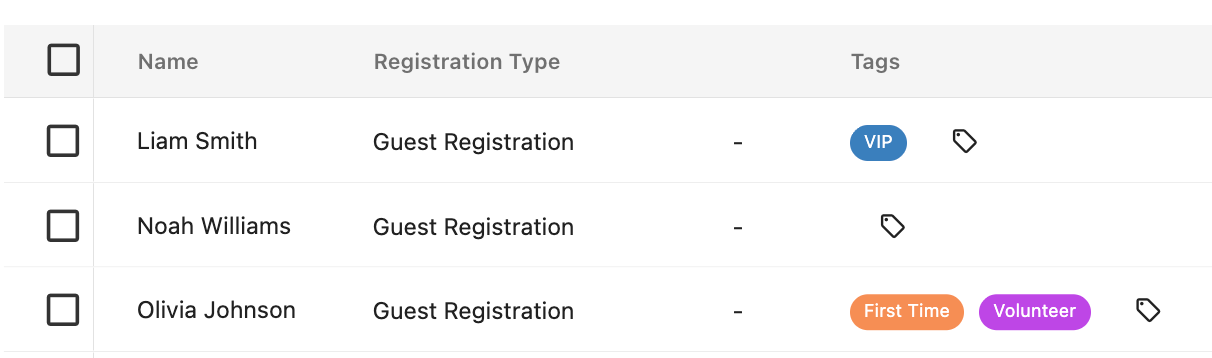
Assigning Tags to Guests
Once you have your tags how you want them, you can go to any guest, you can click on the tags option, and assign one or more tags.
Grouping Guests by Tags
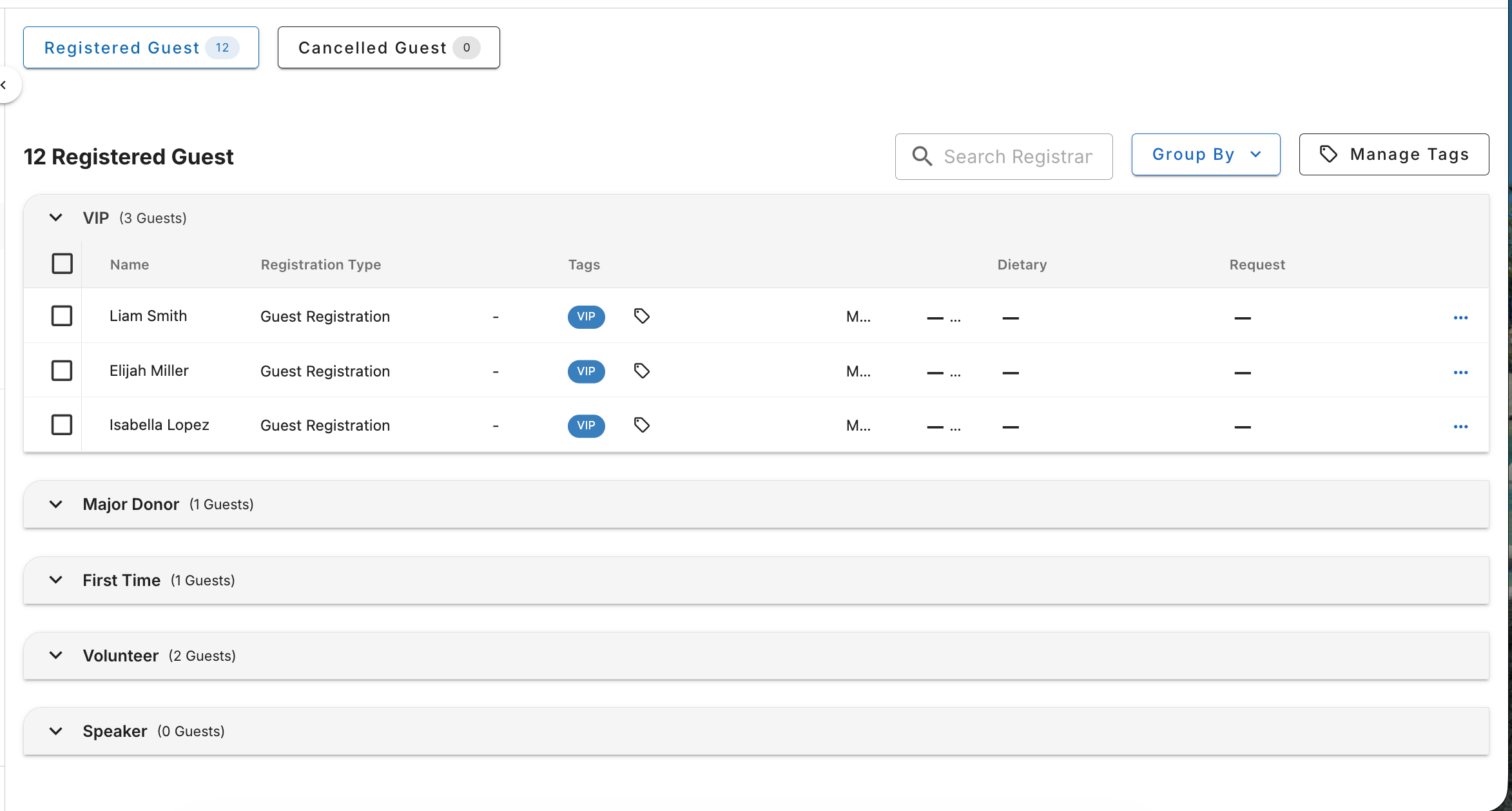
As you start tagging your guests, you’ll be able to use our super easy grouping tool to show all guests who share the same tag.
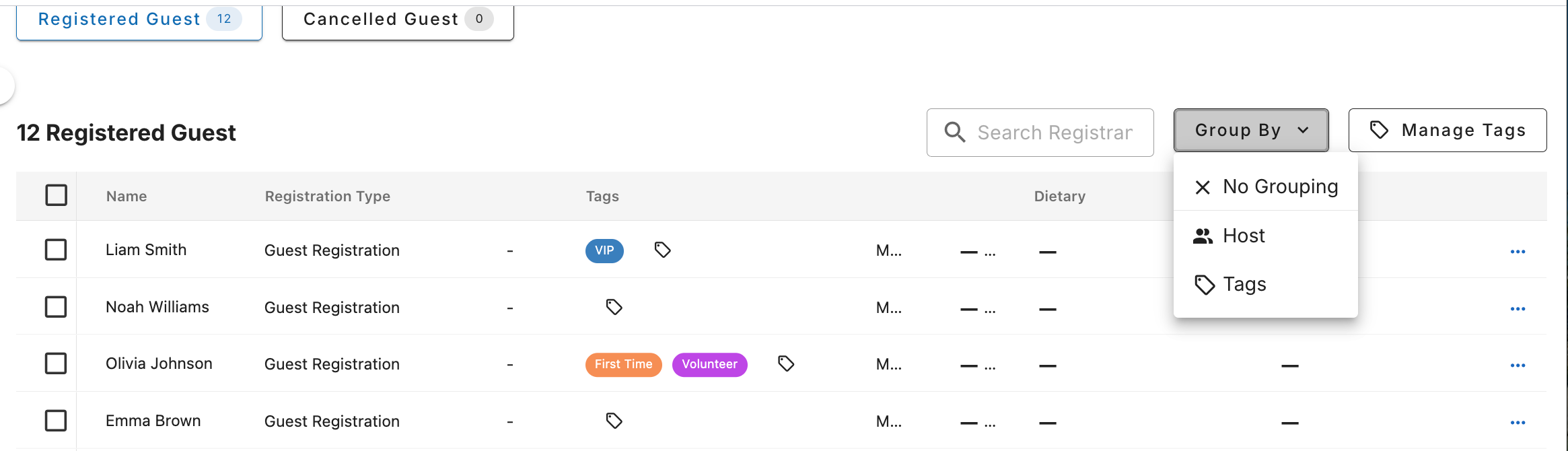
With the grouping option, you’ll see all your existing tags, complete with a list of every registrant currently using that tag.
Note that the primary purpose of this grouping is to ensure that everyone with that tag shows up together. Therefore, guests who have multiple tags will show up under multiple groupings. In this example screenshot, notice Olivia Johnson shows up as both a First Time participant as well as a Volunteer.
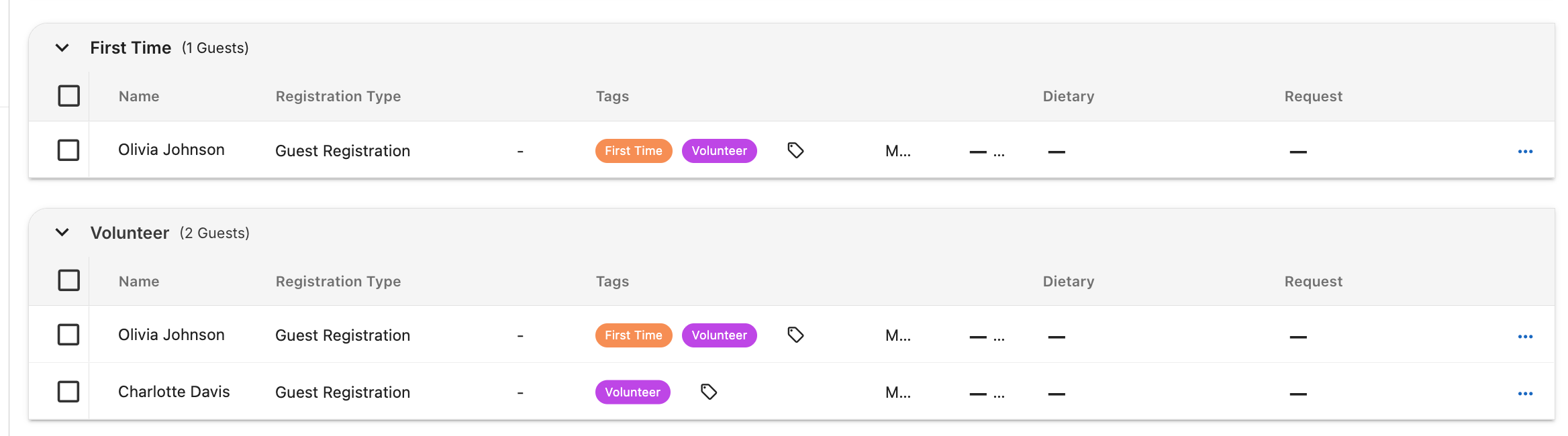
This feature allows you to have maximum clarity so that you can really drill down on who all is assigned to each tag.
There you have it! That is a quick overview of tagging, and we love that this brings to life some requests that we've had to use color coding and other ways to organize guests. Enjoy!