Registered Guest List
Written By Edith Henry
Last updated 4 months ago
For every event, you will need a way to quickly and easily see all your active registrations in one place. You will also need a quick way to answer important questions, such as these ones:
How many of my guests indicated a meal preference?
How many of my guests recorded a dietary restriction?
How many guests submitted a registration request?
Who is this guest’s host?
The place to answer all of these questions (and more!) is your Registration Manger, and specifically, your Registered Guest List.
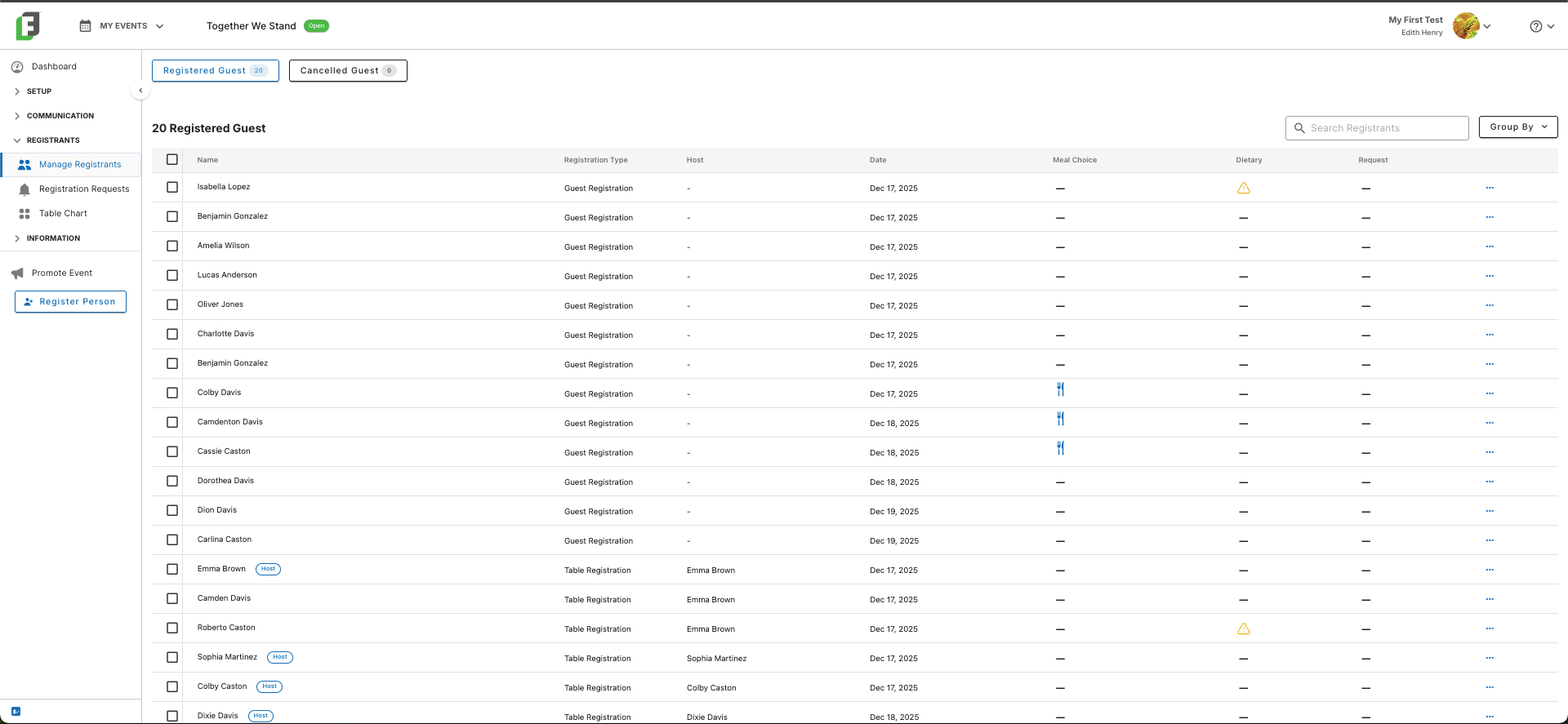
Viewing the Information in My Registered Guest List
Understanding the Icons
Many columns (such as Meal Choice, Dietary Restrictions, and Registration Requests) include icons for you to quickly see which guests have submitted a value for those form fields.
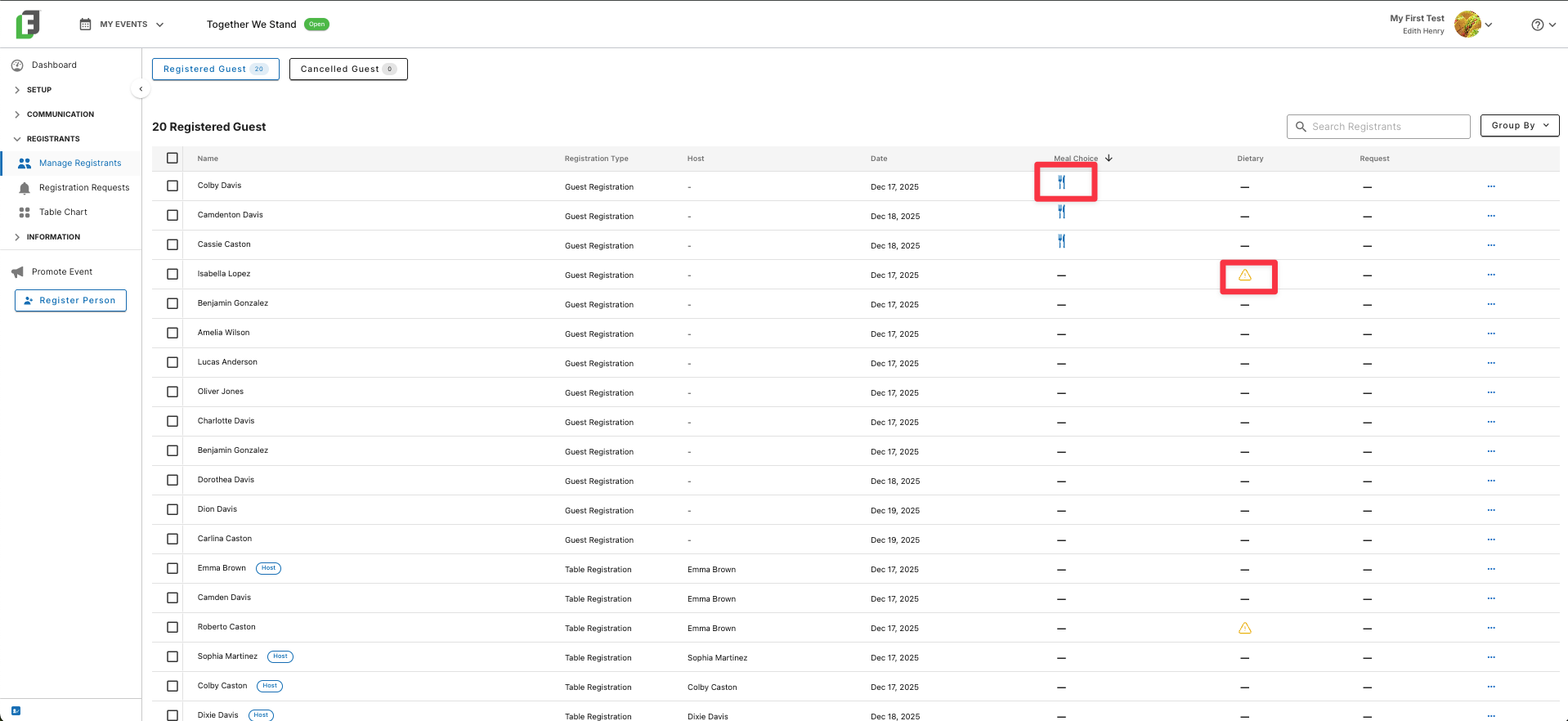
Use the icons as a quick way to identify which registrations may require attention from you.
Sorting Data
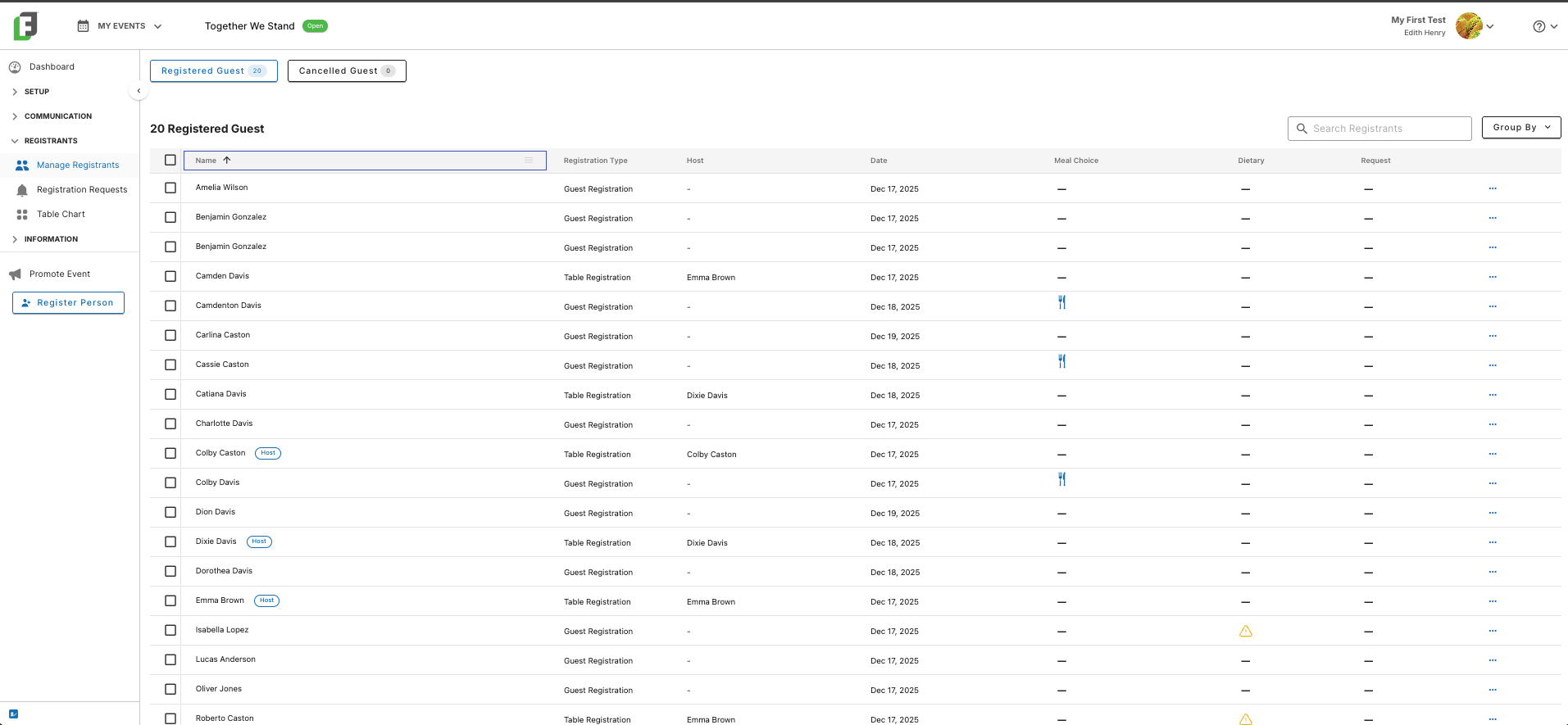
Are you trying to see registrations in a particular order—by name? by registration date?
Simply click on the column you want to sort by, and watch the data magically rearrange itself for you!
Pinning and Reordering Columns
If you want to limit your view to focus on only specific registrations, then access the filtering tool by hovering over the column you would filter by.
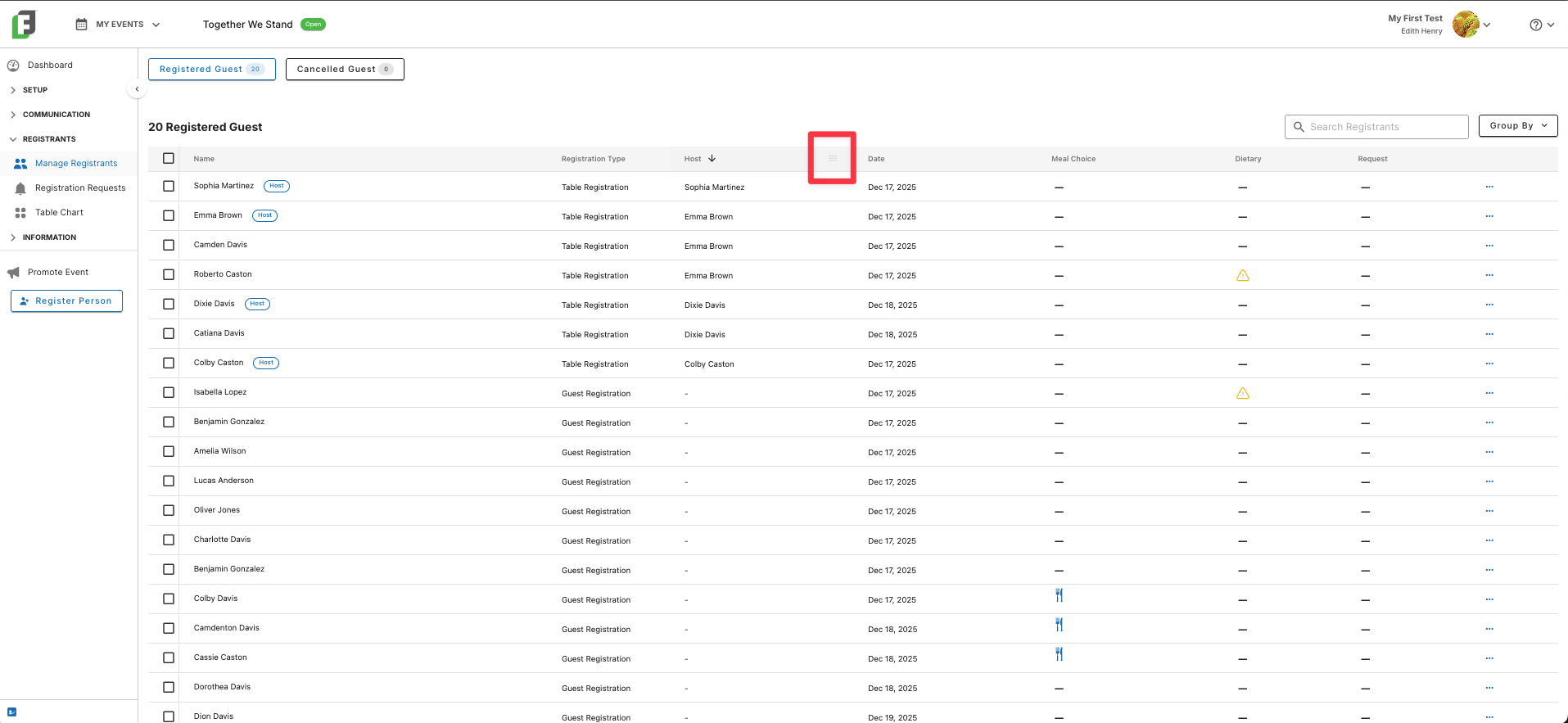
This will help you access tools allowing you to pin columns as well as resize columns.
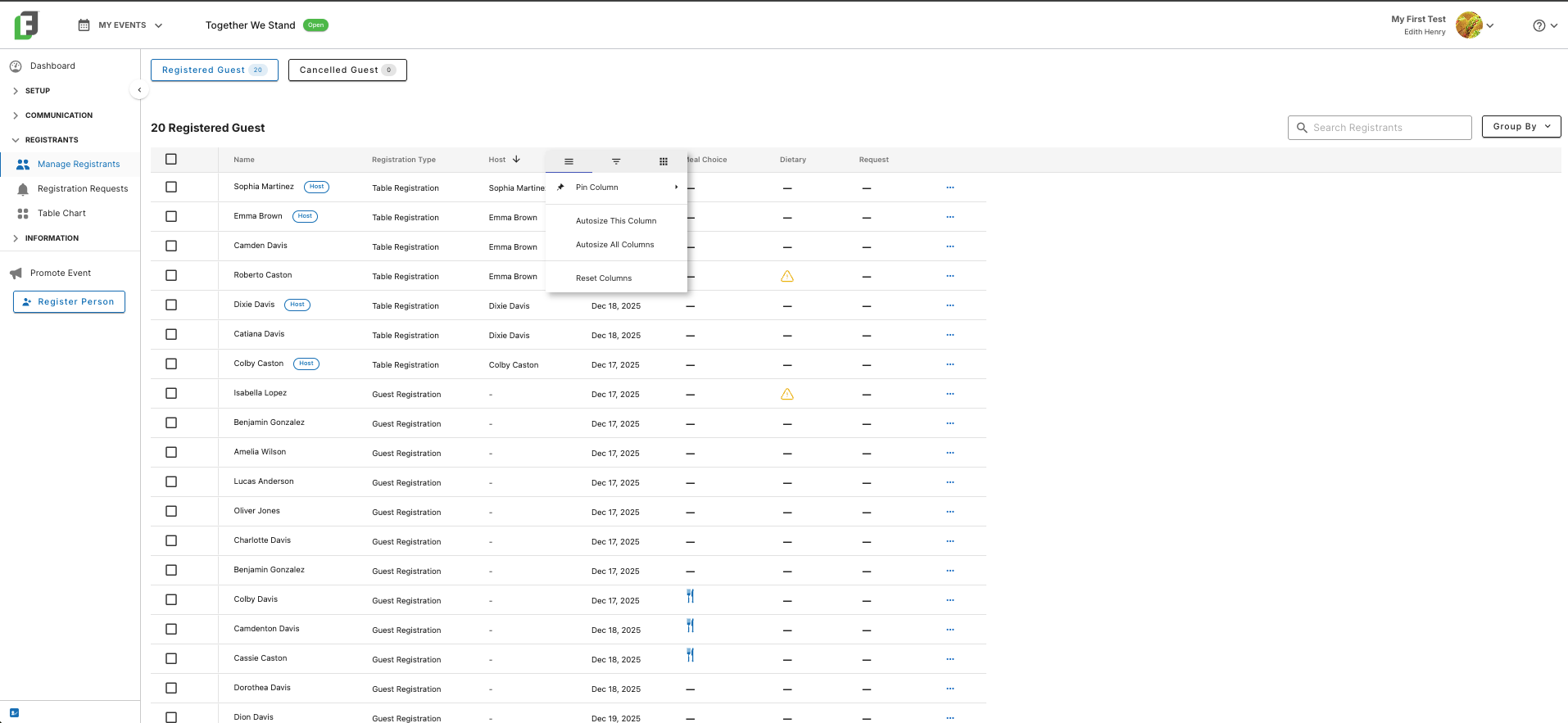
Or just grab the column header and drag the column to a different spot on the canvas!
Filtering for Specific Data
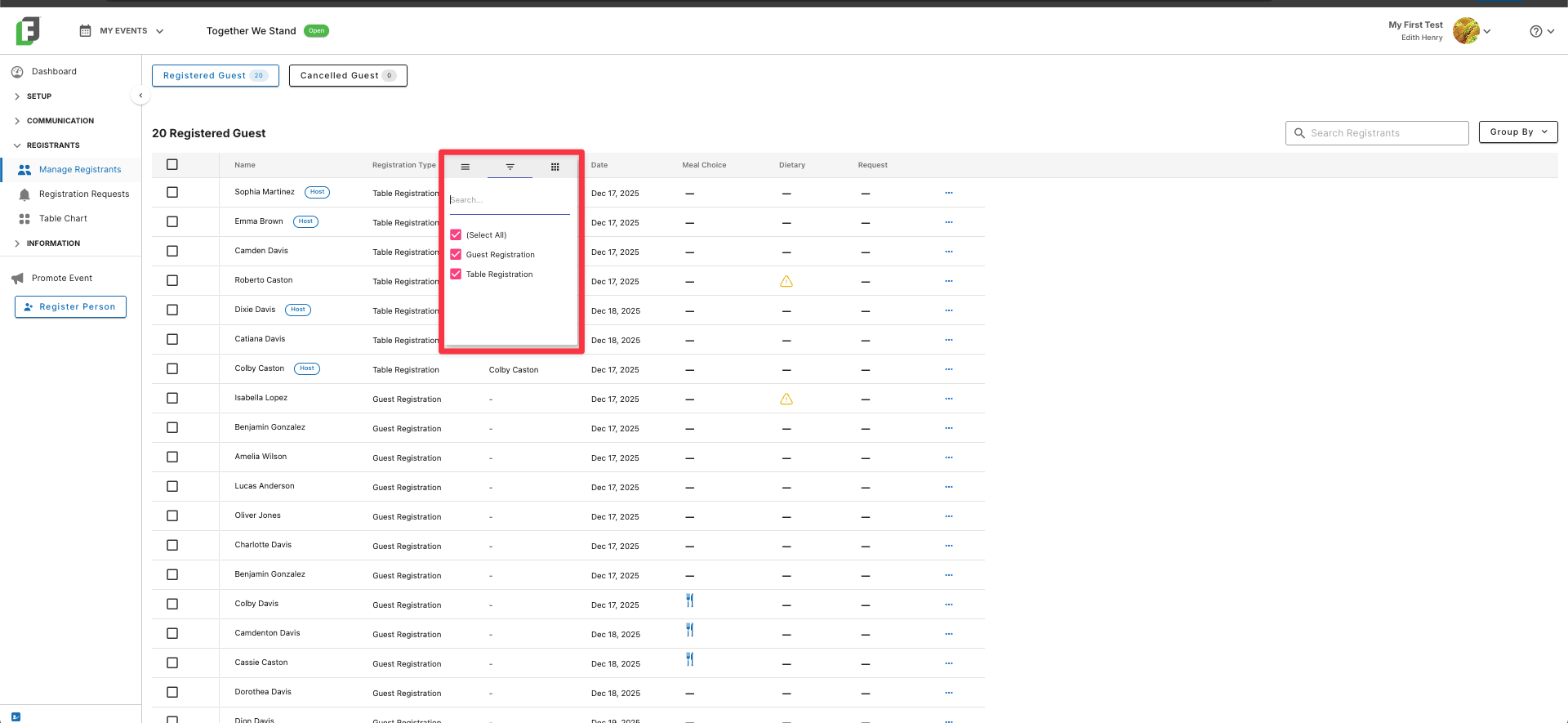
If you want to limit your view to focus on only specific registrations, then access the filtering tool by hovering over the column you would filter by. Once the menu appears, open the menu and go to the middle (“filter”) option. Select the fields you wish to display, and your guest list will automatically bring just those specific guests into focus.
Using the “Group By” Feature
For event that use Table Hosts, the “Group By: Host” feature gives you a quick way to see all the guests associated with a specific host.
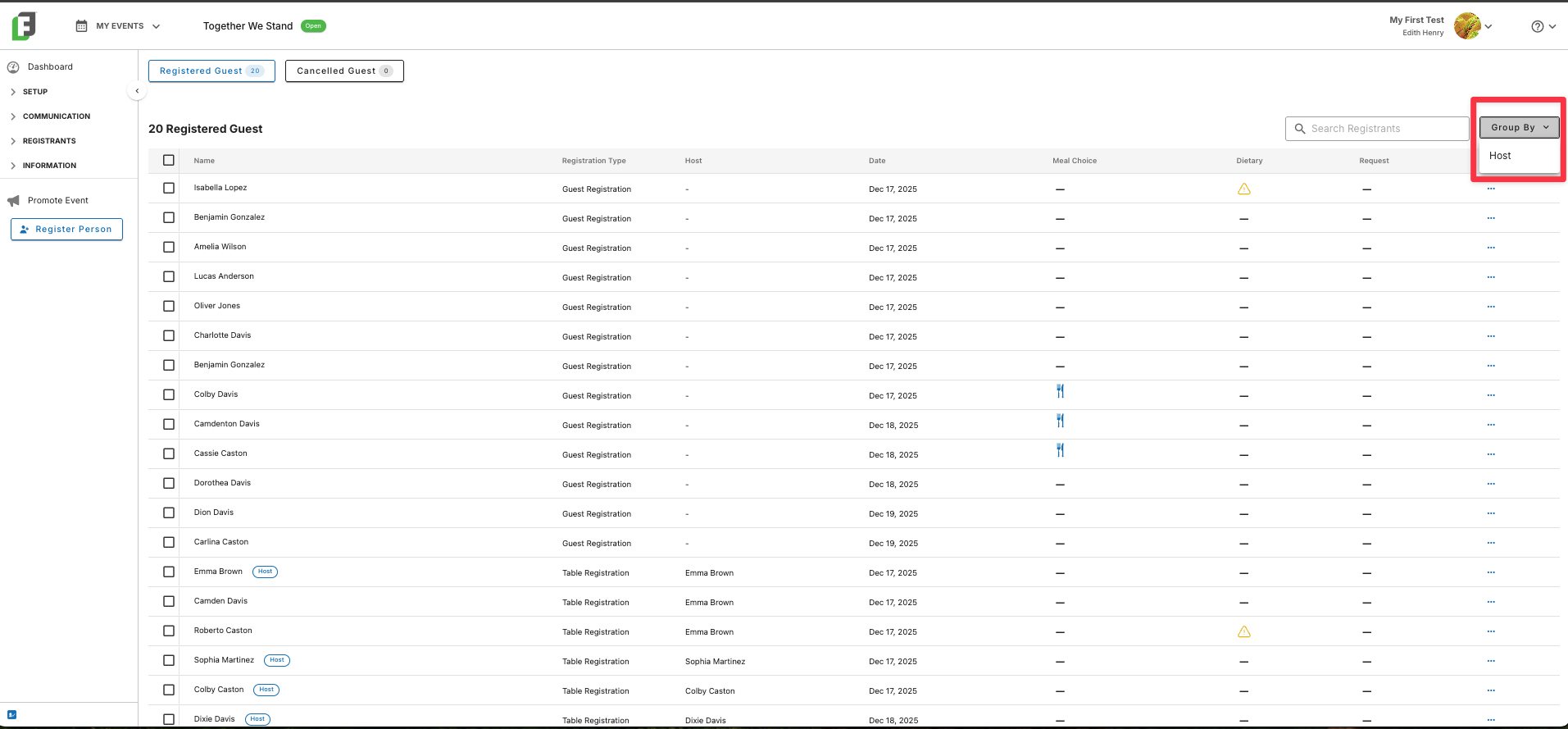
Using this feature sorts all your registrations by Table Host, allowing you to quickly see guest connections at a glance.
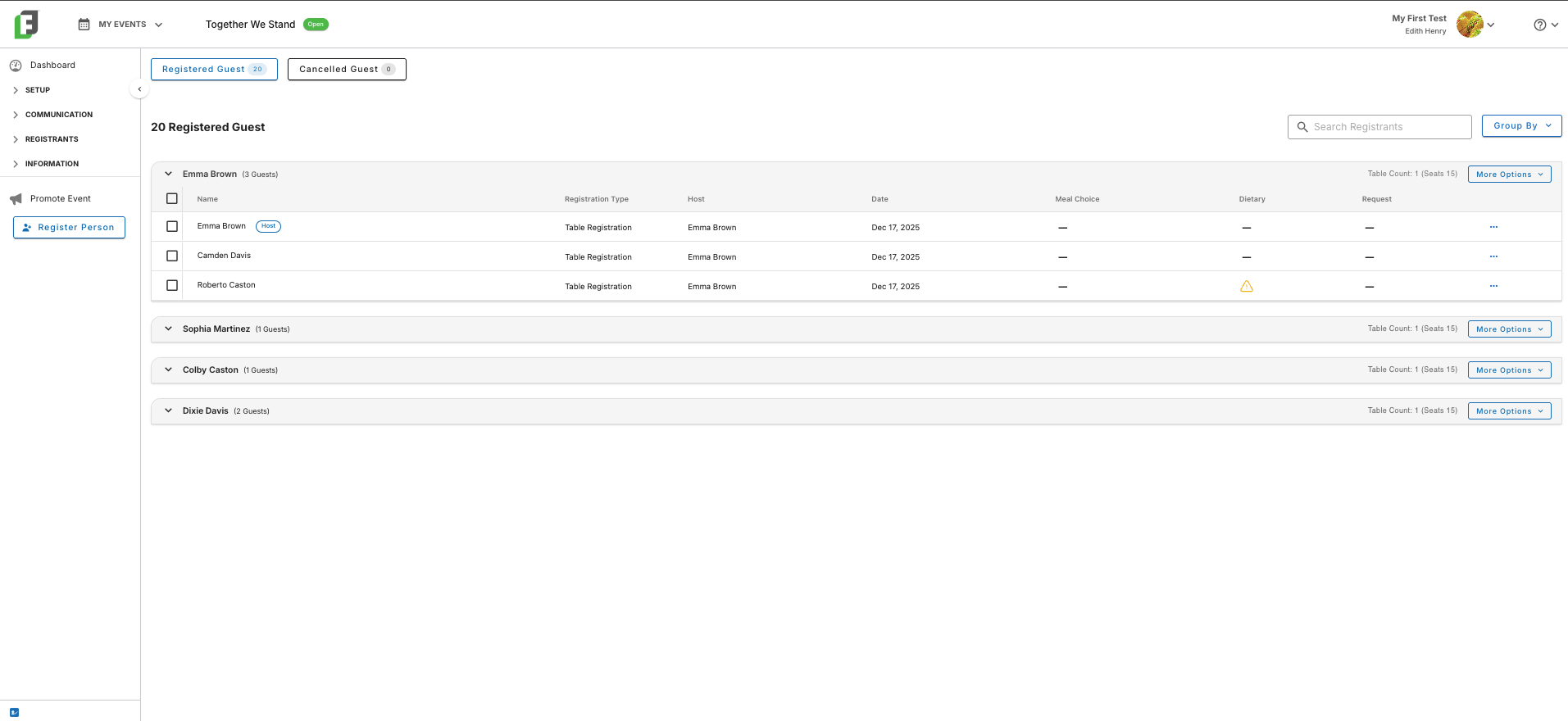
When you’re done using this view, simply unselect “Group By: Host” or refresh your screen.
Acting on Information in My Registered Guest List
For each guest, you can complete simple actions from the ellipsis menu on the right.
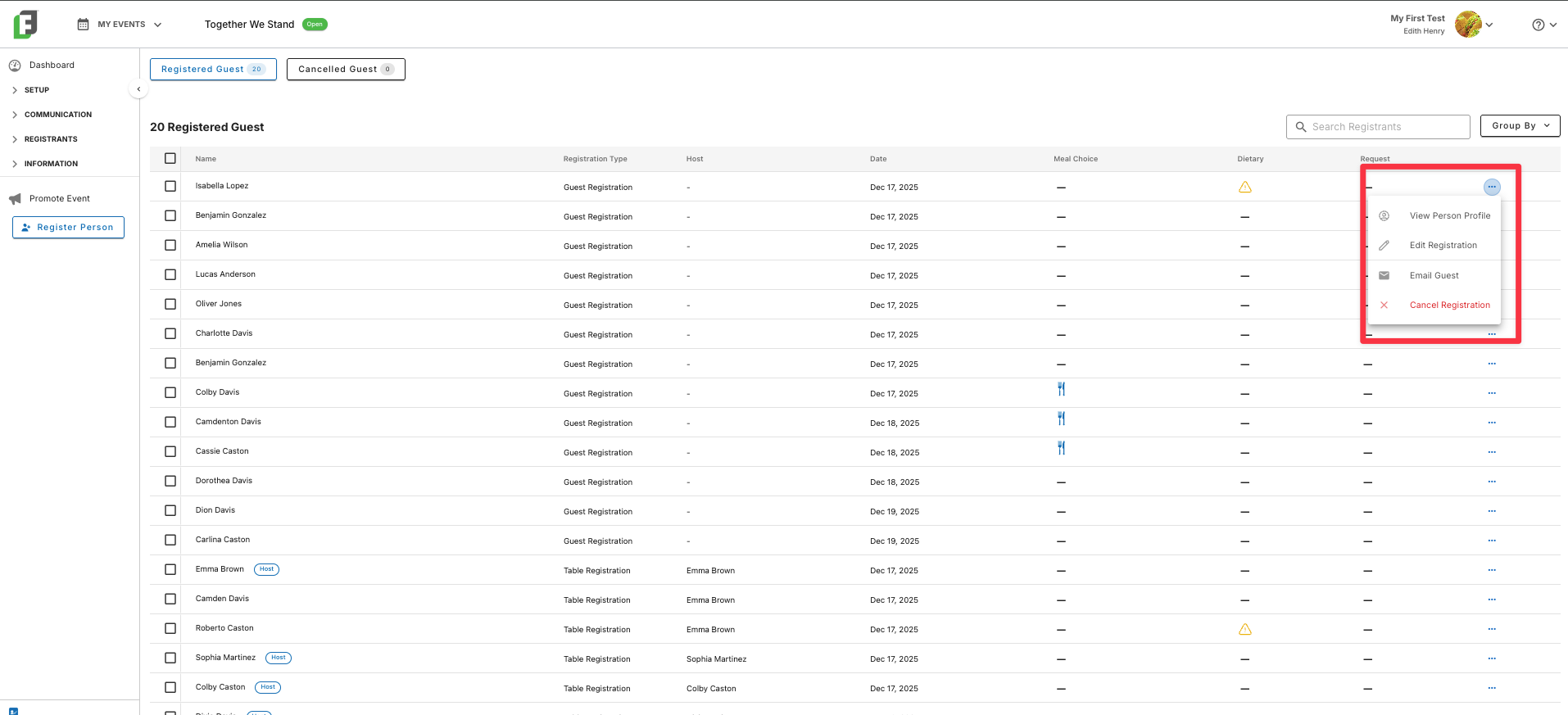
Quickly view someone’s profile, edit their registration form (such as, to add a meal choice), email the guest, or cancel a registration.