Building Your Registration Bundles
Registration Bundles let a single purchaser reserve multiple registrations as one package. They're perfect for sponsored tables, golf foursomes, corporate packages, and other situations where one person is reserving seats for a group.
After you've completed your event setup, you'll find the Registration Bundles section on your Registration Setup dashboard. Every event begins with a default bundle, and you can create additional bundles whenever your event needs them.
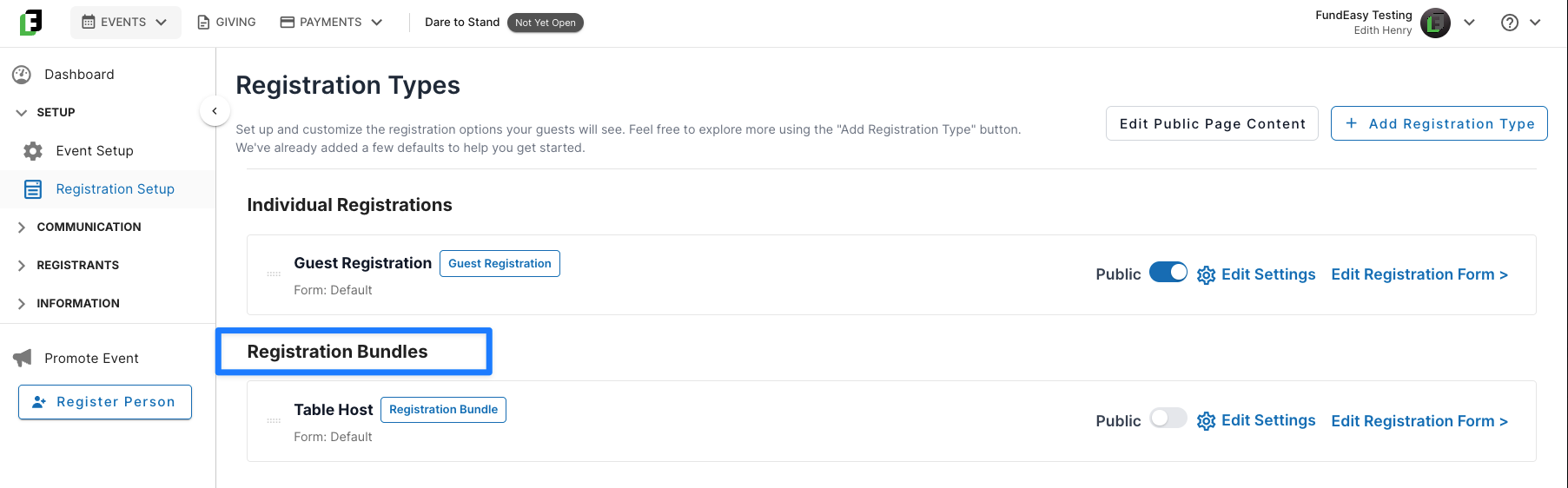
Creating a Registration Bundle
Each registration bundle has a few simple settings that determine how it works.
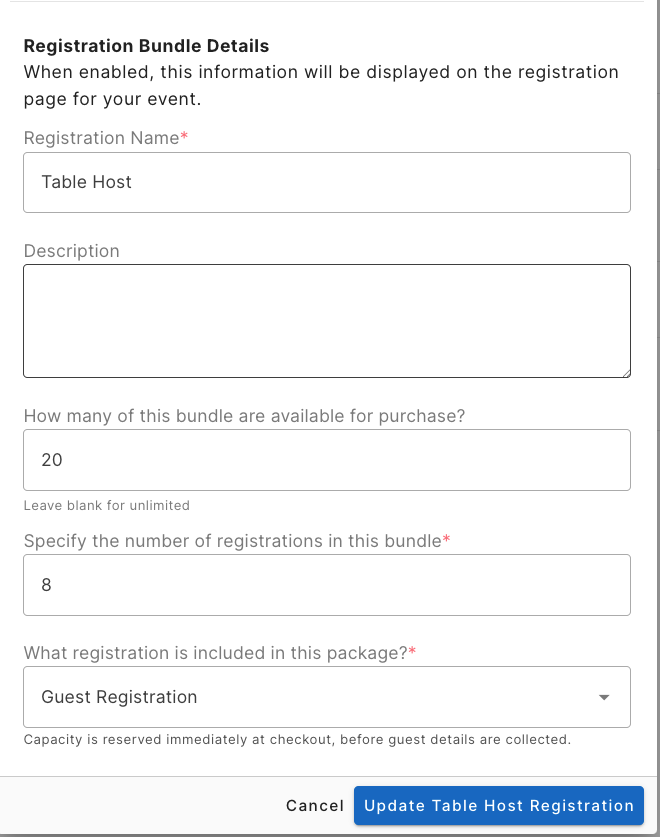
Registration Name: Start by giving the bundle a name that makes sense for your event, such as Table of 8, Golf Foursome, Family Bundle, or Corporate Package.
Description: If your bundle needs a description, you can use this field to provide more details, context, or instructions.
How many of this bundle are available for purchase: Next, choose how many of that bundle can be reserved. For example, if your venue has 20 sponsored tables available, you could limit the bundle to 20 so no more than 20 tables can be purchased.
Specify the number of registrations in this bundle: You'll also specify how many registrations are included in each bundle. For example, if you're selling tables of eight, you would enter 8. This number determines how many spots are reserved every time someone purchases that bundle.
What registration is included in this package: Finally, choose which registration type should be included with this bundle. If your event offers multiple registration types, select the one that best fits this package. If your event only has one registration type, then you will use that one by default.
Understanding the Inherited Guest Information
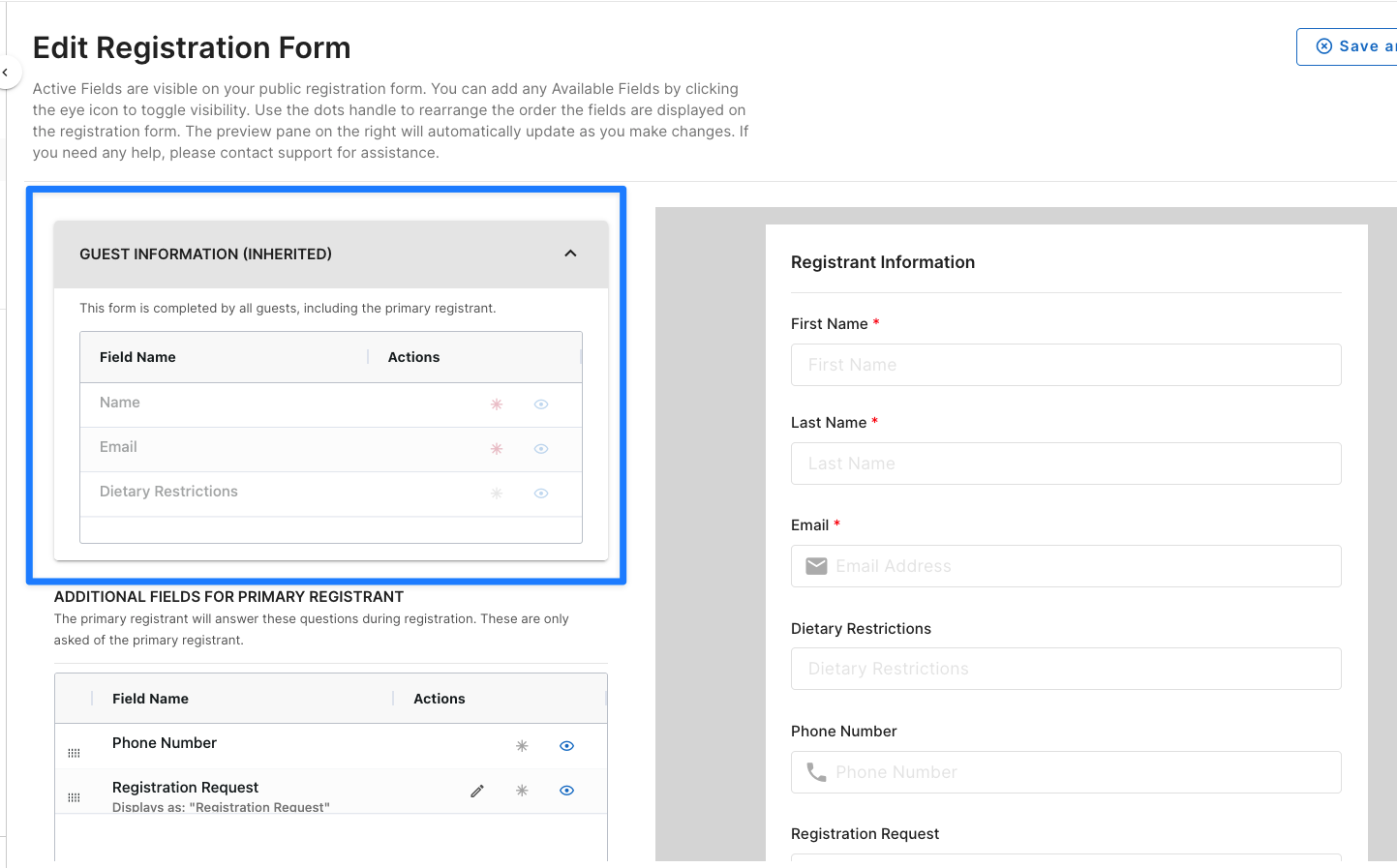
Every bundle is linked to one of your standard guest registration types. Because of that, the bundle automatically inherits the registration form from the linked guest registration.
The primary registrant is still attending your event, so they'll complete the same registration information as every other guest. If all attendees are asked to select a meal preference, agree to an acknowledgement, or answer other registration questions, the primary registrant will answer those questions as well.
At the top of the bundle's Form Builder, you'll see a Guest Information (Inherited) section. These fields are displayed for reference and are managed by your standard guest registration form.
If you need to update any of these inherited fields, simply return to your main Registration Setup dashboard and edit the linked guest registration form. Any changes you make there will automatically appear in the bundle registration.
Adding Questions for the Primary Registrant
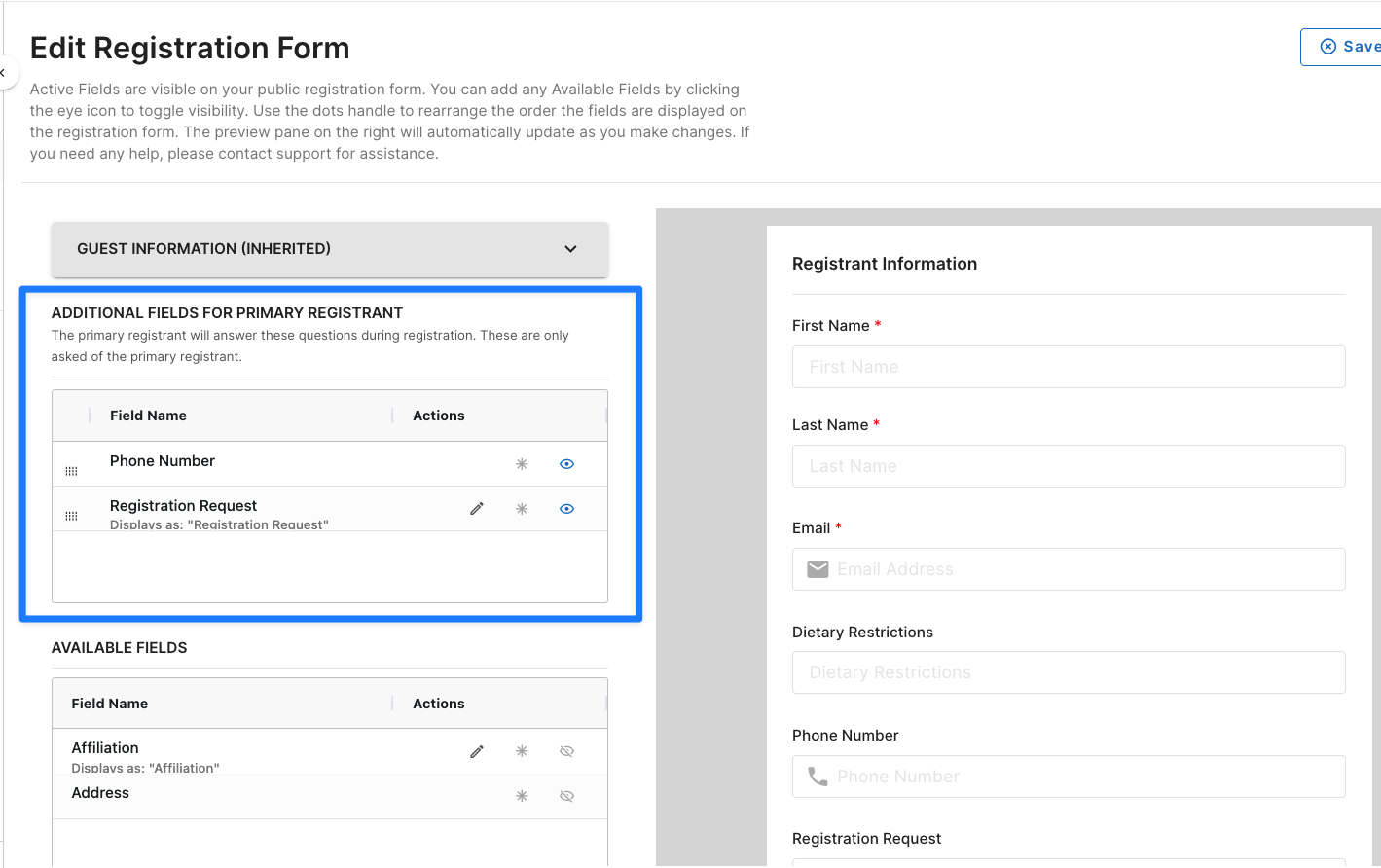
In some cases, you may want to collect additional information that applies only to the person purchasing the bundle.
For example, if the primary registrant will serve as a table host or team captain, you may want to ask for information that isn't needed from the other attendees. You might also collect a phone number, special registration requests, or other details specific to the primary registrant.
Below the inherited guest information, you can enable additional preset fields or create custom questions just for the primary registrant. These questions are displayed only to the person purchasing the bundle and will not appear for the other registrations included in the package.
What Happens After Someone RSVPs with a Bundle Reservation/Purchase?
After someone reserves a registration bundle, the primary registrant receives access to the Host Manager Tool.
The Host Manager Tool displays each registration included in the bundle and allows the primary registrant to assign those reserved spots to the people who will be attending. For example, someone who purchases a table of eight will be able to fill all eight reserved registrations through the Host Manager Tool.
For more information on the Host Manager Tool, you can refer to https://helpcenter.fundeasy.com/en/articles/7702472.
Was this helpful?
Still need help? Ask the team