The Guest List Tool for Bundle Registration Events
In Bundle Registration events, the Guest List Manager is designed to help hosts fill a fixed number of pre-reserved seats.
Instead of building a guest list from scratch, the host is starting with a completed bundle—like a table of 8 or a golf foursome—where all seats are already reserved at the moment of registration. The remaining job is simply assigning people to those seats.
How bundle reservations work
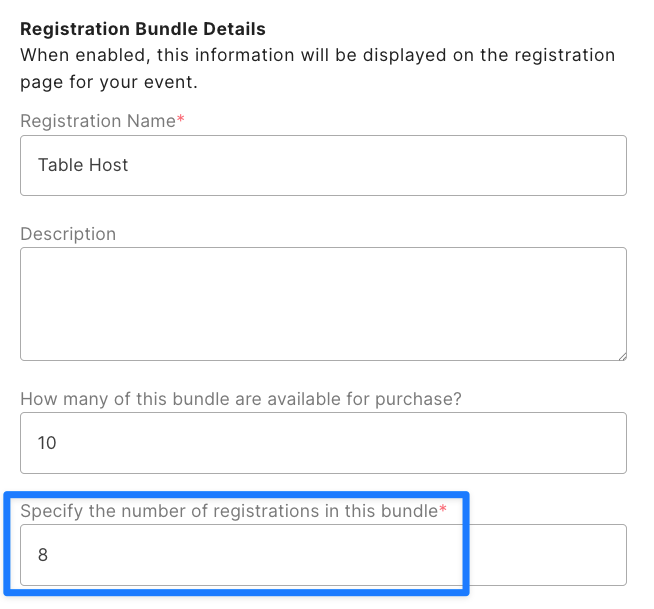
When you set up a Bundle Registration, you are defining a group of seats, tickets, etc., that are purchased or reserved together.
For example, you might create bundles such as:
Table Bundle (8 seats)
Golf Foursome (4 seats)
Sponsor Package (10 seats)
Each bundle has a fixed number of registrations attached to it. Once someone registers under that type, those seats are immediately reserved and removed from overall availability.
One important detail: the host typically occupies one of those seats automatically, and the rest remain available for them to assign.
So a Table of 8 means:
1 seat is used by the host
7 seats are still open for guests they choose or invite
What the host sees in their Guest List Manager
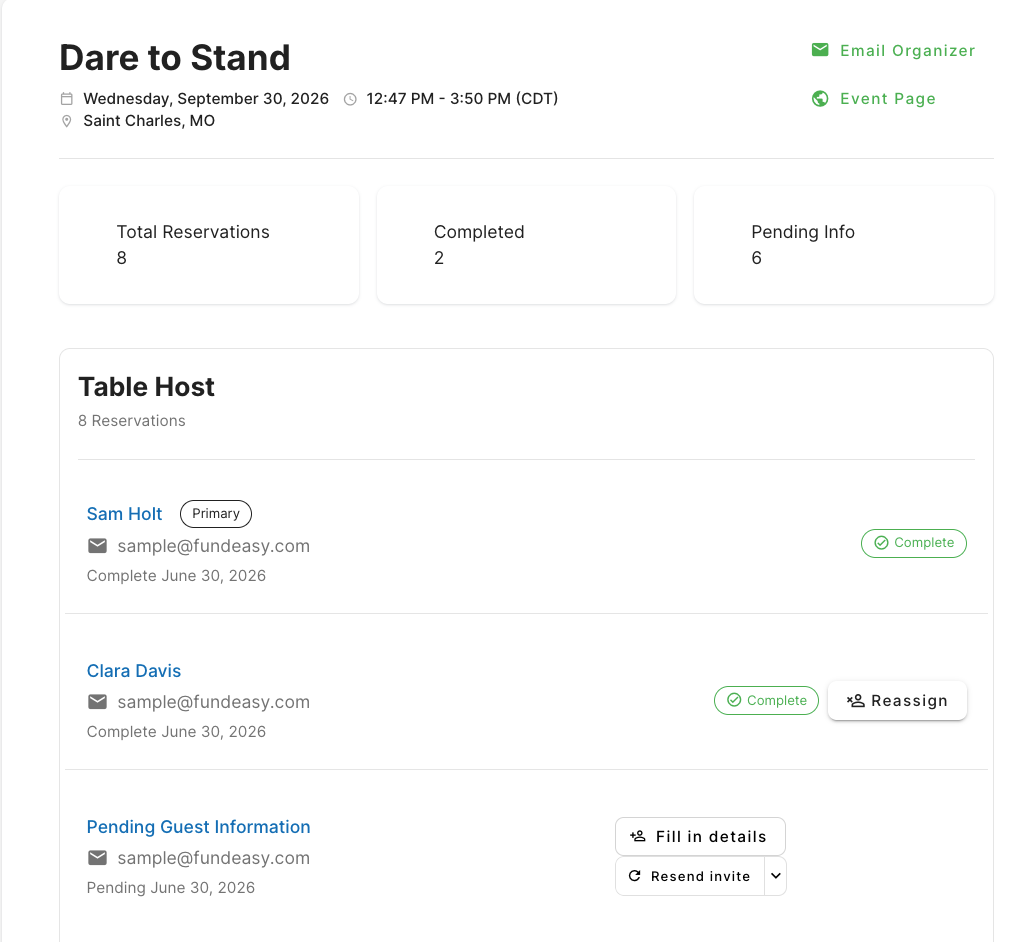
Once registered, the host is taken into their Guest List Manager view for that bundle. This view is intentionally simple: it shows their total reserved seats and how many are still unfilled.
Each seat appears as part of their bundle, and they can move through them one by one until everything is assigned.
At this point, the event capacity has already accounted for all of those seats, even before guest details are filled in. The system is simply helping the host distribute them.
Filling seats: two ways to complete the table
From here, hosts generally take one of two approaches depending on how organized their guest list already is.
Option 1: Enter guests directly
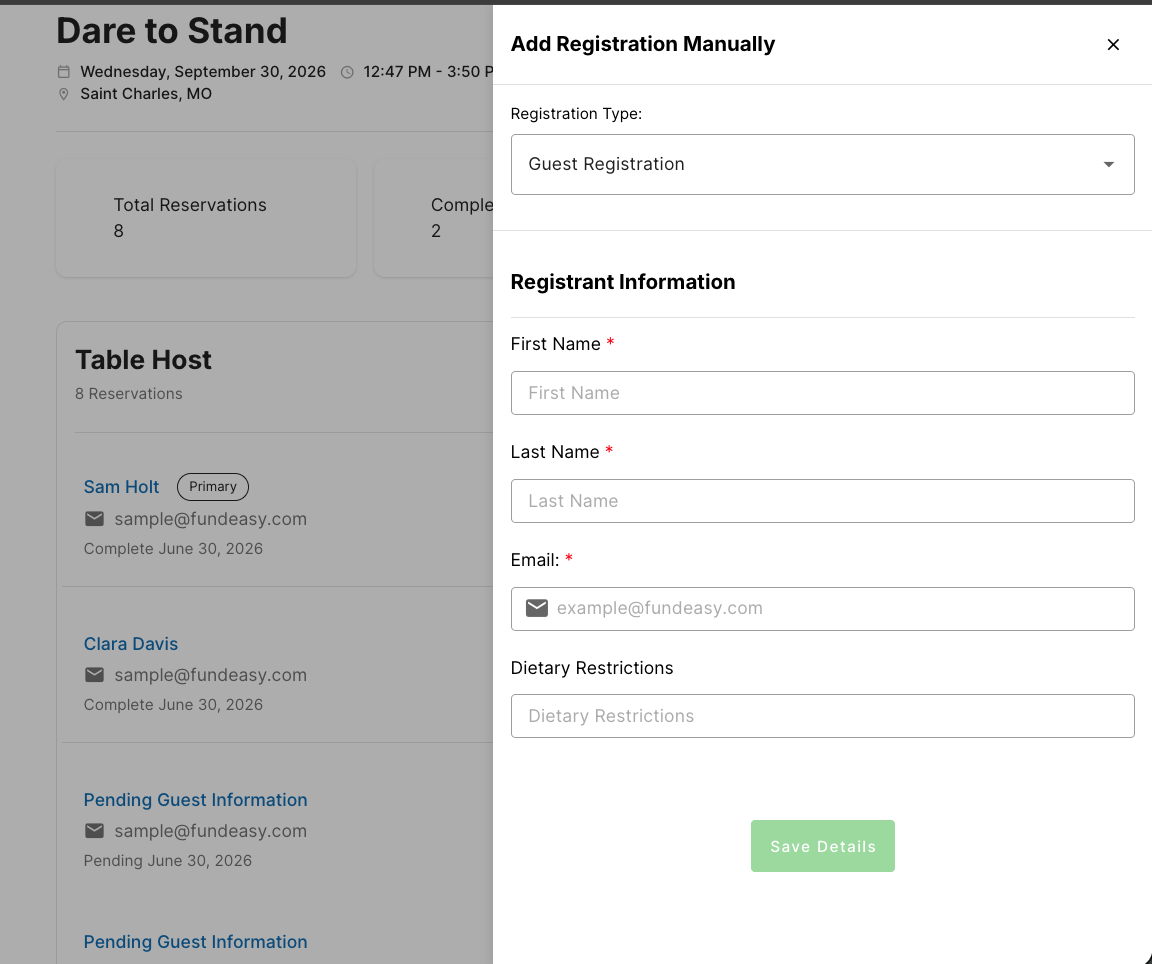
If the host already knows who is attending, they can assign seats manually.
They simply open an empty seat, enter the guest’s details, and save. That seat is then fully assigned and no longer available for changes unless they choose to reassign it later.
This is the fastest option when the guest list is already finalized or mostly known.
Option 2: Invite guests to fill their own seat
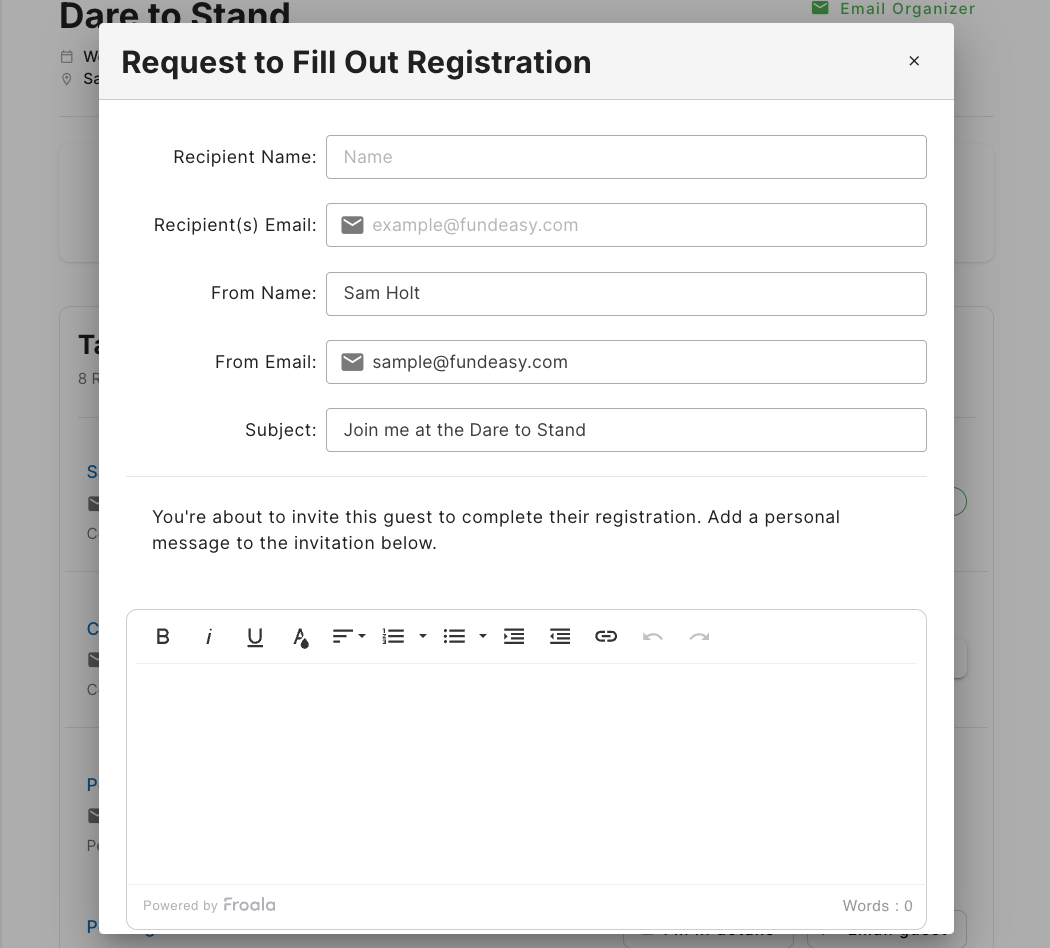
If the host doesn’t want to enter details themselves, they can send an invitation to a guest instead.
The system lets them email a specific seat to someone, along with a personal message. That guest then completes their own registration through the link they receive.
Until the guest finishes, that seat remains marked as pending in the Host Manager so the host can easily track what’s still outstanding.
This approach is especially useful when hosts are coordinating with multiple attendees and don’t want to collect everyone’s details manually.
Making changes after seats are assigned
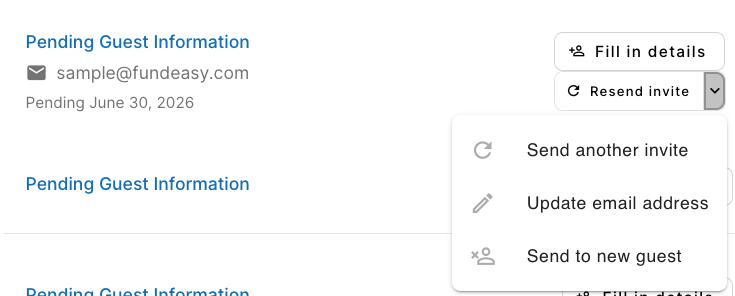
Plans change, and the Guest List Manager accounts for that.
If a guest can no longer attend, the host can reassign that seat to someone else. This removes the previous assignment and frees the seat to be filled again.
Similarly, if an invitation was sent but circumstances change, the host can resend the invite or redirect the seat to a different guest entirely.
The key idea is that the seat remains part of the original bundle—the host is just deciding who ultimately fills it.
The core idea
The Guest List Manager is really about one thing: helping hosts finish filling seats they already own.
The reservation is already locked in at the bundle level. The tool simply gives them a structured way to distribute those seats—whether by entering guests themselves or sending out invitations for guests to complete their own registration.
Was this helpful?
Still need help? Ask the team