The Payouts Dashboard
Understanding the Payouts Dashboard
The Payouts dashboard helps you reconcile the deposits that reach your bank account. Rather than showing individual donations or registrations, this page displays the transfers (payouts) that Stripe sends to your bank.
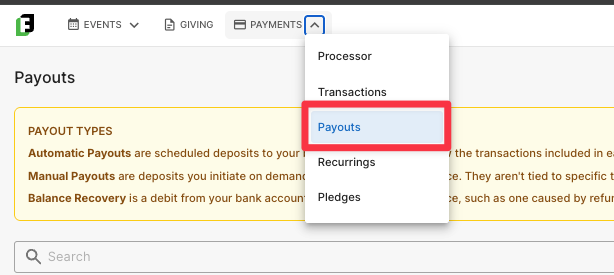
To access the dashboard, navigate to Payments > Payouts.
Types of Payouts
There are three types of payouts you may see on this page.
Automatic Payouts

Automatic payouts are the standard, scheduled deposits sent to your bank account based on the payout schedule you selected when connecting your Stripe account.
Each automatic payout displays:
Payout ID
Payout Type (Automatic)
Deposit Date
Deposit Amount
The deposit amount is often made up of multiple transactions, such as donations, registrations, or other payments that were processed before the payout date.
Manual Payouts

Manual payouts occur when you choose to transfer funds to your bank outside of your normal payout schedule.
Unlike automatic payouts, manual payouts are not tied to specific transactions. Because you are transferring your available account balance rather than a predefined group of payments, Stripe no longer maintains a direct relationship between that payout and the individual transactions that funded it.
As a result, manual payouts do not include a "View Transactions" option.
If your organization regularly reconciles bank deposits back to individual transactions, we recommend relying on automatic payouts whenever possible.
Balance Recovery Payouts
Balance recovery payouts are uncommon but may occasionally appear.
This occurs when your Stripe account has a negative balance. For example:
All available funds have already been transferred out of Stripe.
A refund or other debit is initiated afterward.
Stripe automatically recovers the negative balance by debiting your connected bank account.
Most organizations will rarely encounter this type of payout.
Viewing the Transactions Included in an Automatic Payout
One of the most useful features of the Payouts dashboard is the ability to see exactly which transactions make up an automatic bank deposit.
To do this:
Open Payments > Payouts.
Locate the automatic payout you want to reconcile.
Click View Transactions.

You'll be taken to the Transactions dashboard with a filter automatically applied for that payout's Payout ID. This filter displays only the transactions included in that specific bank deposit, making it easy to reconcile the amount shown on your bank statement.
Note: The View Transactions option is available only for automatic payouts. Because manual payouts are not linked to specific transactions, this option is not available for manual payouts.
When Should I Use the Payouts Dashboard instead of the Transactions Dashboard?
Use the Transactions dashboard when you want to view or search all individual payment transactions.
Use the Payouts dashboard when you want to understand which transactions were grouped together into a specific bank deposit.
Was this helpful?
Still need help? Ask the team