Setting Up Your FundEasy/eKyros Centerpiece Integration
How to Generate Your eKyros Centerpiece API Key
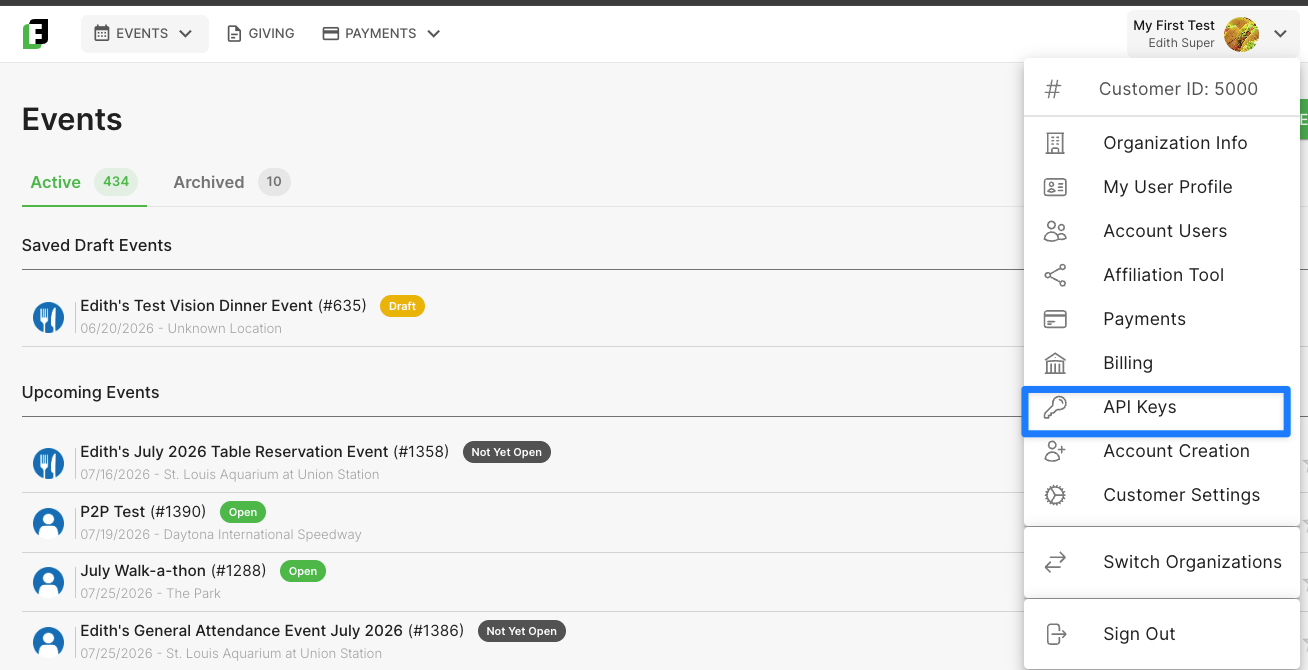
To get started with your FundEasy / eKyros Centerpiece integration, first navigate to your user menu and select “API Keys” from the dropdown.
NOTE: You must be an owner on your account in order to see this feature. If your role has lower permission levels, you will need an owner to complete this step on your behalf.
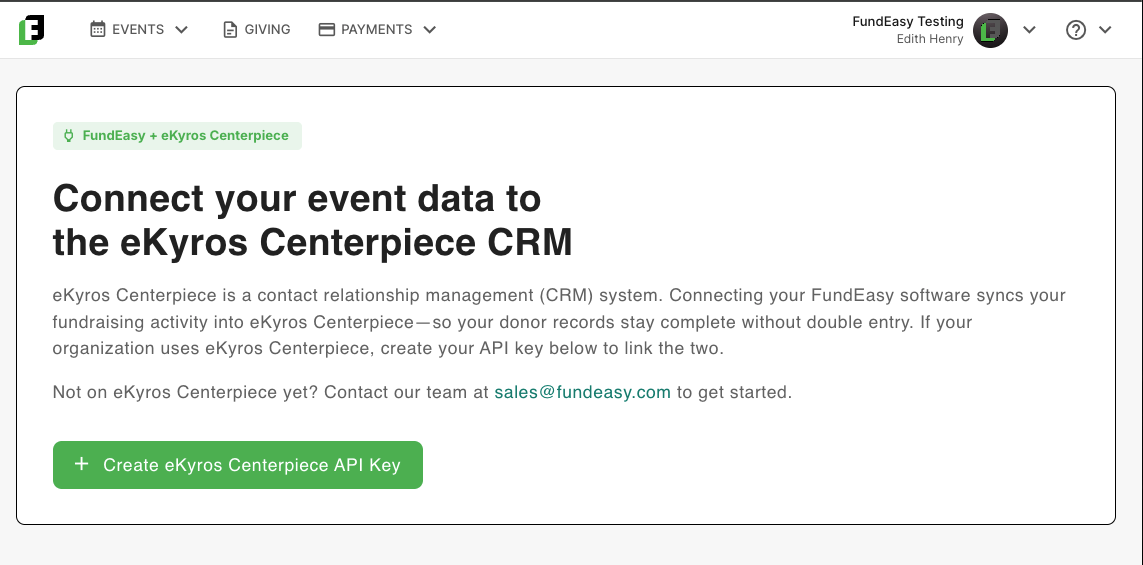
You’ll be taken to a landing page with a button labeled “Create eKyros Centerpiece API Key.”
Once you click the button, you’ll be shown your API key. You’ll want to copy it carefully, since the key will no longer be visible once you close out of this modal.

Once you copy the API key, you’ll be able to navigate over into your eKyros Centerpiece account to officially connect the two platforms. For more details on how to do that, see the section below.
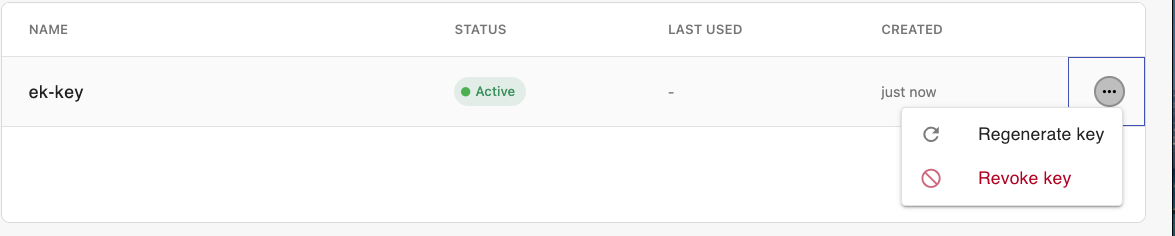
Note: If at any time you need to regenerate or revoke your key, you can do that from the menu on the far right of the API keys screen.
How to Enter the API Key into eKyros Centerpiece.
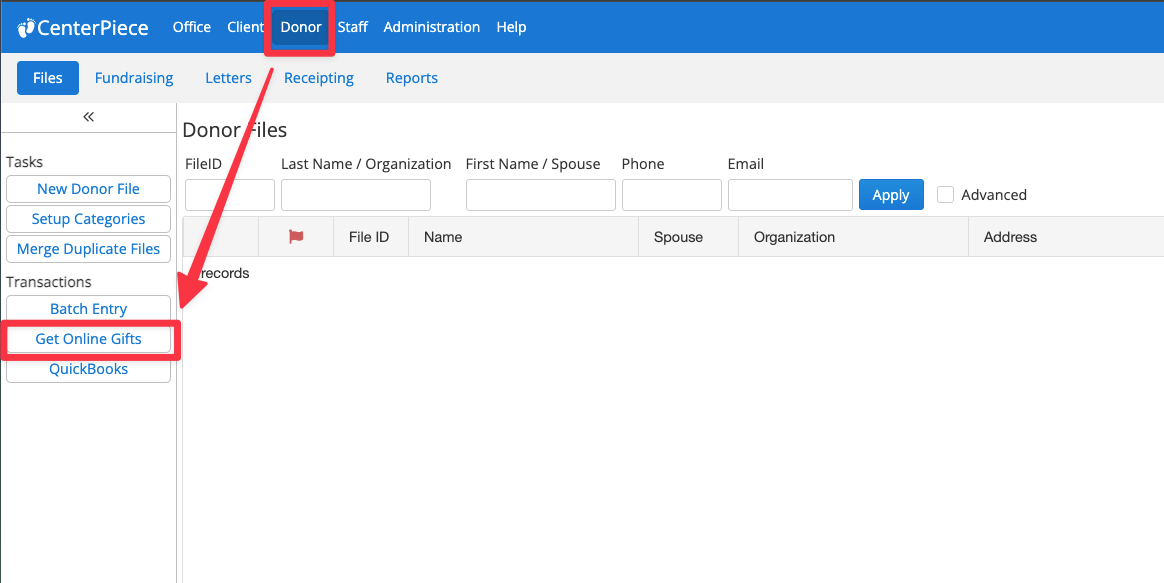
From the Donor portal, go to “Get Online Gifts.”
After you click “Get Online Gifts,” the next screen will have an option called “Setup.” Go to the Setup section and then select “Add new Account.
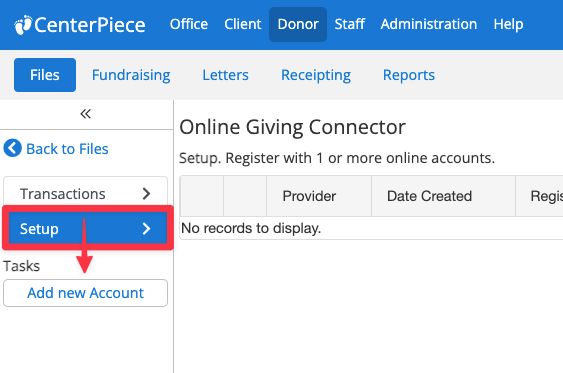
The “Add new Account” flow will open a dropdown where you can select FundEasy as the account you are connecting. Make sure to select “FundEasy V4.”
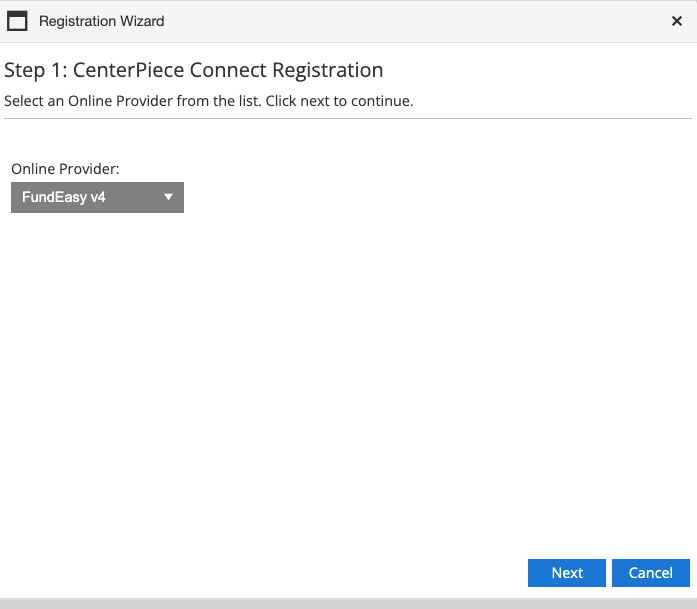
After you select “FundEasy v4” and click Next, you’ll be prompted to enter your API key.
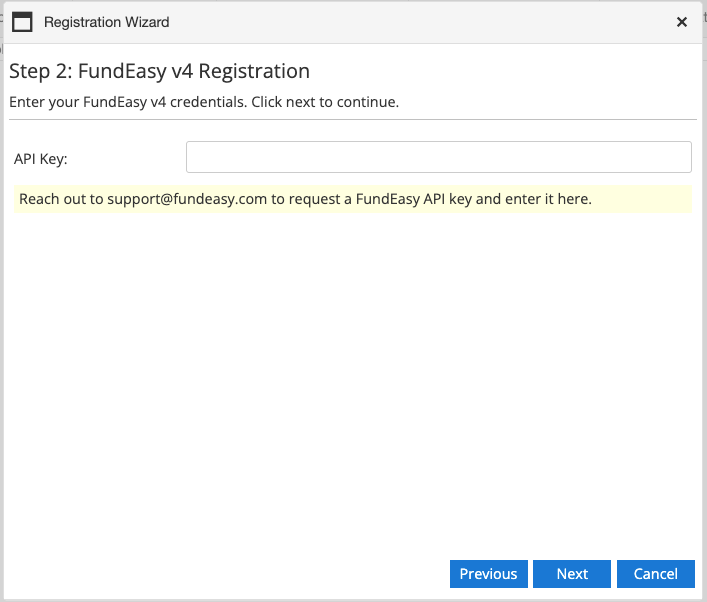
Finish the flow to connect your accounts! For additional resources, you can consult the eKyros Centerpiece Knowledge Base by going to
Was this helpful?
Still need help? Ask the team