Invitations Tool "Add to List"
Three Key Ways to Build Your Invitation List
Written By Edith Henry
Last updated 7 months ago
There are multiple ways to create your guest invitation list. Here are the ways we recommend.
Adding Individuals Manually
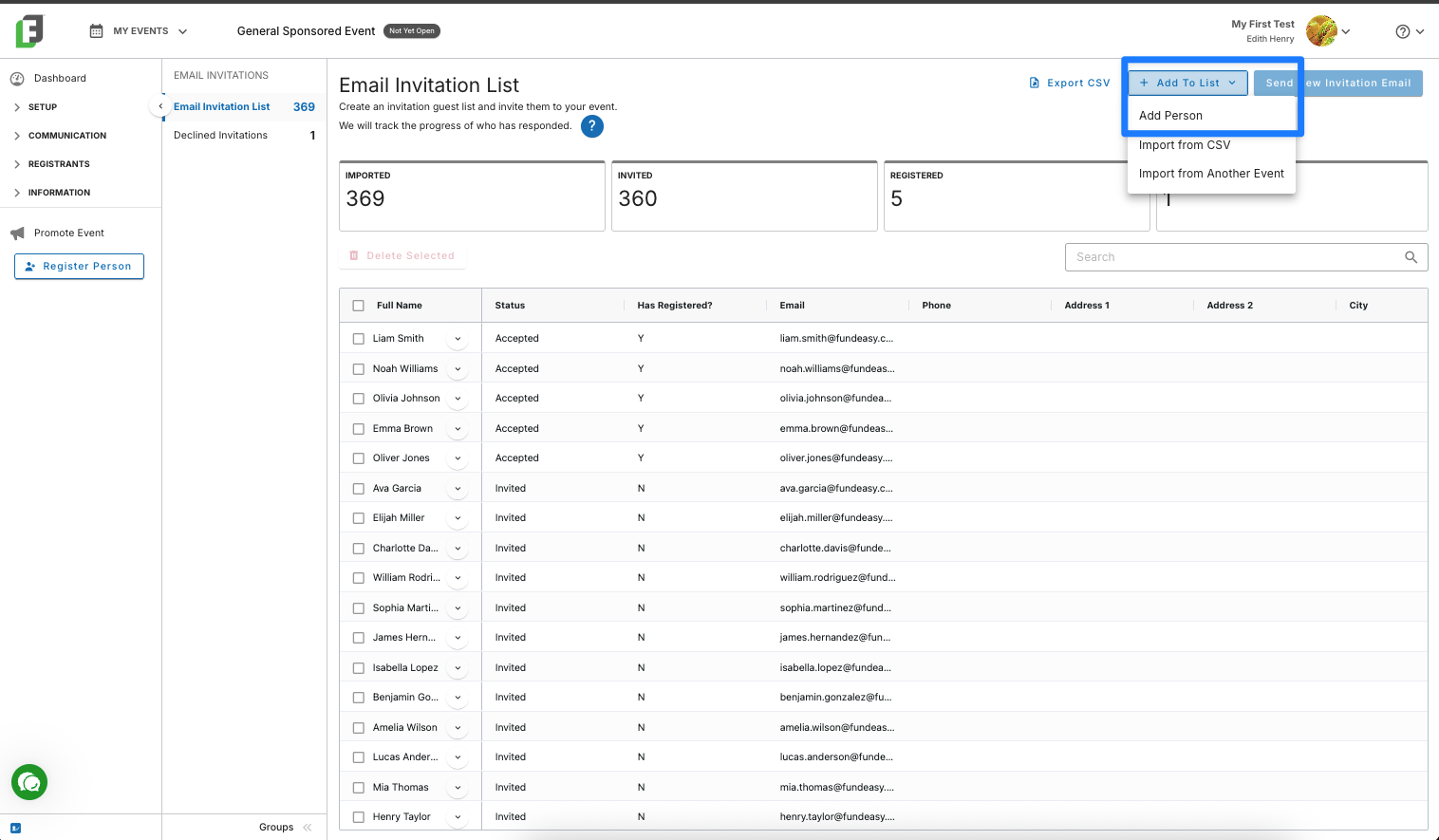
From the Invitations Tool, select Add to List > Add Person.
Complete the form modal. First Name, Last Name, and Email Address are required. The other fields are optional.
Click Add to save this name to the Email Invitation List
Importing from CSV
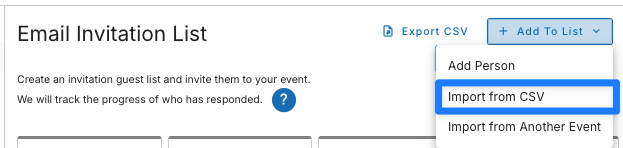
In the top right corner, click Add to List > Import CSV
Drag and drop a CSV file into the popup modal or click the Choose File button to choose a CSV file from your computer. Click Continue. Tip: If you'd like to import a list of past registrants from a different event, then export the Attending Registrants Report from that event and import that list.
Map the fields in your file with the fields in FundEasy.
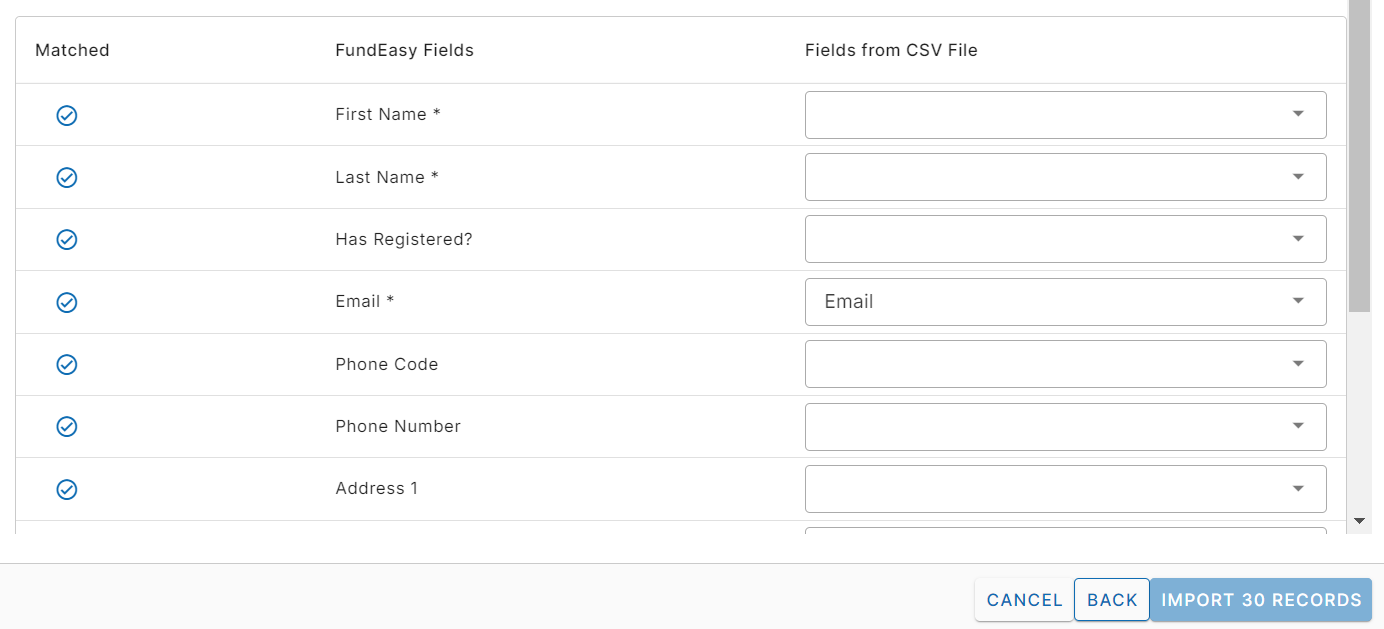
Click Import Records. This will upload your CSV list to the Invitation List.
CSV facts and troubleshooting
CSV stands for Comma Separated Values. It is a file type that is available when you save a file. Most software offer options to export to CSV. FundEasy exports to CSV by default.
If you are changing an Excel file (ending in .xlsx or .xls) into a CSV file, be sure to do a "Save As..." from the File menu and save it as a "Comma Separated Values (CSV) File." Changing the file name alone is not the same as changing the file extension with "Save As...".
You can import email addresses only from a CSV file. Follow these links for instructions to create a CSV file from Hotmail, Yahoo, and Gmail contacts. Click here for instructions from about.com on exporting your Outlook Contacts to CSV.
At minimum, your CSV file needs to have separate column headings for First Name, Last Name and Email Address in order to import. However, the First Name and Last Name columns do not need to have data in them. The only required data for the import is the email address.
If the file isn't importing or certain entries aren't importing, check to make sure there aren't spaces after the emails in the spreadsheet or that there aren't multiple emails in one cell.
Importing Email Invitation Lists from past events
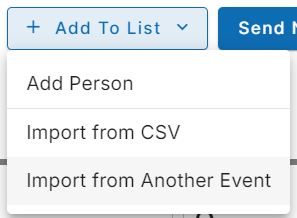
From Email Invitations > Email Invitation List > Add to List, choose Import from Another Event.
Choose the event that contains your Email Invitation List [Note: If this is your first event, you will not have another event yet to import from].