Registration Request Dashboard
Written By Edith Henry
Last updated 4 months ago
Registration Request Dashboard Documentation
This documentation outlines the functionality of the Registration Request Dashboard, a streamlined workflow where registration requests can then be reviewed and acted upon by event organizers. Through easy tracking and fulfillment of attendee requests, admins can ensure that their guests’ needs are met and their wishes are honored.
Where Registration Requests Come From
The Regular Registration Flow
If you have enabled registration requests on your registration forms,
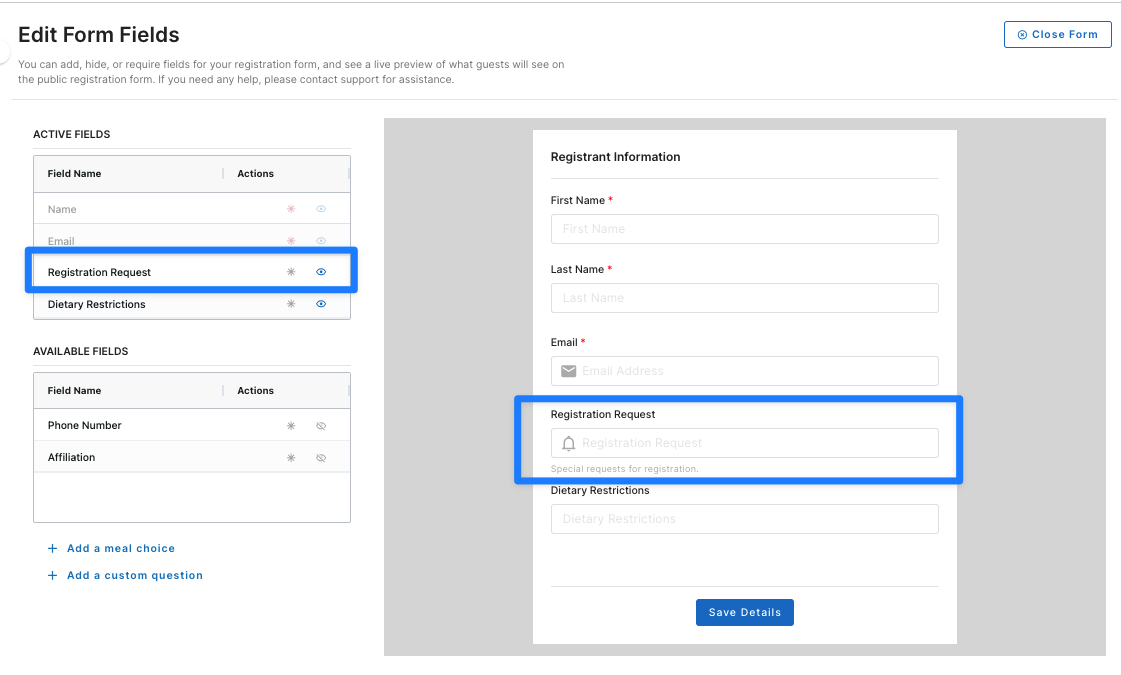
then your guests will be able to submit registration requests while they are registering for your event.
The Admin “Create Request” Option
If someone has already registered, but they subsequently sent you a request, you as the event coordinator can add that request to the dashboard quickly and easily by using the “Create Request” option.
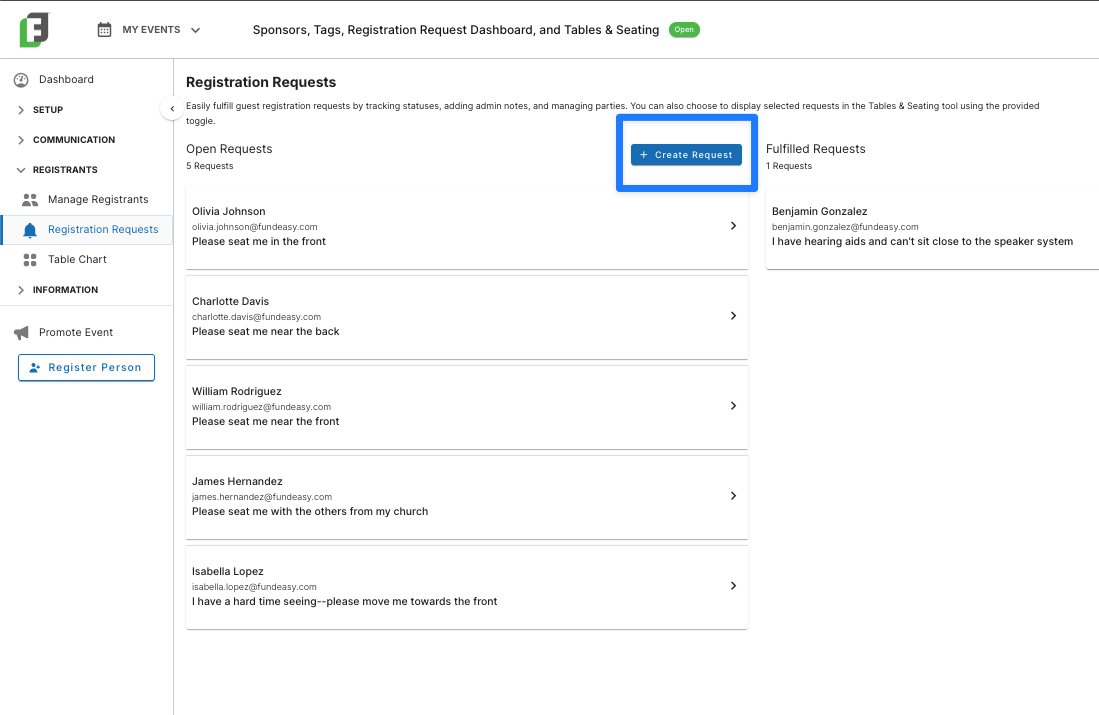
How You Can Easily Manage Registration Requests
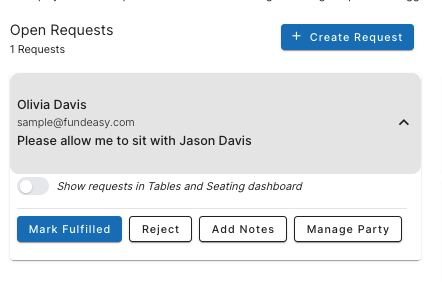
Organizers can view all registration requests in the dashboard. Actions available for each request include:
Show requests in Tables & Seating dashboard: Turn on the toggle to be able to fulfill this request during your main seating workflow. Requests that are toggled to display will be visible with a bell icon, and hovering over the bell will remind you what the request is.
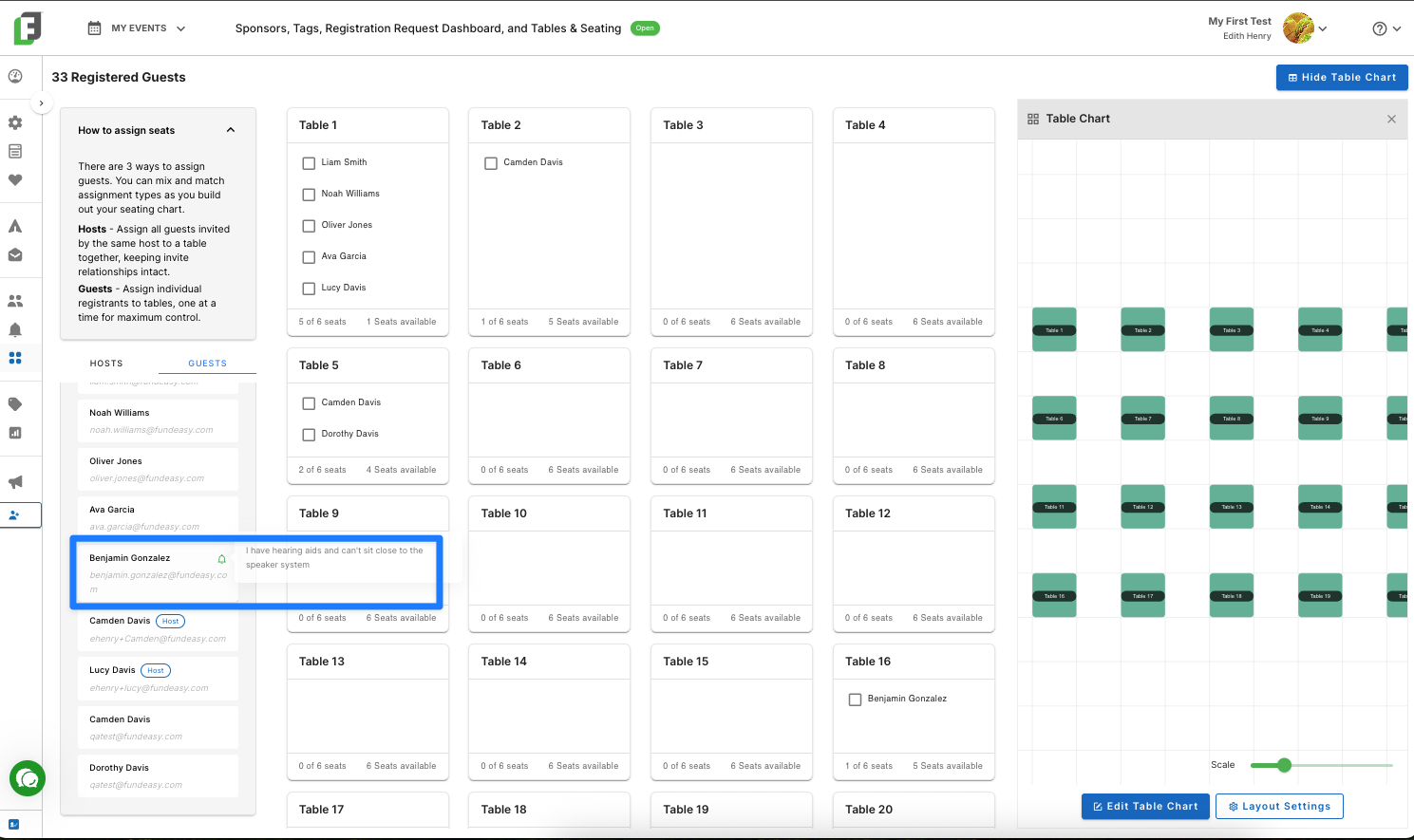
Mark Fulfilled: Mark the request as fulfilled after accommodating the attendee's needs.
Reject: Mark the request as rejected if it cannot be honored. Rejected requests will automatically be hidden from the table layout. Note that you can always reopen a rejected request if needed in the future.
Add Notes: Add internal notes for your reference, which do not appear to the attendee. For example, "She wants to sit in the front because she is close friends with the keynote speaker." This helps you while you are considering the request during the seating arrangement process.