Name Tags & Labels (Avery Integration)
Written By Edith Henry
Last updated About 1 month ago
Accessing the Wizard
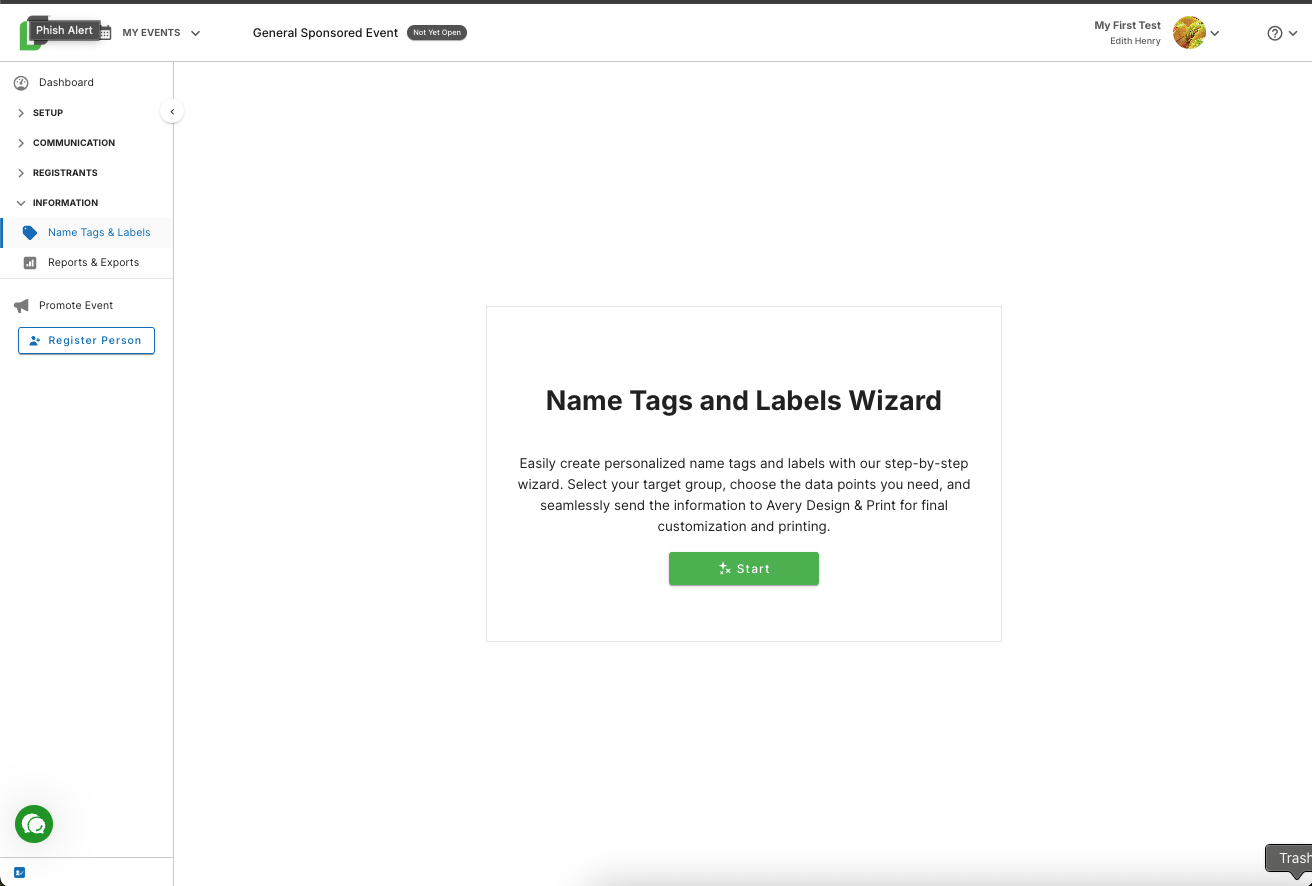
When you are ready to create name tags or labels for your event, simply find the “Name Tags & Labels” tool in the platform and we’ll help you get those ready in no time! If you ever can't find the Name Tags & Labels under the collapsible menu, just find the “Information” dropdown and you’ll see the Name Tags & Labels tool reappear.
In this tool, you’ll follow a wizard to compile all the information you need to successfully print your selected project. Just hit start, and that will start you through the first step of this flow.
Starting the Creation Process
After you start through the Wizard, you will click through screens that are compiling your information for you. Follow the steps as the system prompts. You’ll be able to make selections like “Registered Individuals” (everyone coming to your event) or “Custom Selection” (which allows you to zoom in on just specific individuals).
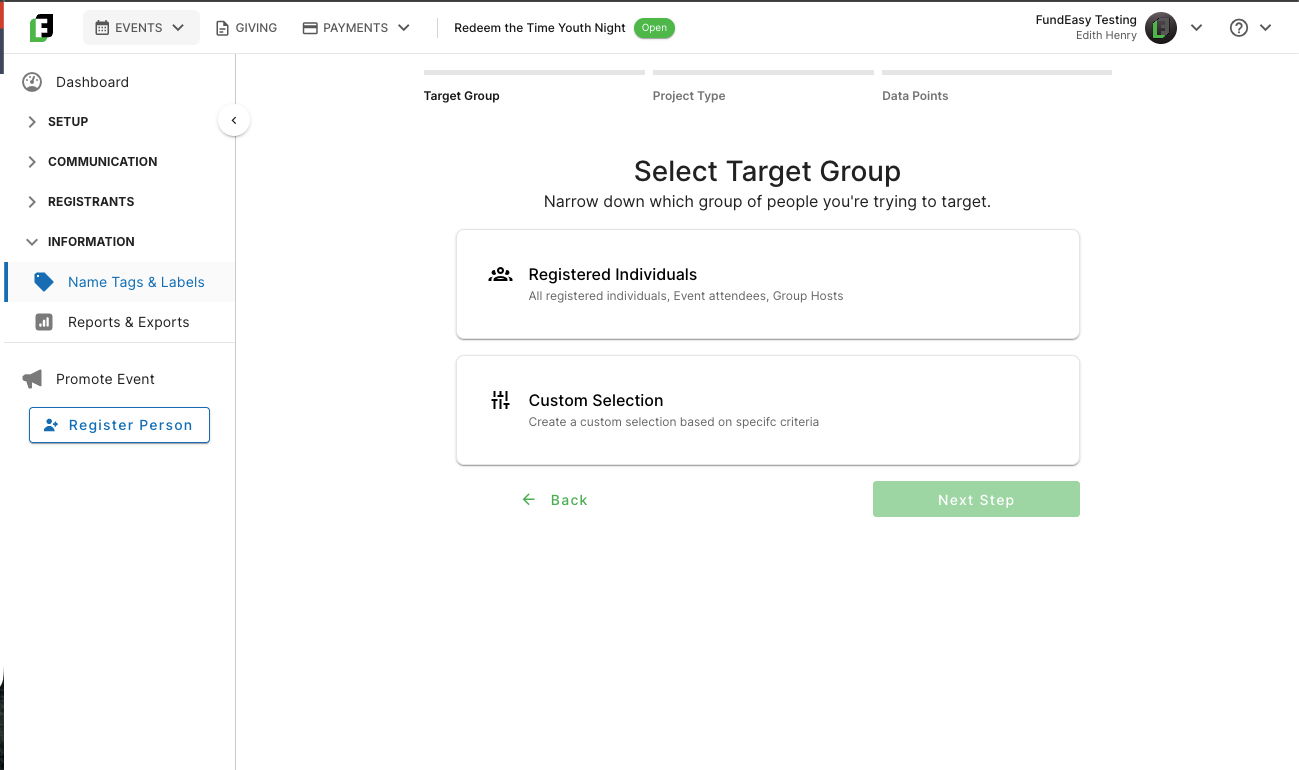
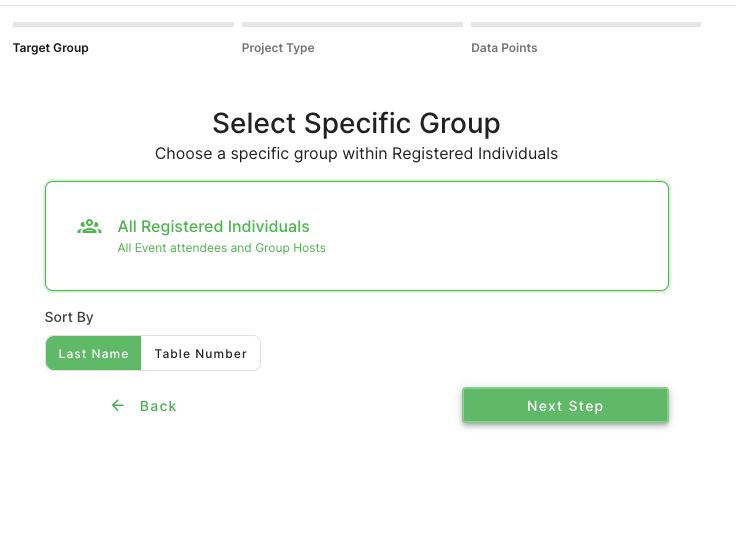
Selecting “Registered Individuals” will give you sorting options so that you can select whether you would rather print by alphabetical order or by table number.
Customizing the Information You Want
After the first few default steps, you will be prompted to make some decisions for your project. The first question will be whether you are wanting to create Name Tags (such as what an event participant might pick up at your registration table to where at your event) or Address Labels (such as if you wanted to send all your guests a thank you note after your event).
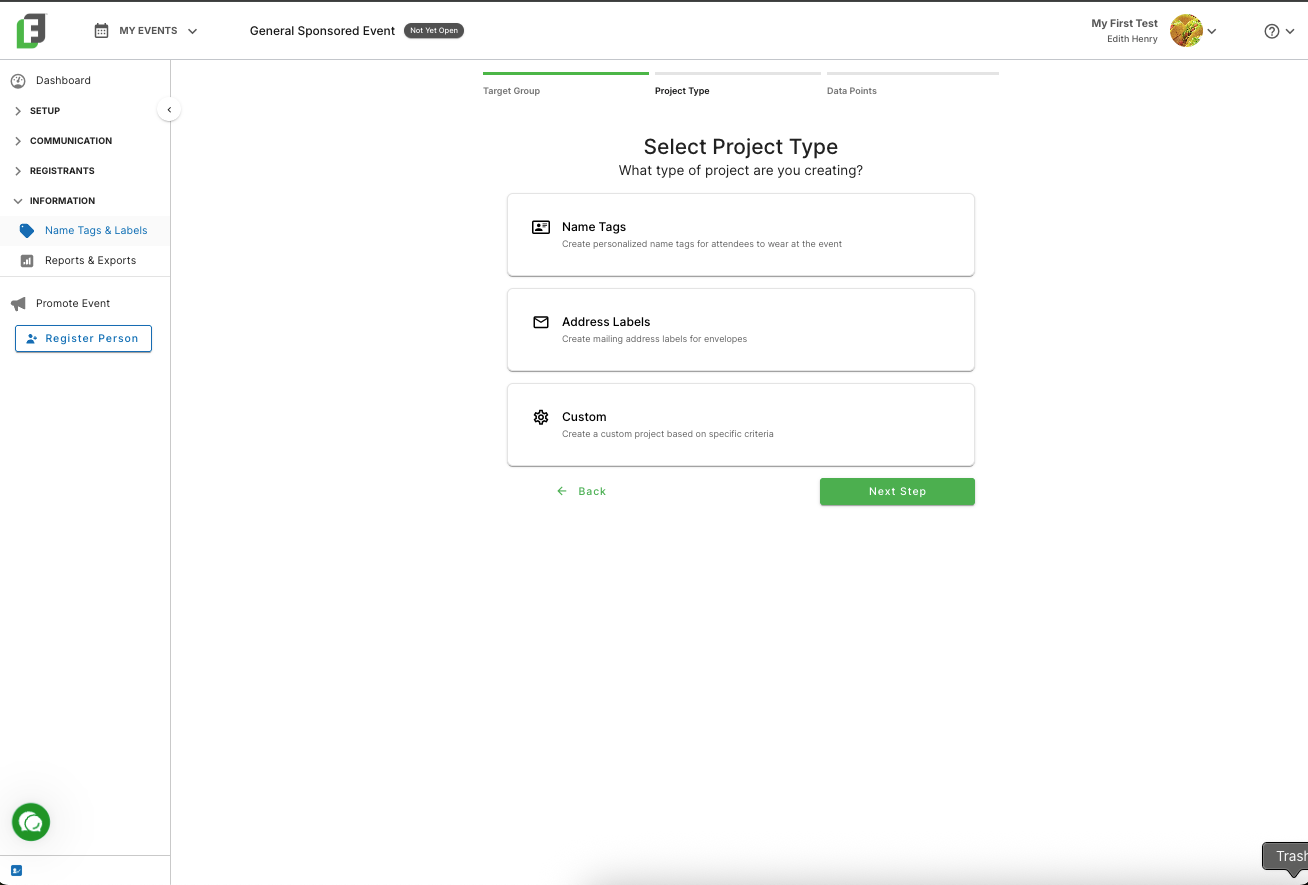
You’ll choose between name tags or labels based on your specific needs. Based on your selection, you will then be asked to select the data points that would be applicable to that project:
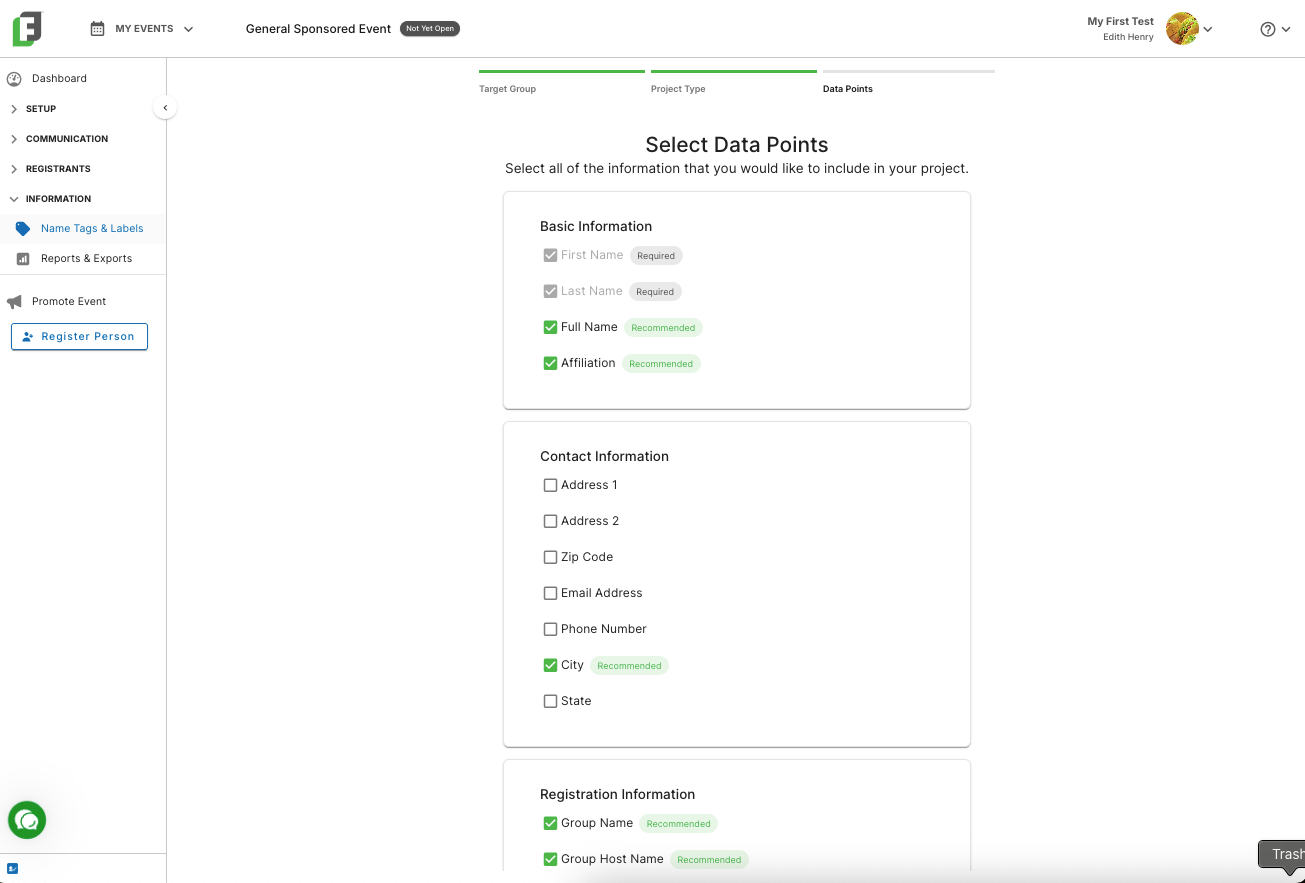
Select the fields to include in your project (e.g., first name, last name, city, zip code).
Important Note! Even though you will see multiple data point options listed as options on this screen, you will not have any data to pull for those fields unless you are actively requesting this information through your registration forms. So, for instance, if you did not enable the “address” field on your registration form, then guests will not provide you with any of their address information; so even if you check the box here to compile address fields, those fields will remain empty because the registrants have not supplied that information.
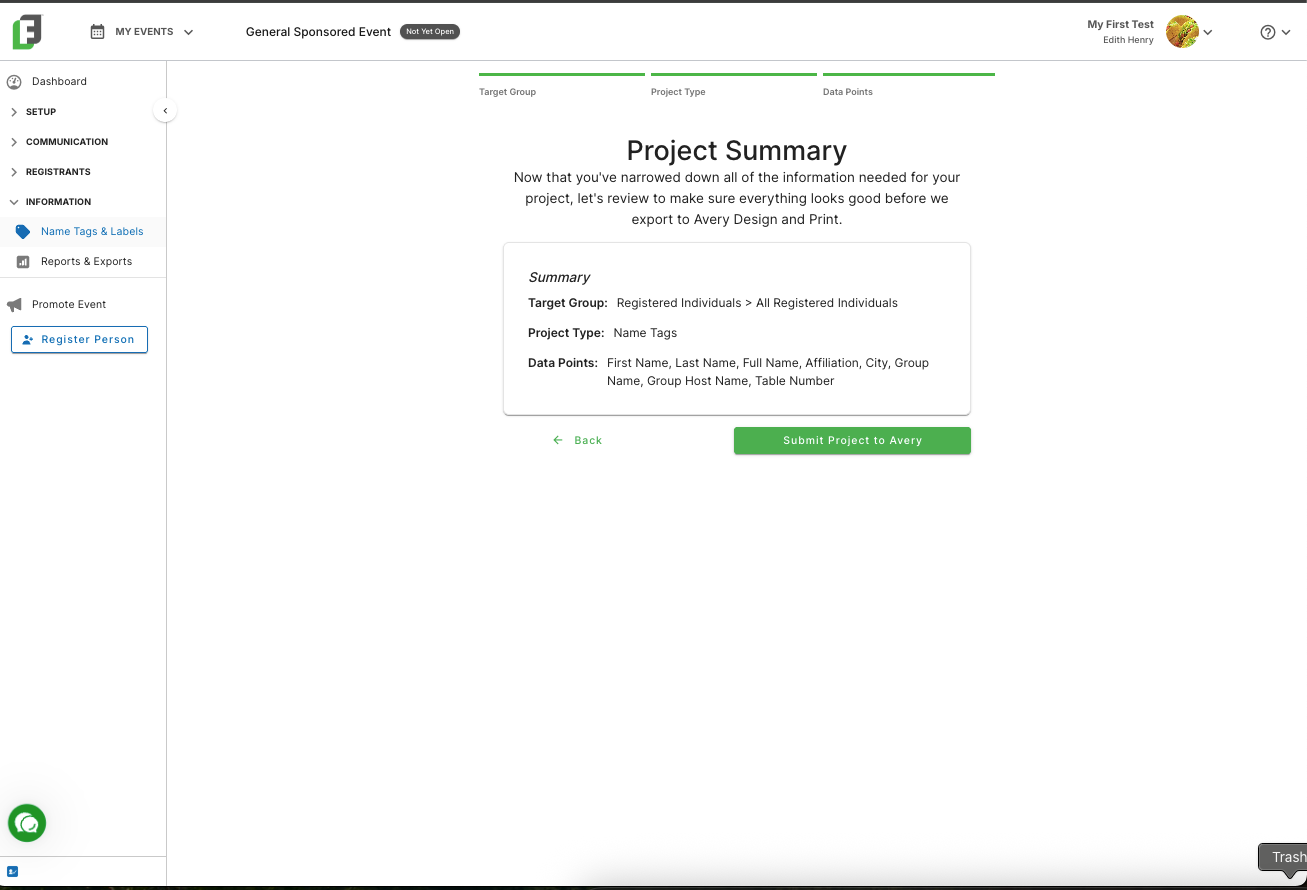
Once you have your fields selected, you can go ahead and select your next step. That's going to bring you to a project summary of the steps that you've taken so far.
Exporting Your Event Details to Avery
From the Project Summary, you’ll see a step to submit your project to Avery, where the final design and printing will take place.
Completing Your Design in Avery
Once you are in the Avery Design & Print Dashboard, you’ll be able to choose from a great selection of ready-to-go designs. You’ll have a lot of flexibility here, depending on what you're wanting the look and feel of your specific event to be. Of course, you can always create your own from scratch if you prefer.
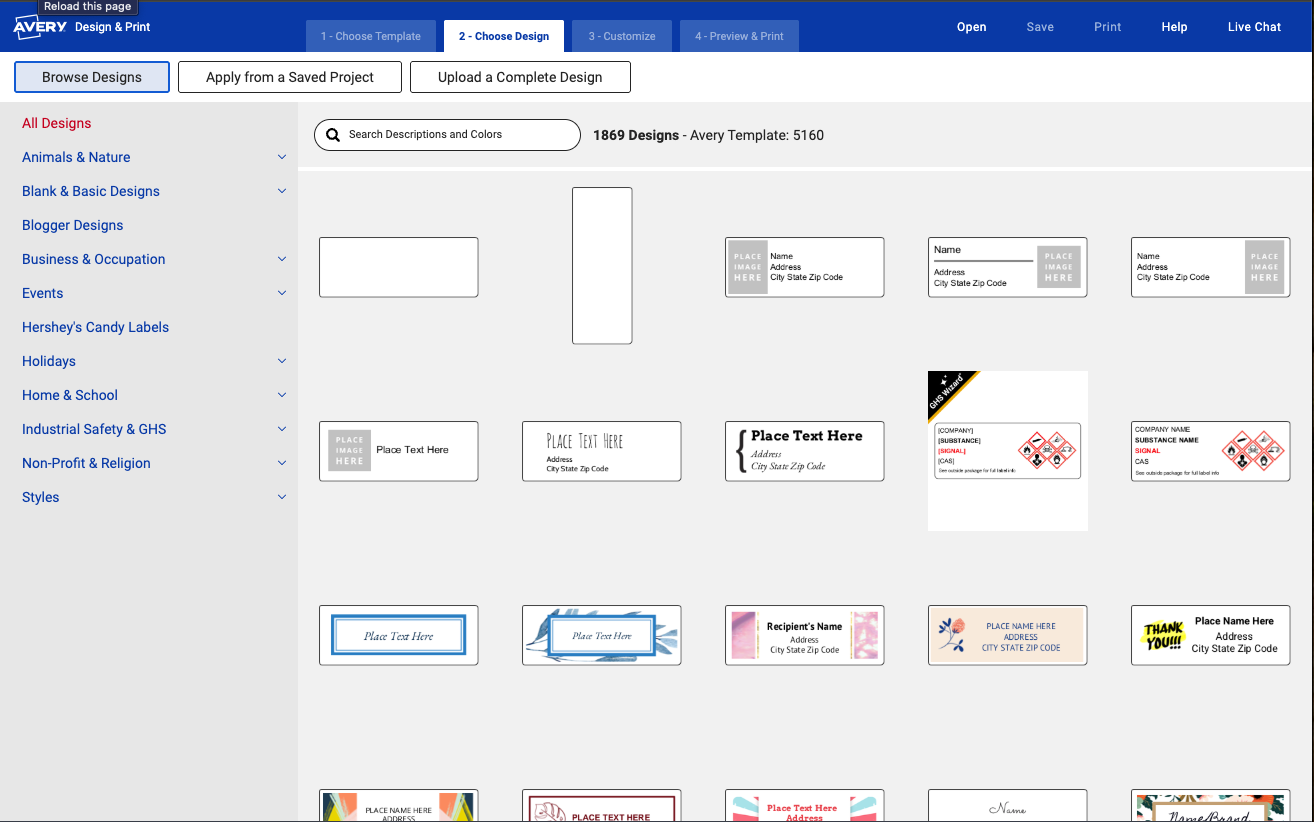
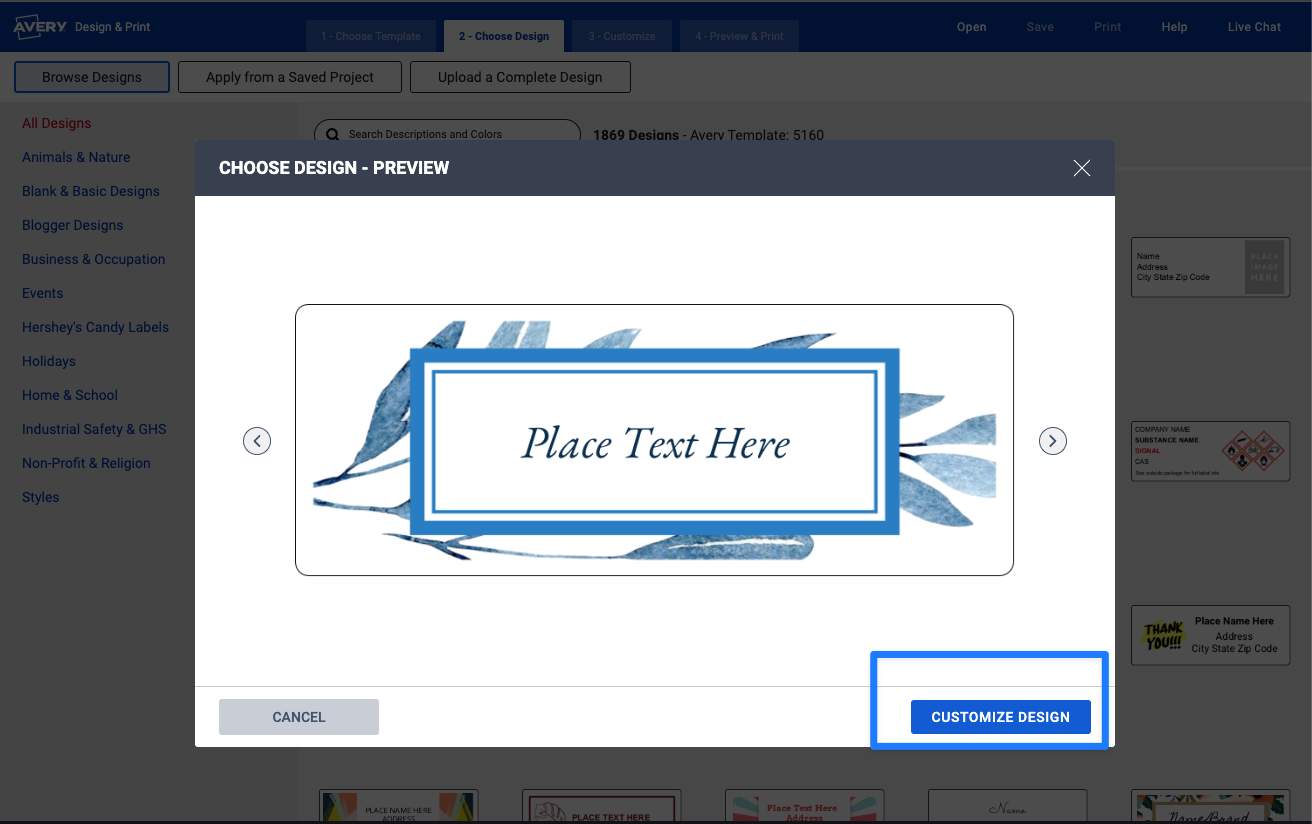
You’ll simply select the template that works the best for you, and then select “Customize Design.”
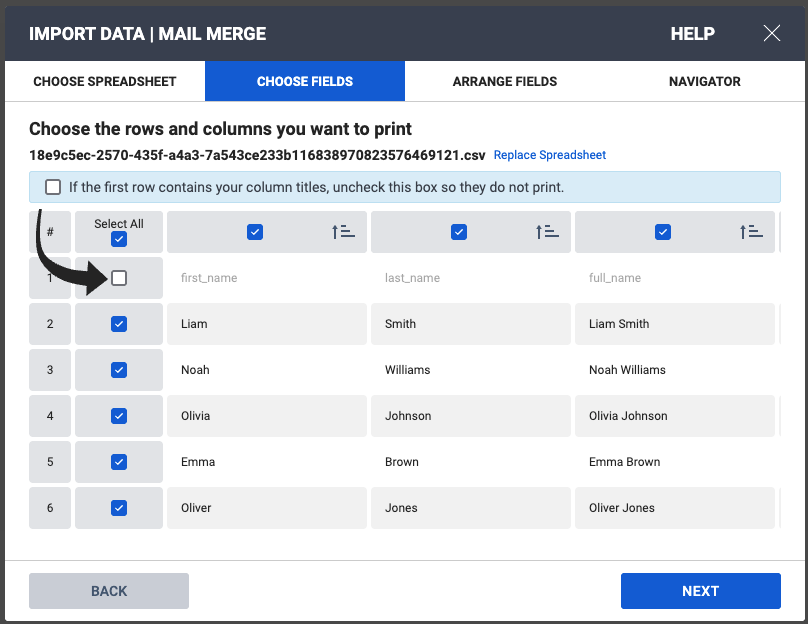
You’ll notice that you are dropped into the second step, “Choose Fields,” rather than the first step (“Choose Spreadsheet”). That’s because your work in the FundEasy Name Tags & Labels Wizard already compiled and imported your event-specific data to be used here. You’ll see a preview of all the fields you will be able to use in your design.
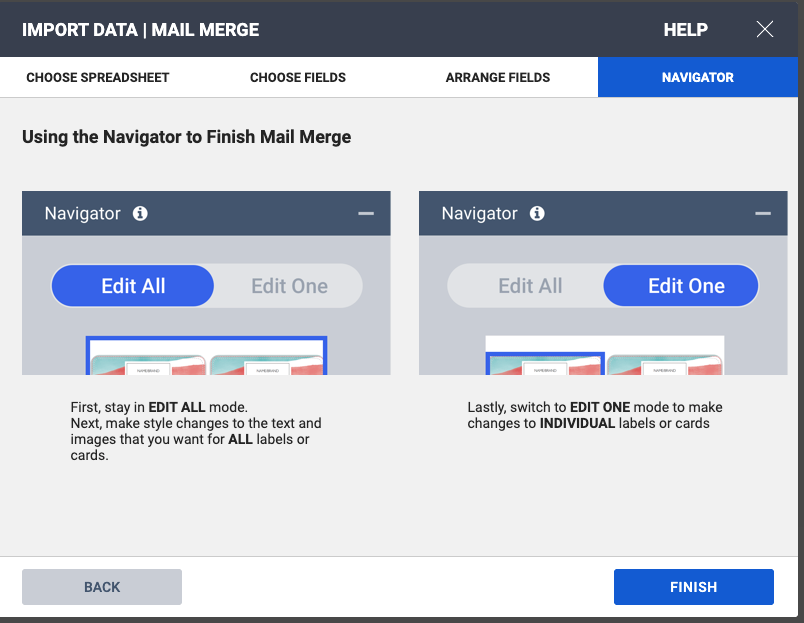
On the “Arrange Fields” step, you can drag and drop your data points into the design block to arrange your event information in the order you prefer.
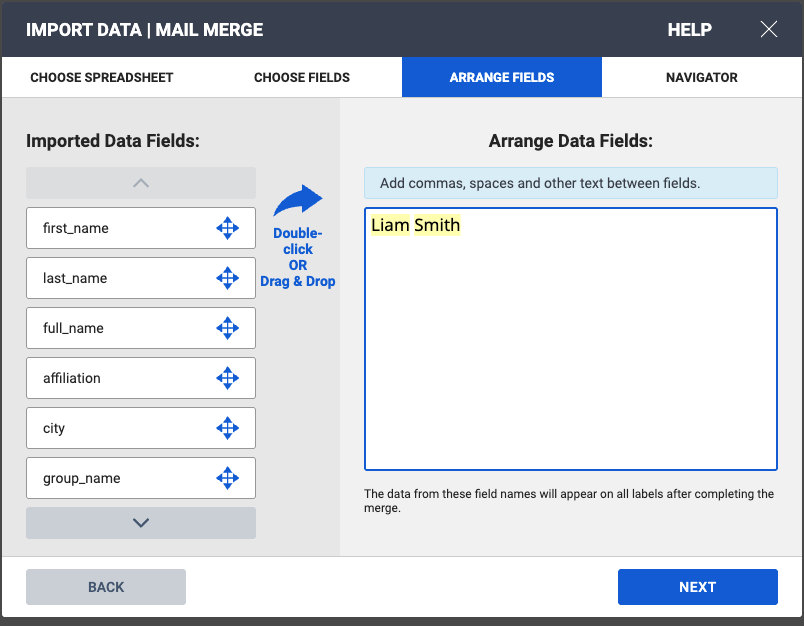
Important Note! Remember that even though you will see multiple data point options listed as options on this screen, you will not have any data to pull for those fields unless you are actively requesting this information through your registration forms. So, for instance, if you did not enable the “affiliation” field on your registration form, then you can drag and drop the affiliation field onto your name tag; but that field will remain empty because the registrants have not supplied that information.
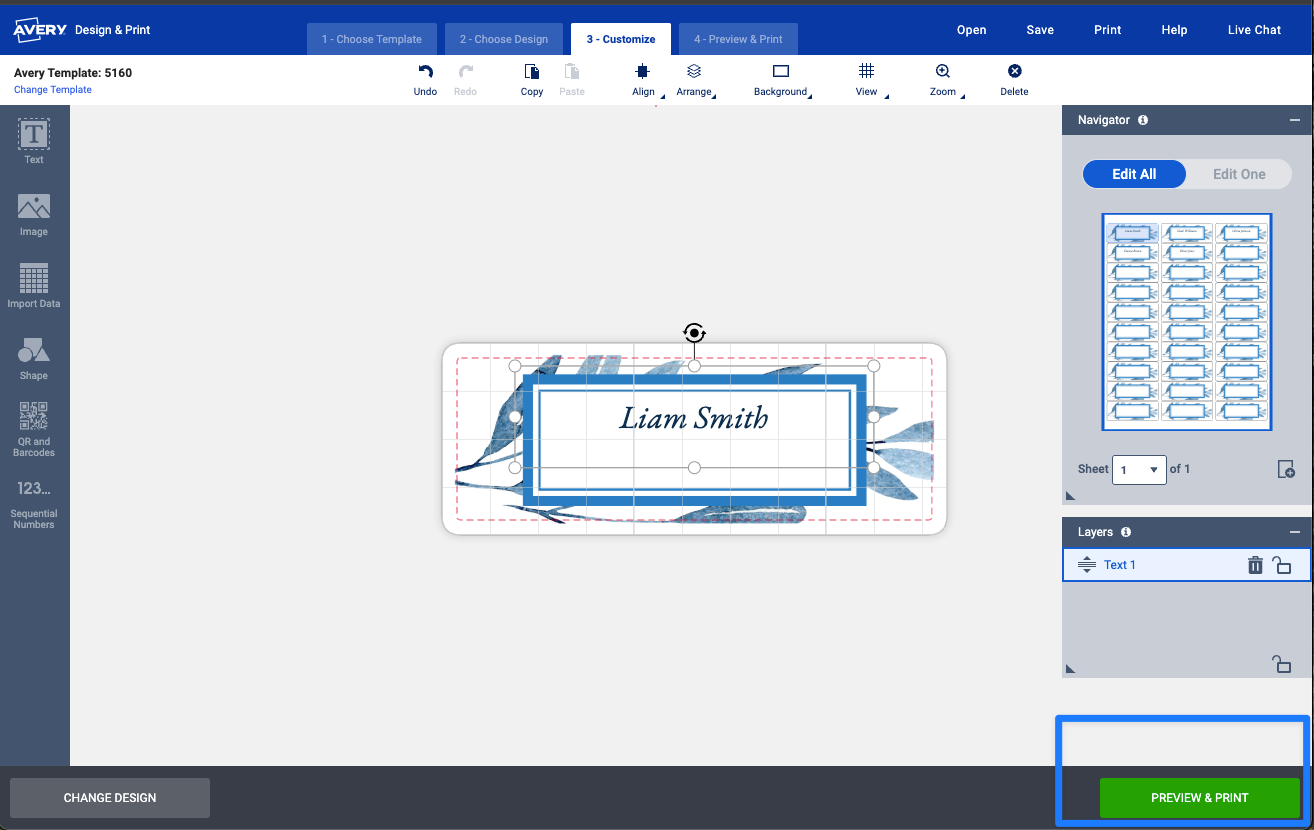
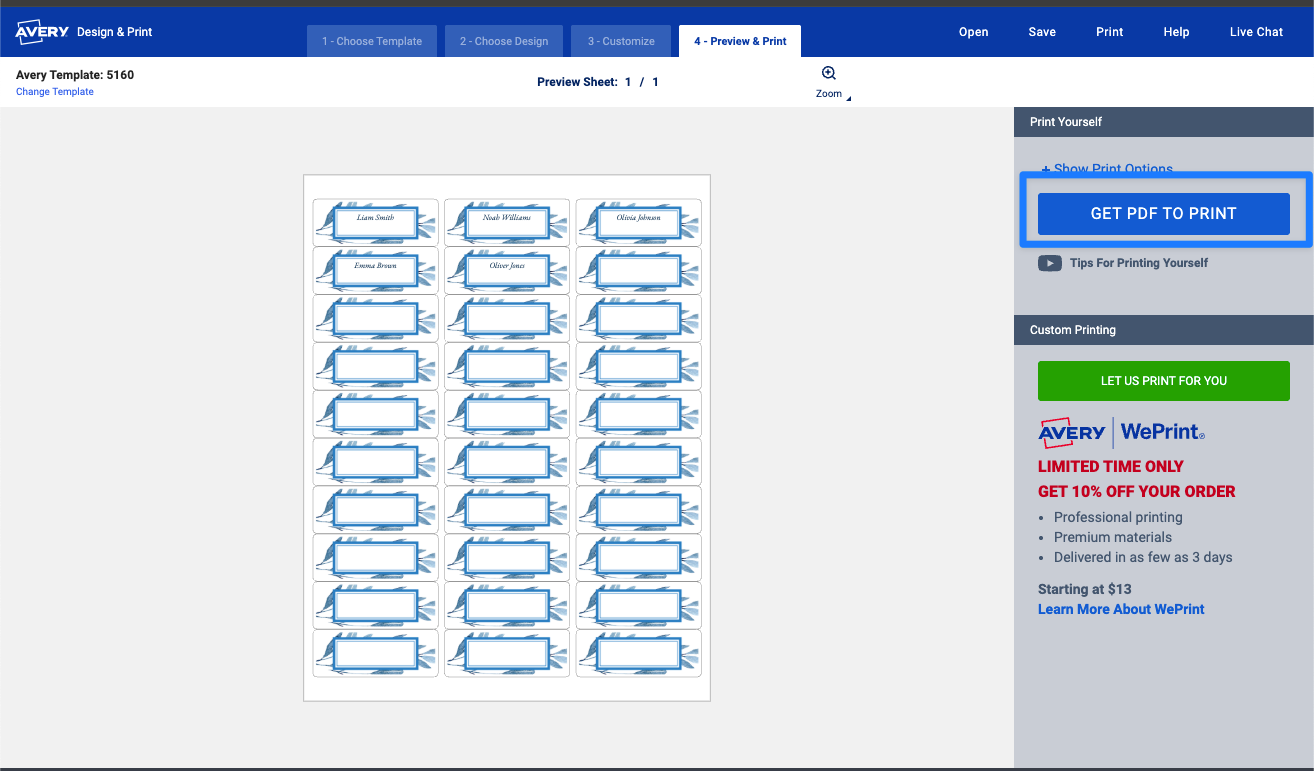
Once your data points are arranged how you like, you’re ready to finish and print! You can save your project to your Avery account for future reference.