Managing Users for Your Account
Adding Additional Users
Once your account has at least one owner, that owner can invite other team members to assist with managing your events workflow.
Simply go to your account dropdown menu in the upper right and select “Account Users.” From there, you’ll be able to add as many other team members as you need!
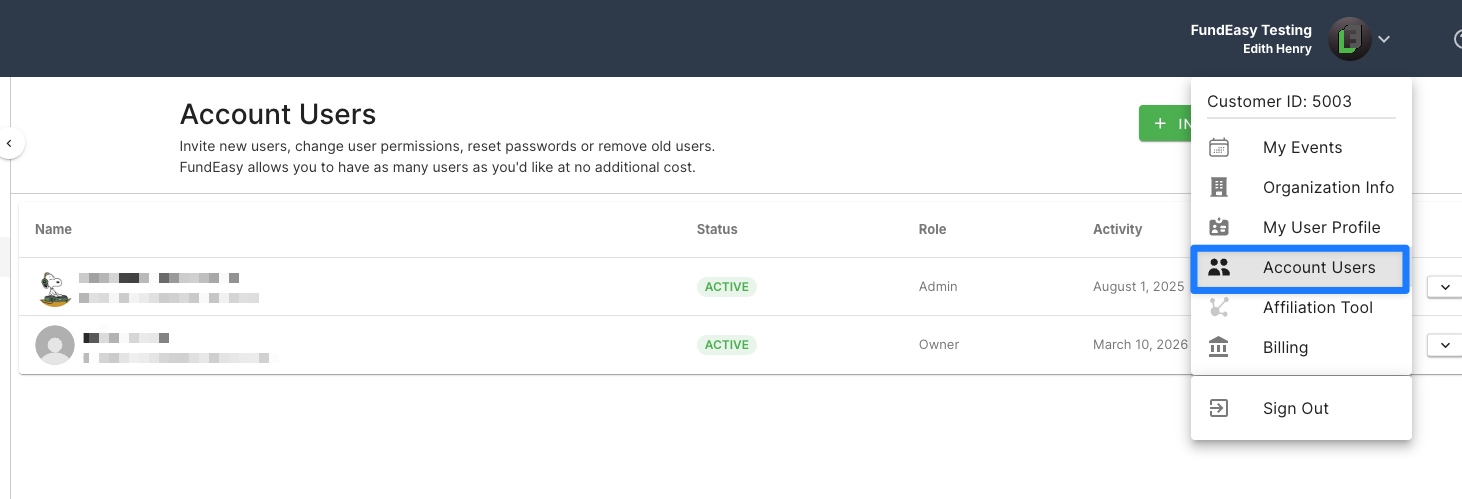

The “Invite New User” tool will ask you whom you want to invite. Simply provide the name, email, and permissions for the person you want to add.
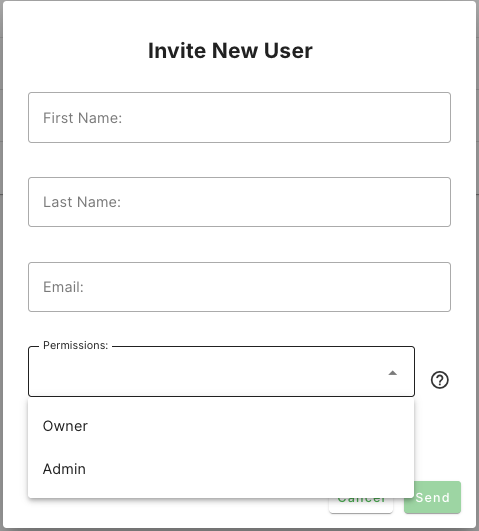
Here’s a quick snapshot of what the roles do:
Owners
Owners can manage account users, add/remove other owners, access the billing section, view invoices and billing history, create new events, access account-level tools, and complete all event management workflows.
Admins
Admins can do everything that owners do except add/remove owners, access the billing/subscription tools, and process refunds.
What If My Team Member Doesn't Receive Their Invitation?
If your team member can’t find their invitation email, start by asking them to check their spam or junk folder—invitation emails sometimes get filtered there.
If it still doesn’t show up, the quickest fix is usually to revoke the pending invitation and send a new one. In many cases, the original email is simply buried or overlooked, and a fresh invitation resolves the issue immediately.
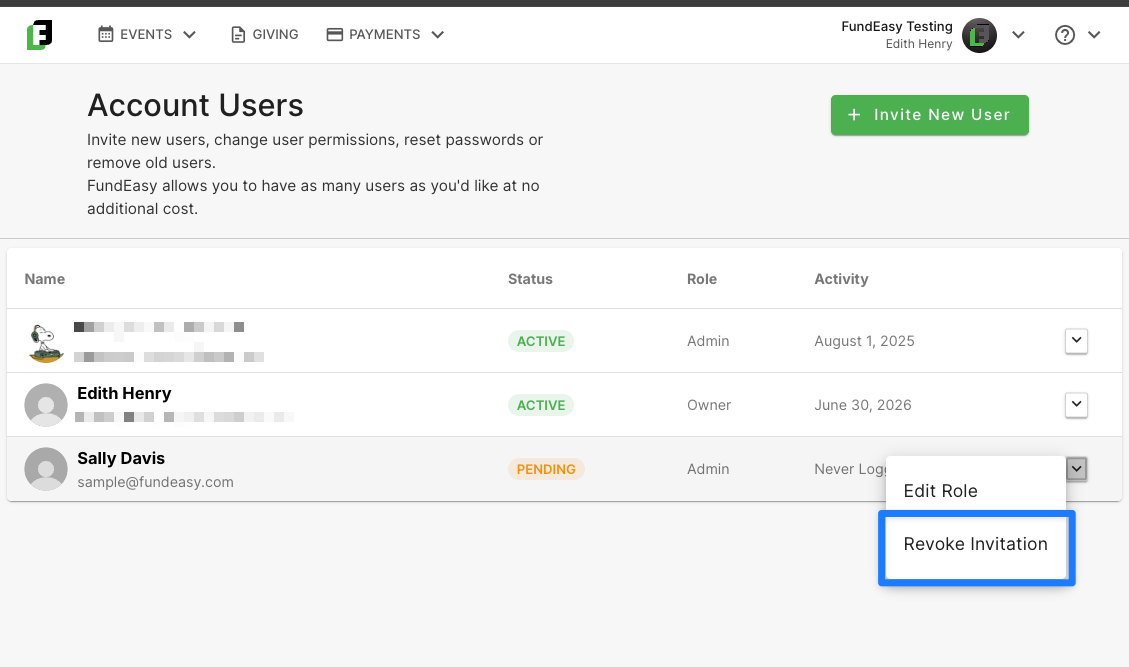
If you’re still running into trouble after re-inviting, reach out to support at support@fundeasy.com and we’ll help you take a closer look.
Updating a User's Role
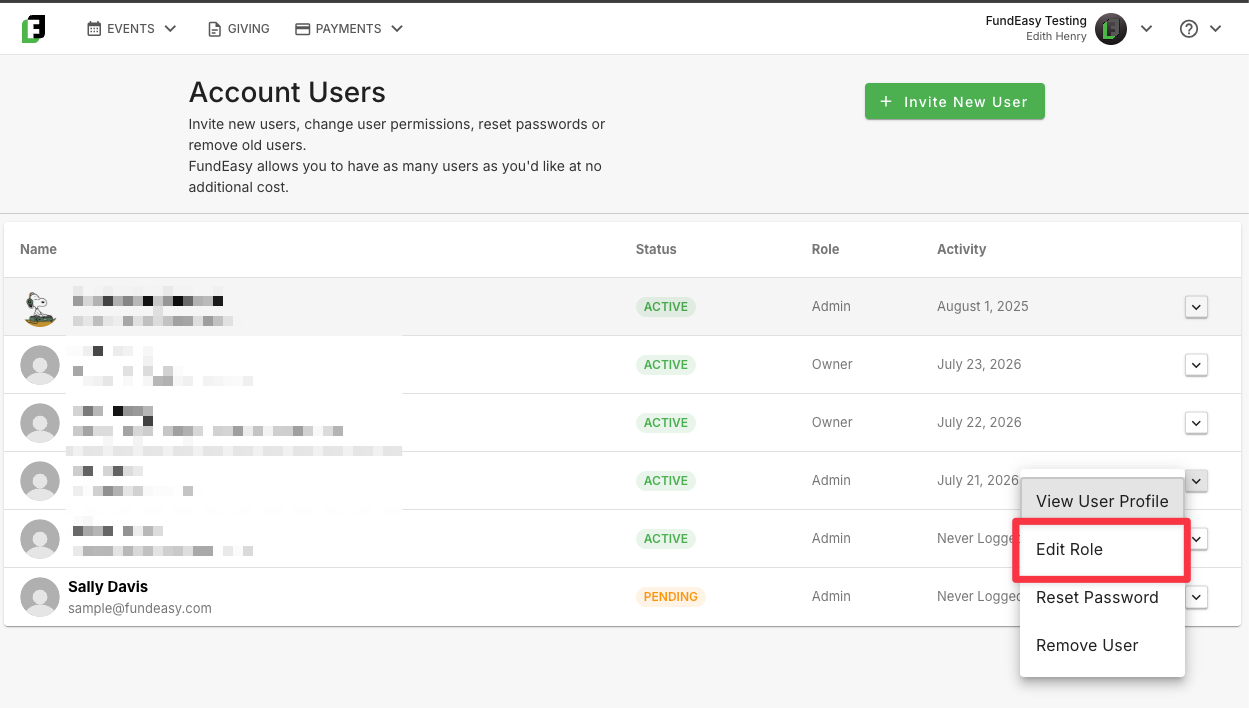
If you need to change a user's permissions, you can do so at any time. For example, you may want to promote an administrator to an owner or change an owner to an administrator.
To update a user's role, open the dropdown menu next to their name and select Edit Role. Choose the new role, then save your changes when prompted. The updated permissions will take effect immediately.
Helping a User Reset Their Password
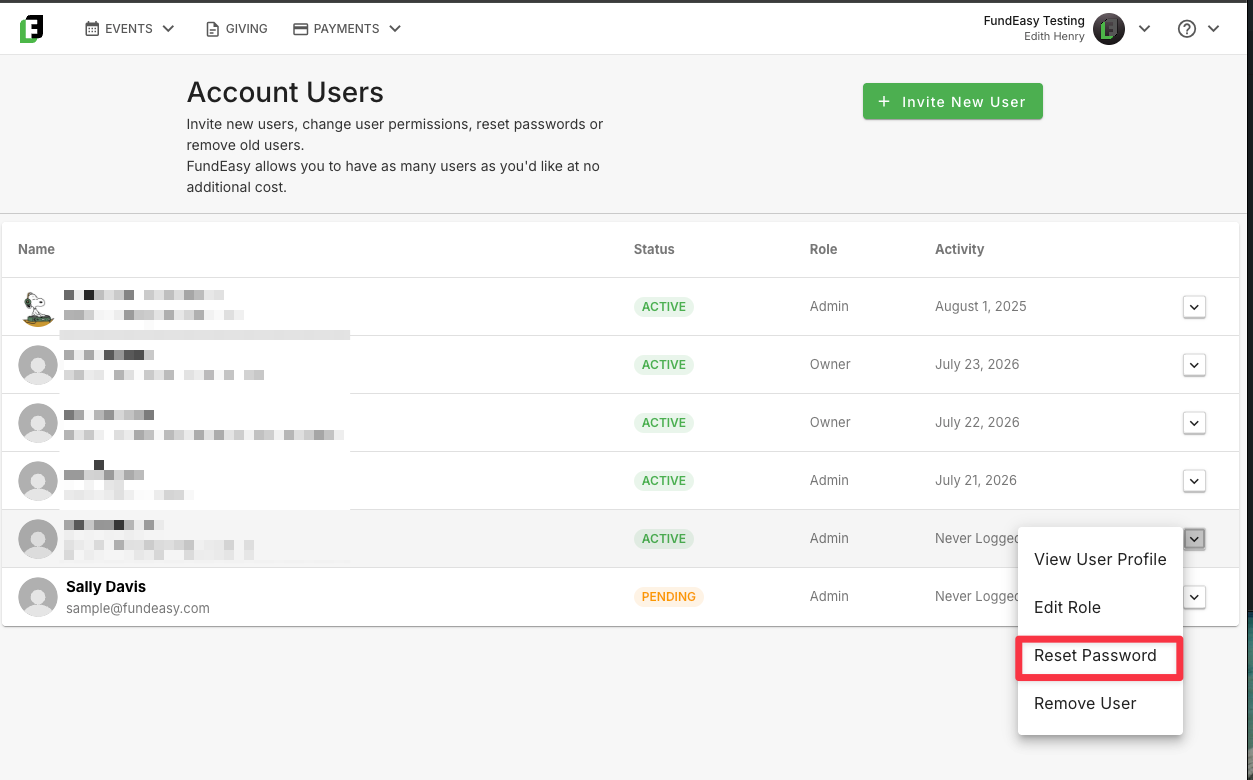
If a user is having trouble signing in, the quickest option is usually to have them click the Forgot Password link on the public login page. They'll receive an email with instructions for creating a new password.
If you'd rather initiate the process yourself, open the dropdown menu next to the user's name and select Reset Password. The user will receive an email prompting them to set a new password before signing in again.
Removing a User from Your Account
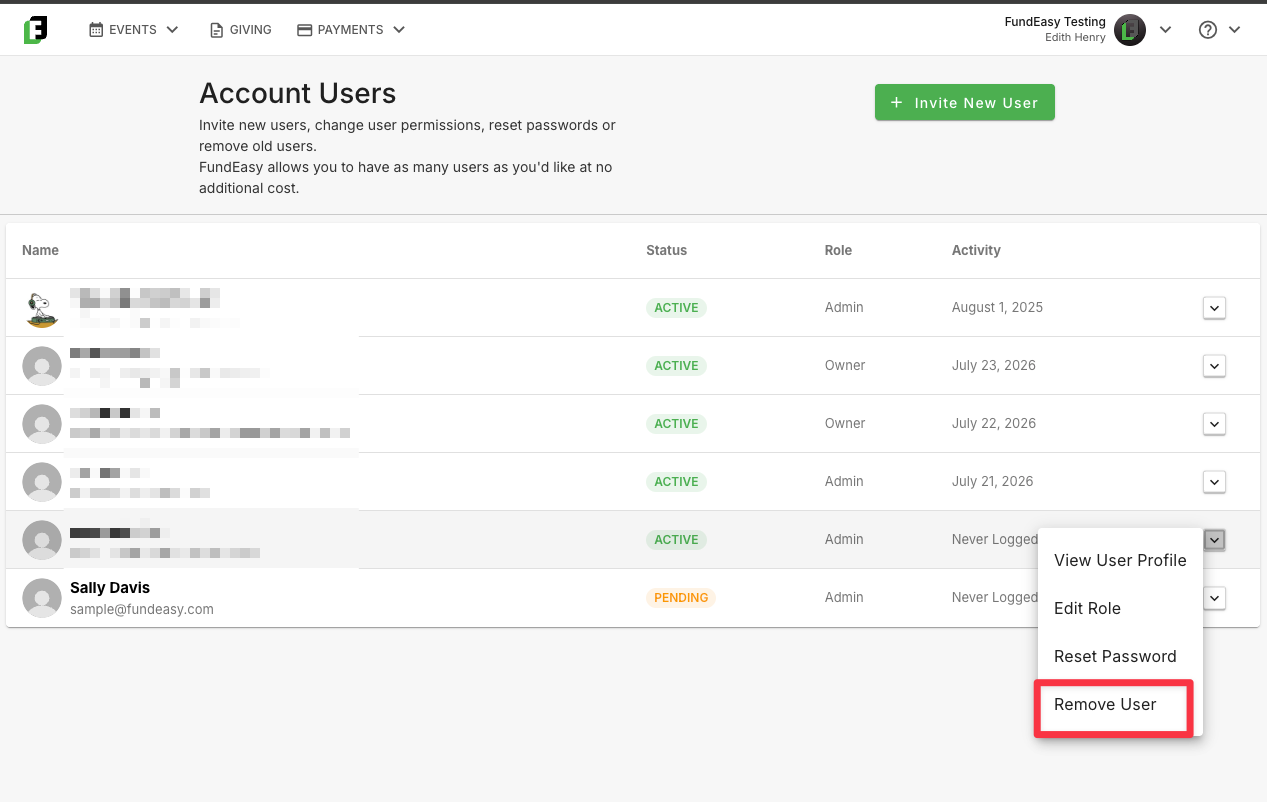
When someone no longer needs access to your account, you can remove them at any time.
Open the dropdown menu next to the user's name and select Remove User. Once removed, the user will no longer be able to access your account unless they are invited again in the future.
Was this helpful?
Still need help? Ask the team