Adding Users to Your Account
Written By Edith Henry
Last updated 17 days ago
Adding additional users
Once your account has at least one owner, that owner can invite other team members to assist with managing your events workflow.
Simply go to your account dropdown menu in the upper right and select “Account Users.” From there, you’ll be able to add as many other team members as you need!
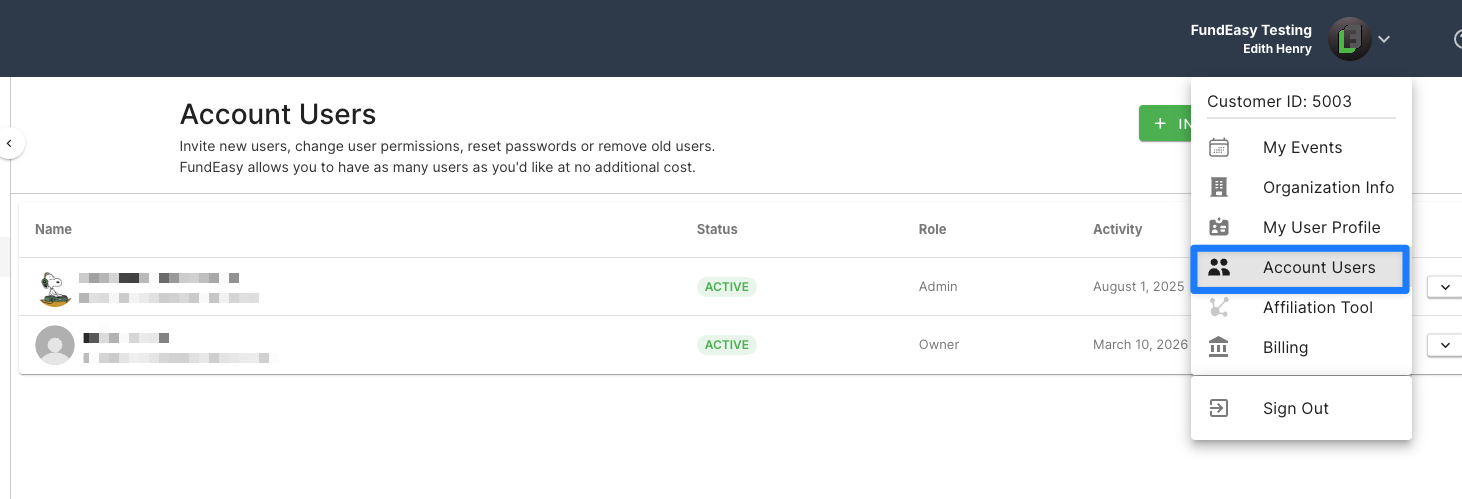

The “Invite New User” tool will ask you whom you want to invite. Simply provide the name, email, and permissions for the person you want to add. NOTE: Only account owners and account admins can add additional team members.
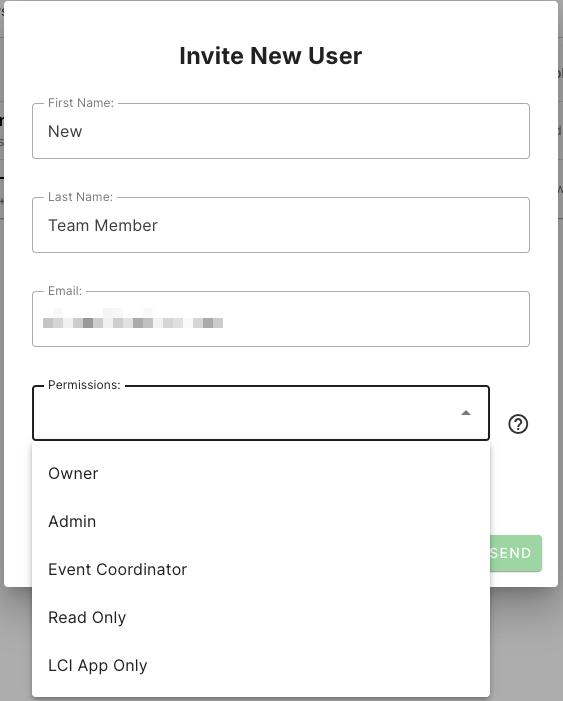
Here’s a quick snapshot of what the roles do:
Owners
Owners can manage account users, add/remove other owners, access the billing section, view invoices and billing history, create new events, access account-level tools, and complete all event management workflows.
Admins
Admins can do everything that owners do except add/remove owners and access the billing/subscription tools.
Event coordinators
Event coordinators have full event management capabilities, including creating new events; but they cannot view/edit organizational settings, manage account users, or access the billing/subscription tools.
Read Only
Read Only users have access only to reporting and exporting, such as from the event dashboard and from the Reports & Exports section.