Table Chart: Seating Your Guests
Assigning Guests to Tables
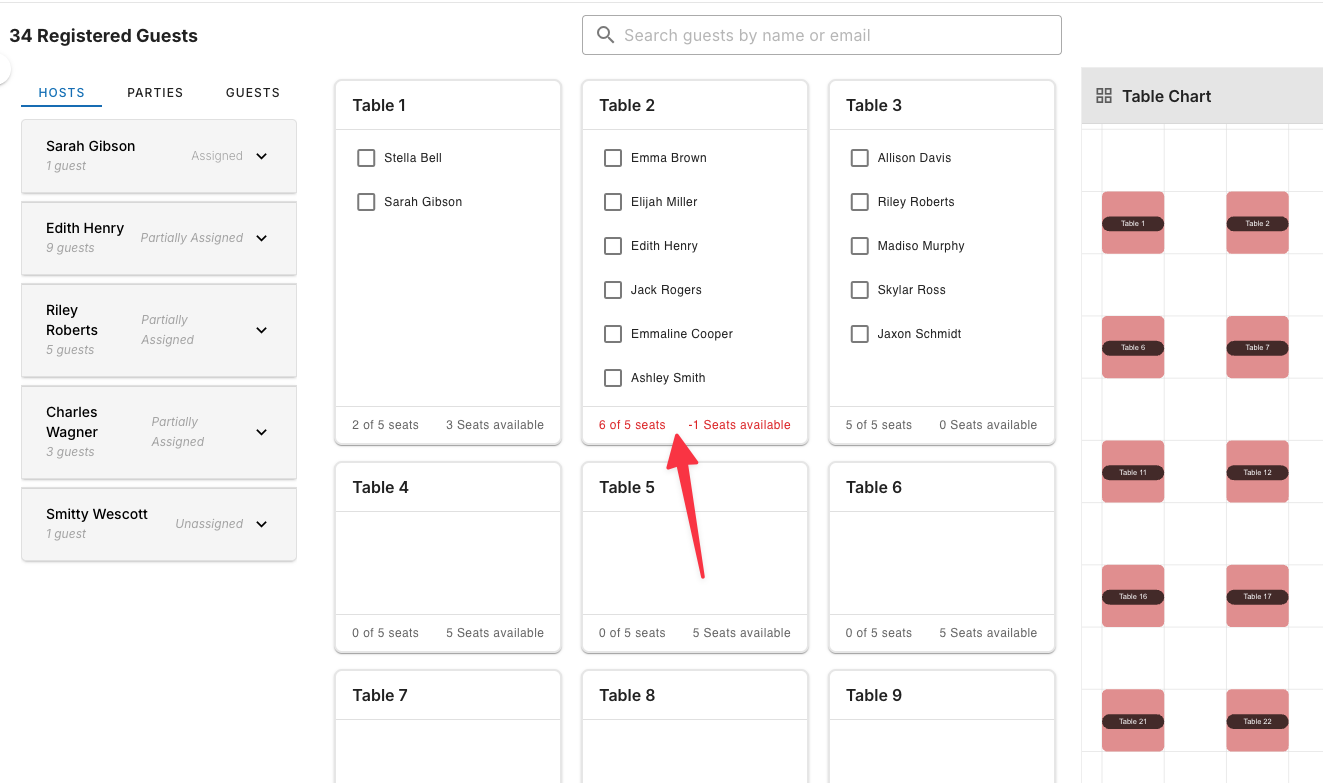
Once you create your initial layout, you’ll be taken to a comprehensive workspace where you can manage your seating while also keep an eye on the layout of your room. Drag your guests from the unassigned list (on the far left) to their respective tables.
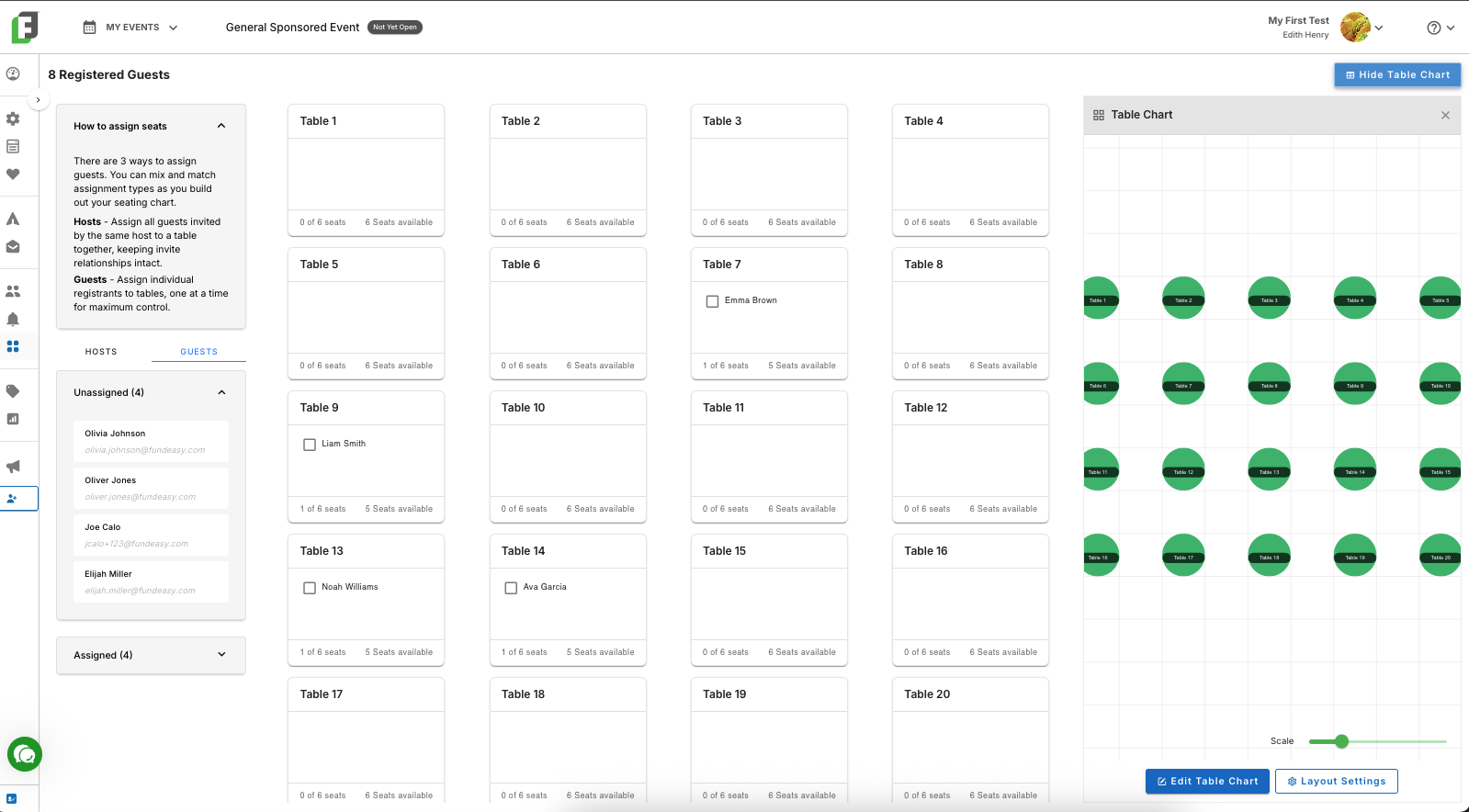
The interface allows quick visibility of assigned remaining unassigned capacity for each table. Users can continue dragging and dropping guests onto the cards until all guests are assigned. If needed, users can also relocate assigned individuals to a different table seamlessly.
Assigning Groups of Hosts
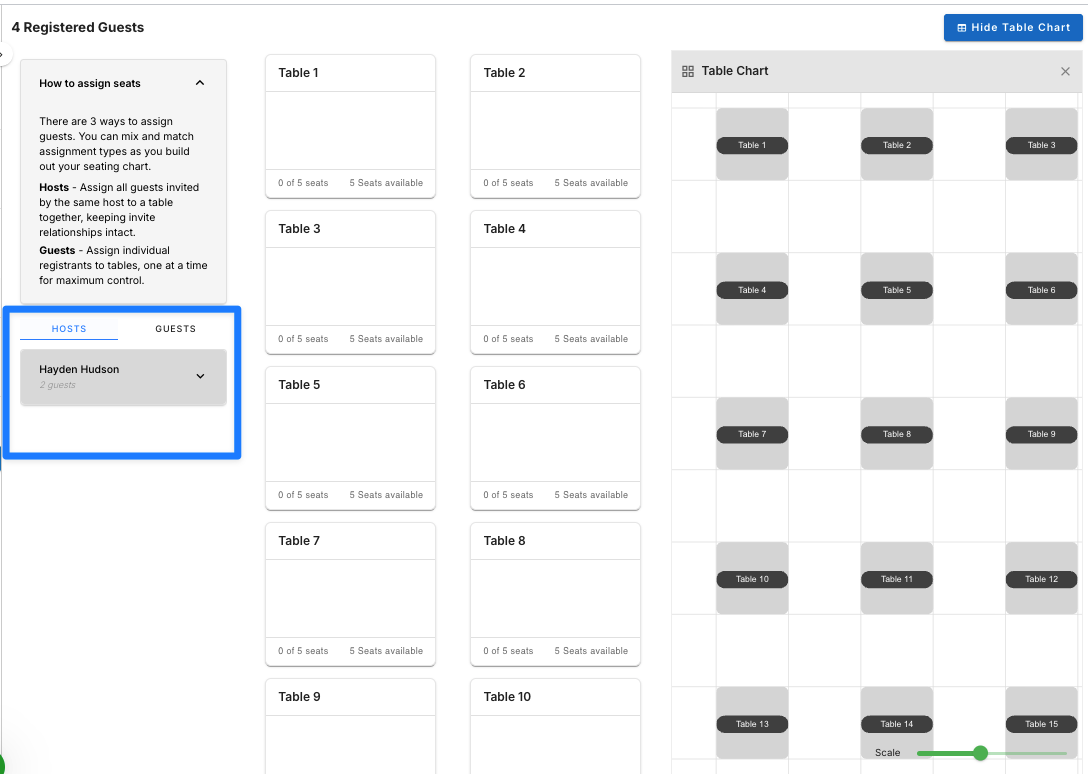
To save you time and to keep groups of hosts together, you can drag and drop the host’s name to seat all the host’s guests together.
Preventing Conflicts When Guests Were Already Assigned
If a host group is being assigned to a table but guests within that group already have a seating assignment, the dashboard will display a Guest assignment conflict modal for the admin to make an explicit choice.
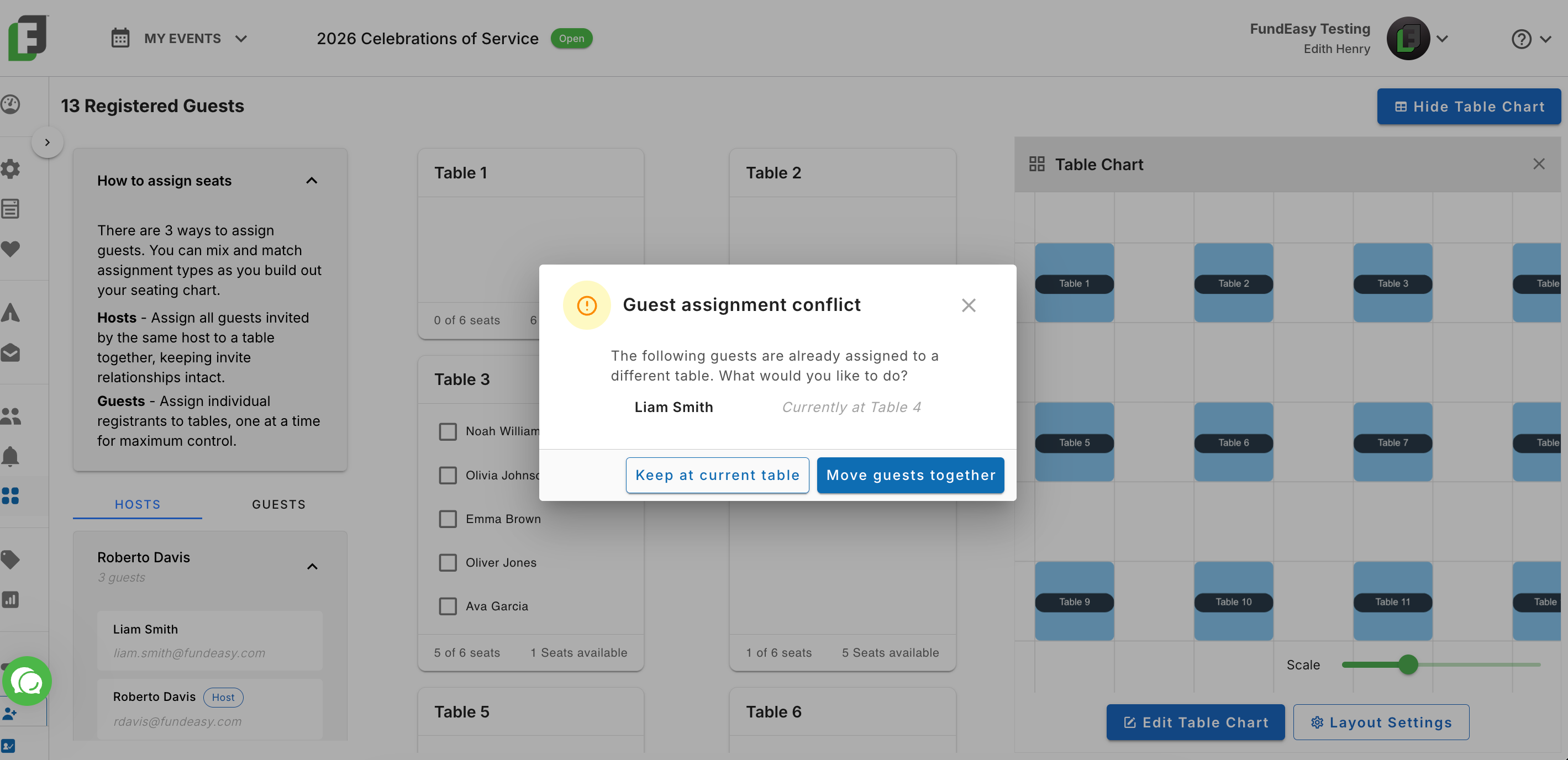
Opting to “Keep at current table” will cancel the action, and “Move guests together” will reassign guests at another table to the new table with the rest of the group.
Managing Groups Too Large for a Single Table
A host group isn't necessarily limited to one table's worth of guests. When you go to seat a larger group in Tables & Seating, you won't need to break up the group — and risk affecting registration or payment integrity — just to get everyone seated where they belong.
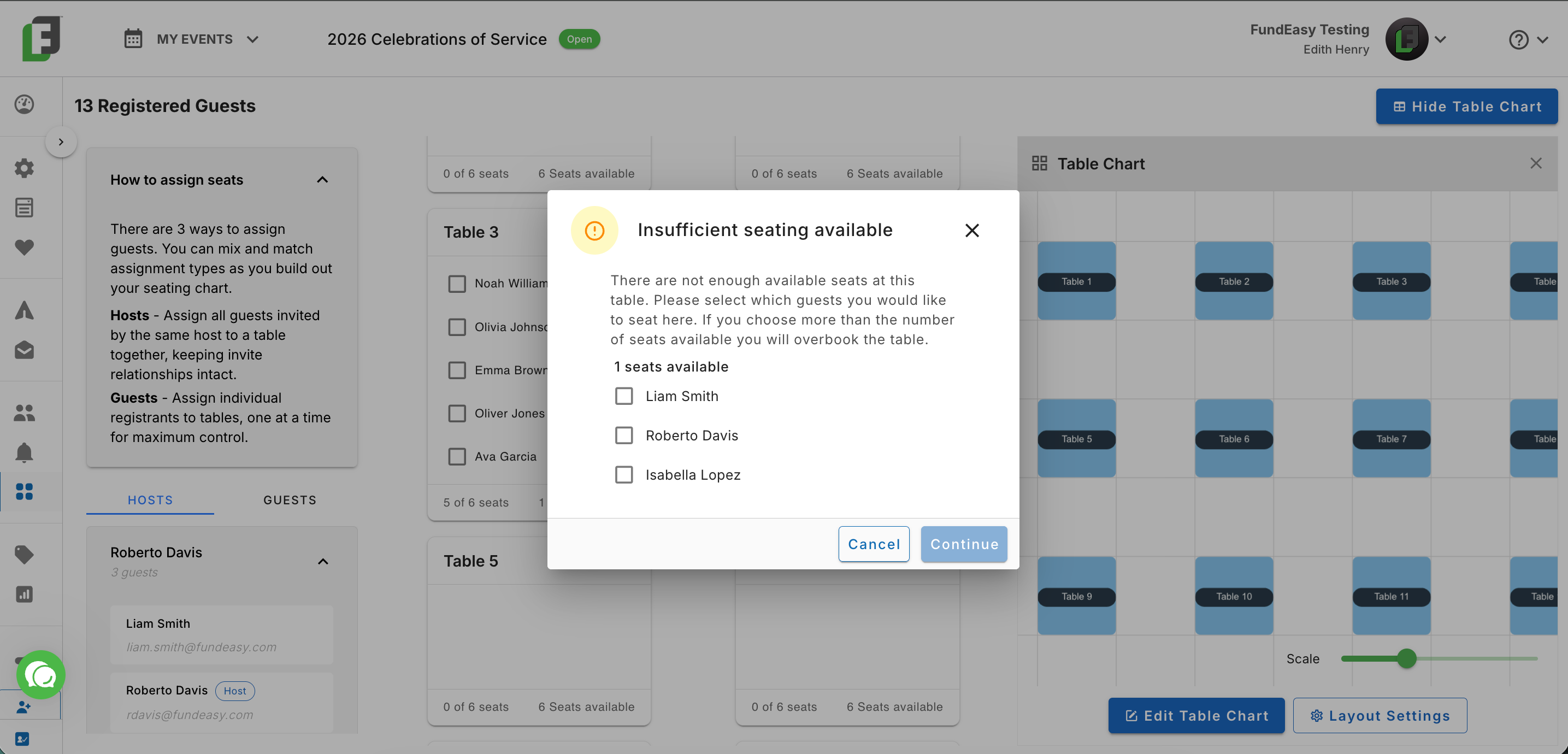
Instead, oversized groups are handled through the Insufficient Seating Available modal, which lets an admin manually divide a host's guest list across as many tables as needed. This most commonly comes up when:
A Table Host in a Vision Dinner event is managing a large group guest list.
A guest in a non-Vision Dinner template is managing more than one bundle of registrations (for example, 2 or more table reservations).
How to seat the group
Assign the host group to a table as usual.
If the group has more guests than the table has seats, the Insufficient Seating Available modal opens and lists every guest's name within that host group.
Choose which guests from the list to seat at that table, up to the table's capacity.
Repeat the process to assign the remaining guests in the group to a second table (or additional tables), until everyone in the group is seated.
Overbooked status
If more guests are selected than the table can hold, the table card displays an Overbooked status so the admin can spot and correct the mismatch — or make the call to leave it as-is and just bring up an extra chair.
Was this helpful?
Still need help? Ask the team