Groups & Hosts Report for Vision Dinner Events
The Groups and Hosts Report gives you a quick overview of your hosts and the guests associated with each group. This report is available for Vision Dinner events and is a helpful way to monitor host participation and identify any guests who have not yet been assigned to a host.
Open the Groups and Hosts Report
From your event dashboard, select Reports & Exports.
Click Groups and Hosts Report.
The report will open and display a summary of your event.
Review your hosts and groups
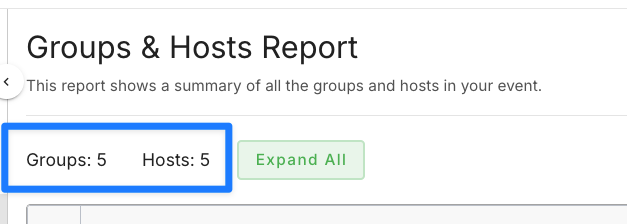
At the top of the report, you'll see:
Total Groups – The number of host groups created for your event.
Total Hosts – The total number of hosts assigned to those groups.
Each group can be expanded individually, or you can expand all groups at once to view additional details.
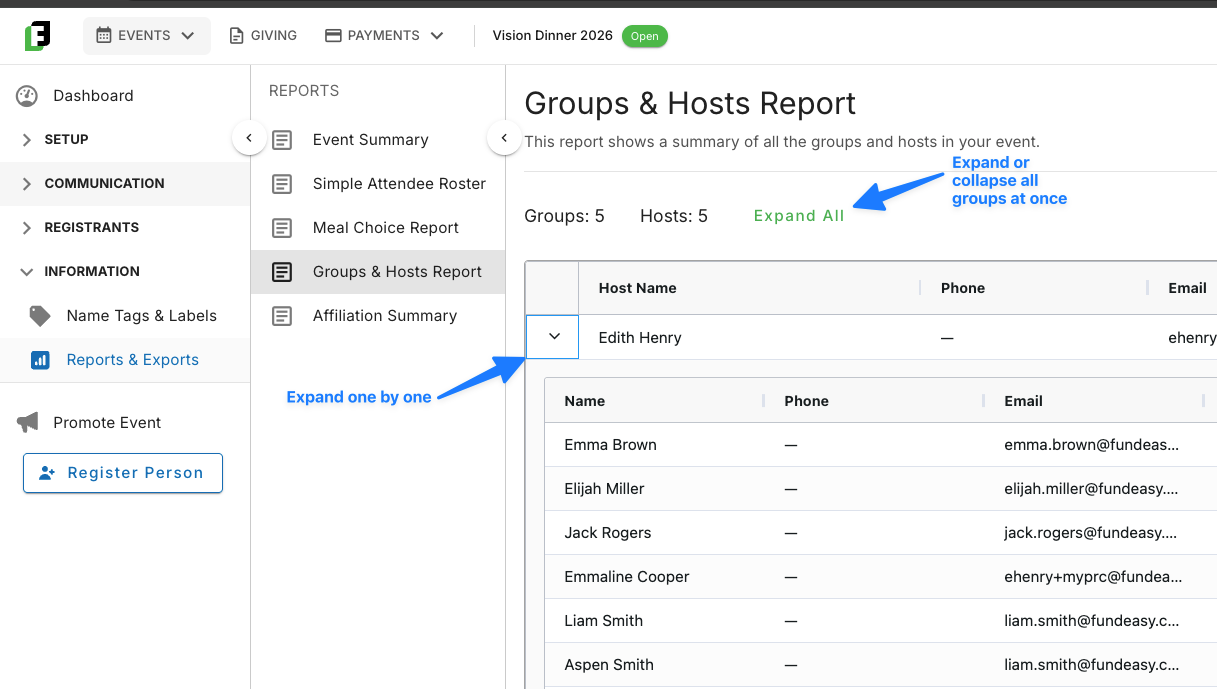
When a group is expanded, you'll see:
The host's name
Every guest associated with that host's group
The total number of registrants assigned to the group
Find ungrouped registrants
At the bottom of the report, you'll find Ungrouped Registrants.
These are registrants who have not yet been assigned to a host, making it easy to identify guests who may still need to be placed into a group.
Customize the report
Like other reports in FundEasy, the Groups and Hosts Report can be customized to fit your needs. You can:
Add or remove columns
Apply filters to display only the information you need
Export the report for offline use or additional analysis
When you select Export, FundEasy generates a downloadable copy of the report using your current filters and column selections.
Was this helpful?
Still need help? Ask the team