Custom Reports
Written By Edith Henry
Last updated 5 months ago
Understanding Your Report Options
In addition to the default event reports that we have created for you, you’ll also have the option to create Custom Reports to showcase your event information in the way that works best for you.
To get started, open one of our default report templates, such as “Simple Attendee Roster.”
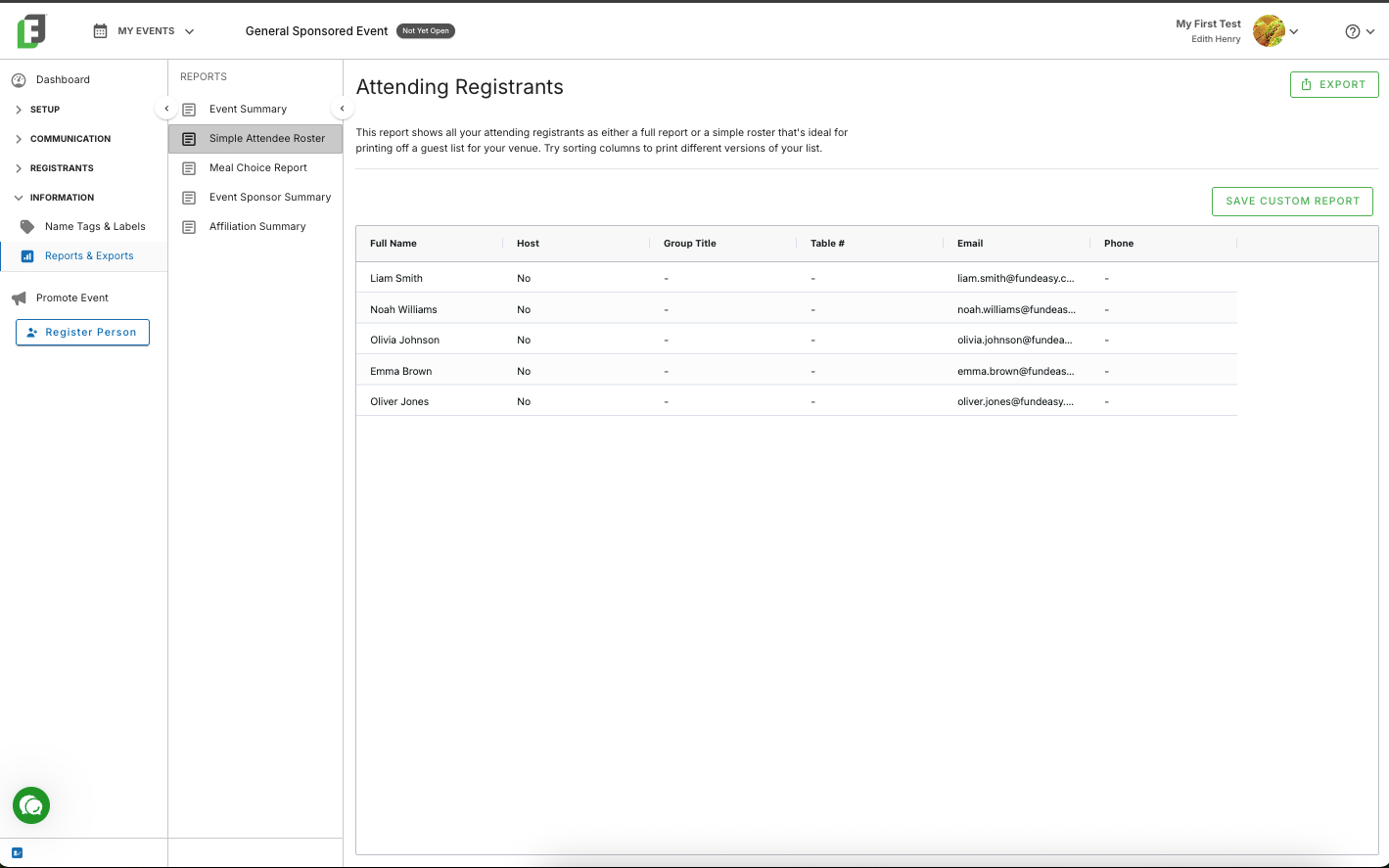
From the existing report, you can do the following things to make this report what you need it to be.
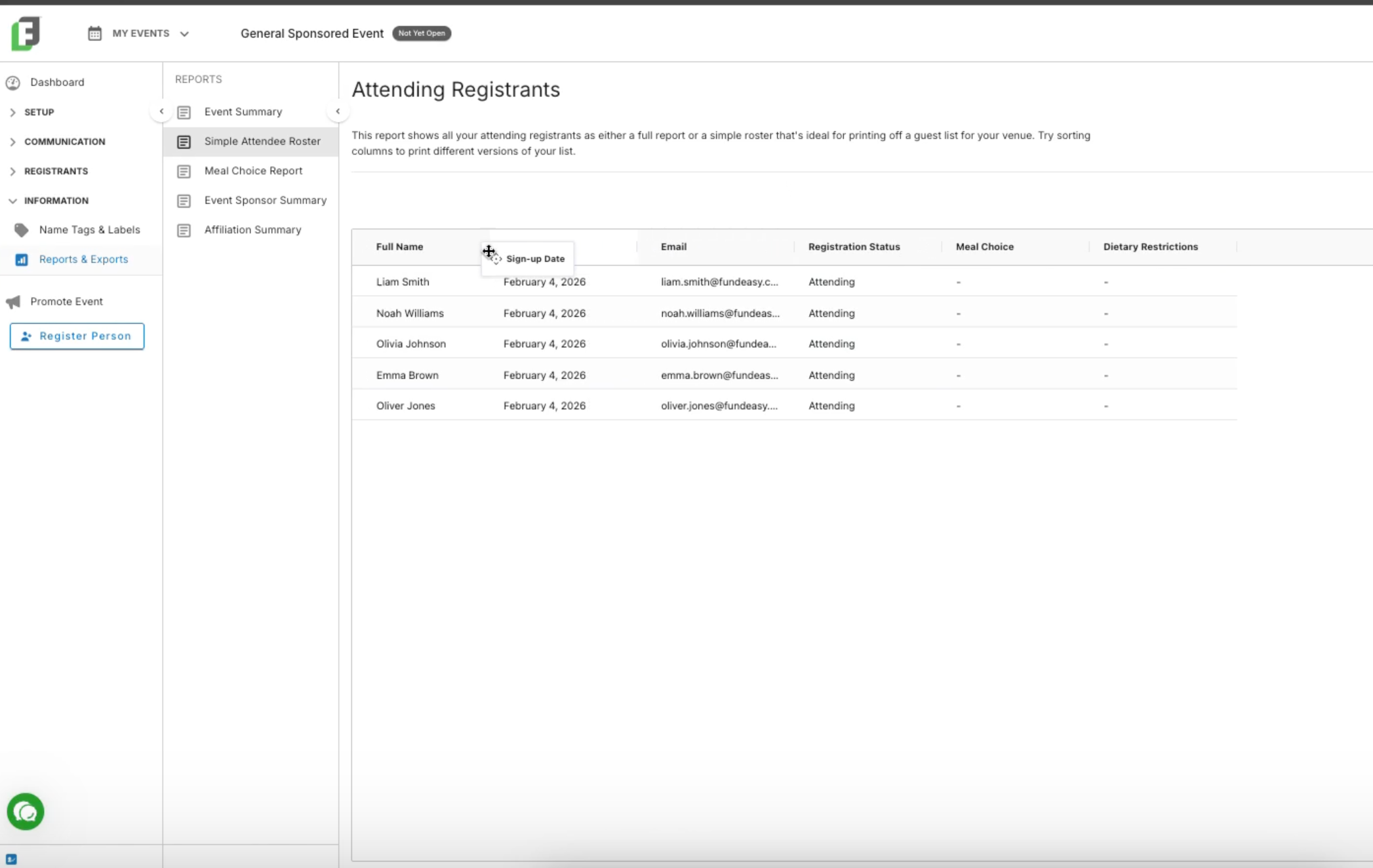
Reorder columns
Click on any column header to drag it into a different position.
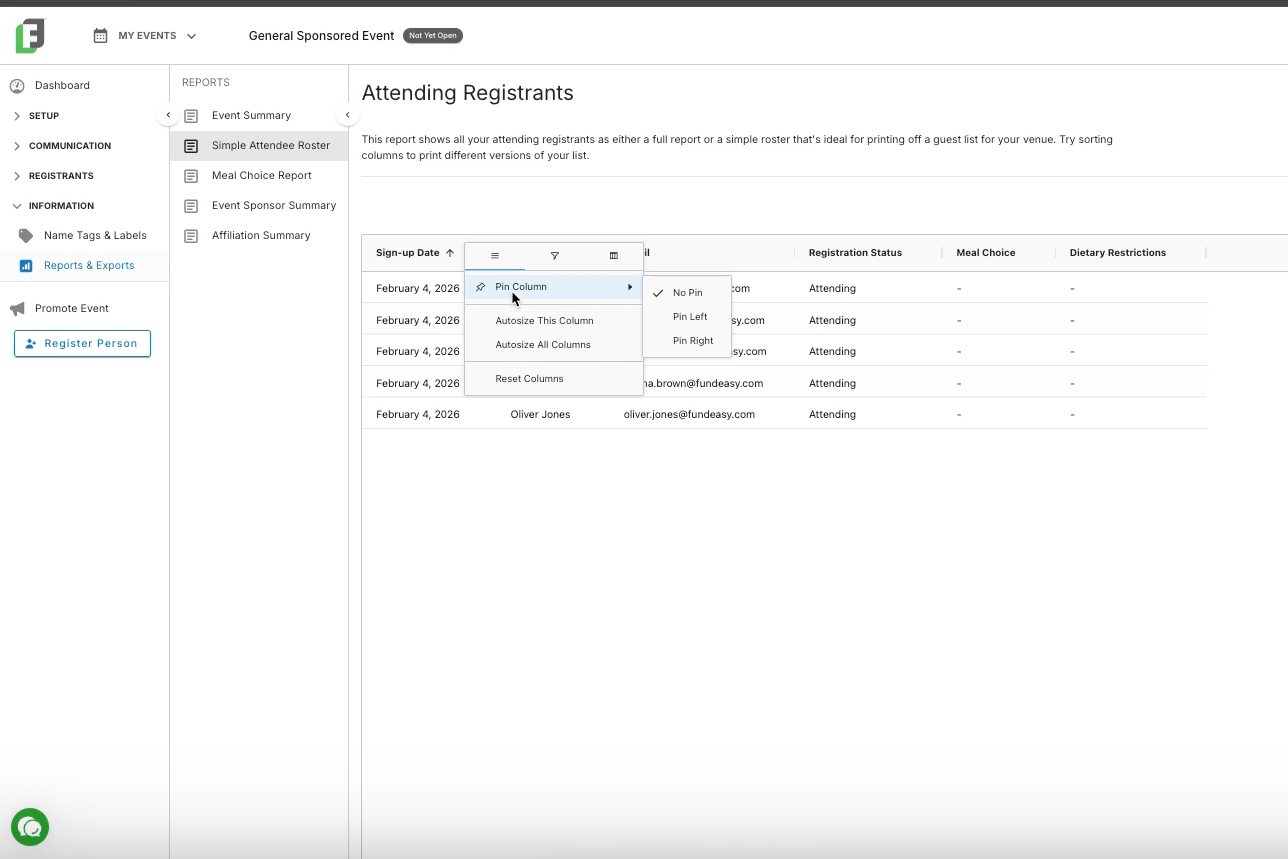
Pin columns
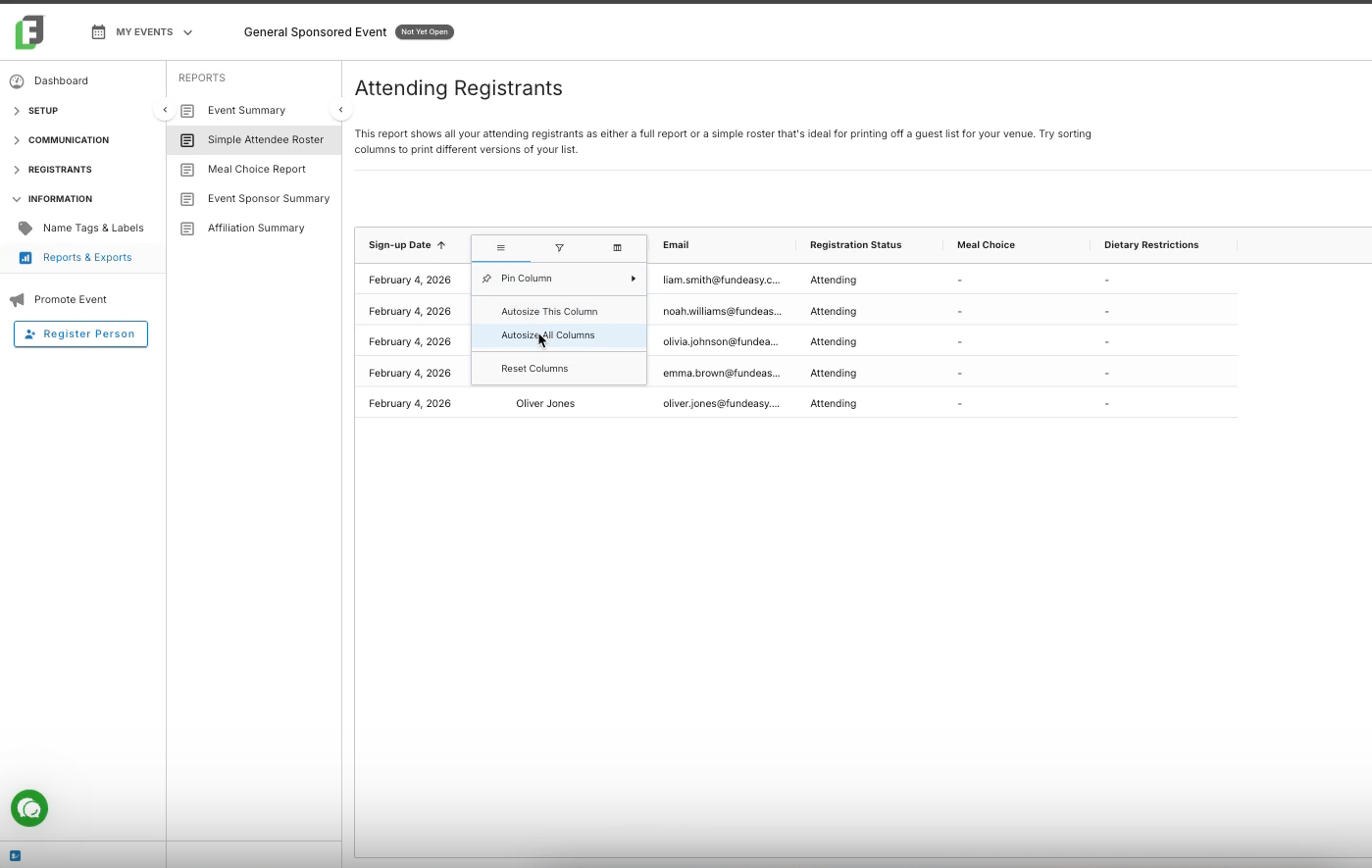
Using the hamburger menu for any column, pin that column to the right or left so that it is always visible as you scroll.
Resize columns
From the hamburger menu of any column, choose to resize the columns in your report.
Sort columns
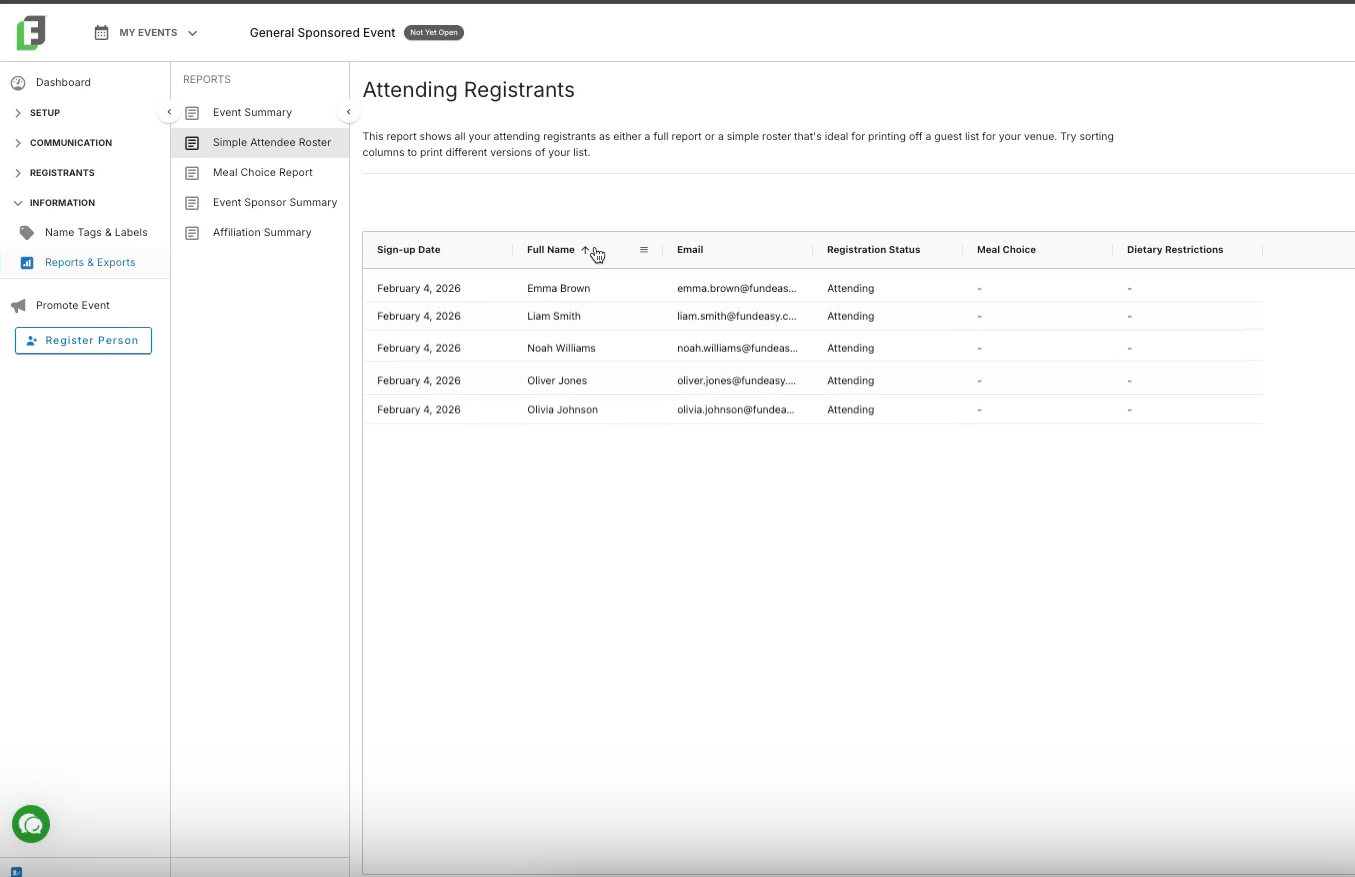
Sort by any column by clicking on the column header for that column.
Filter columns
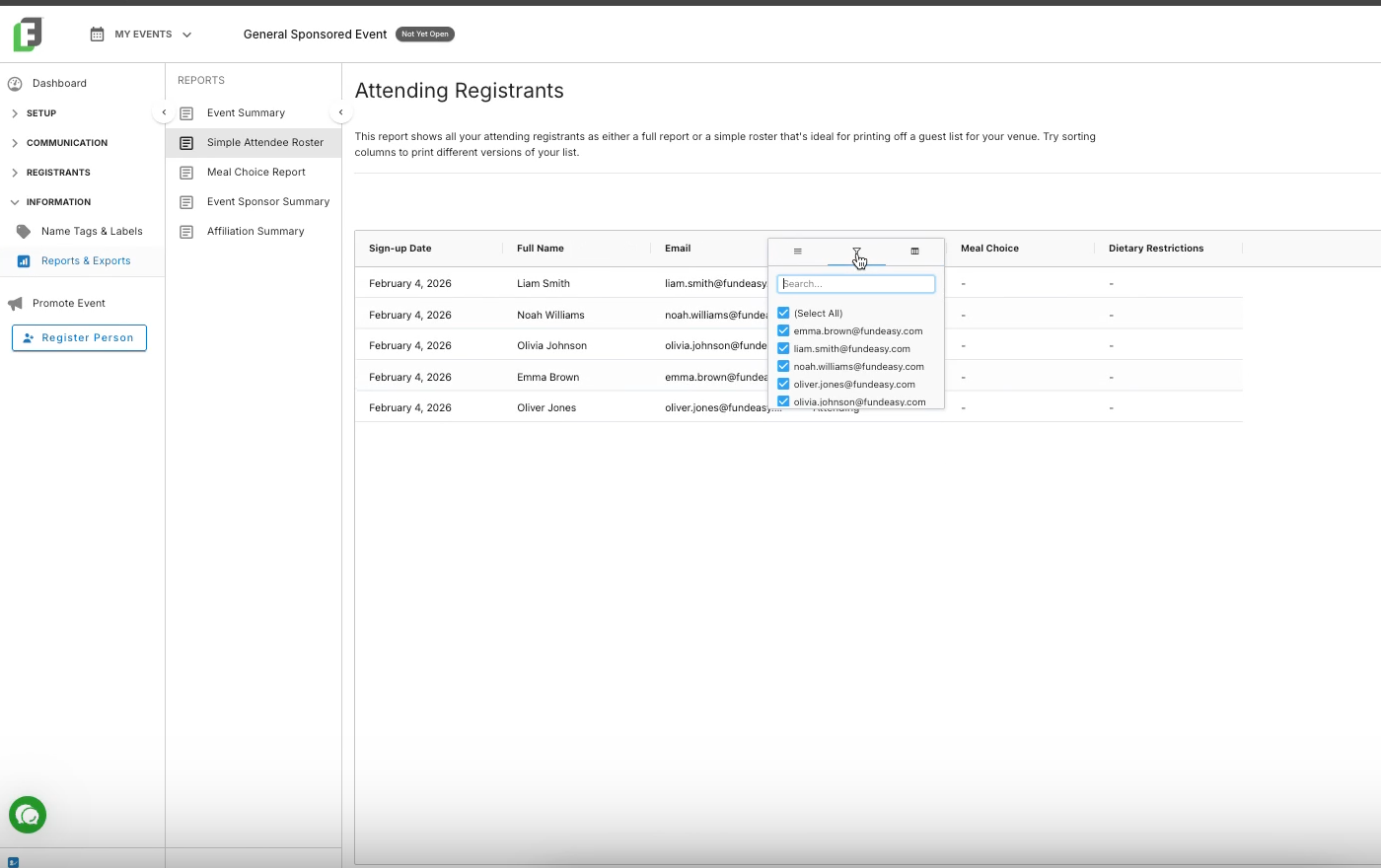
From the hamburger menu of any column, filter for a specific value.
Add/Remove columns
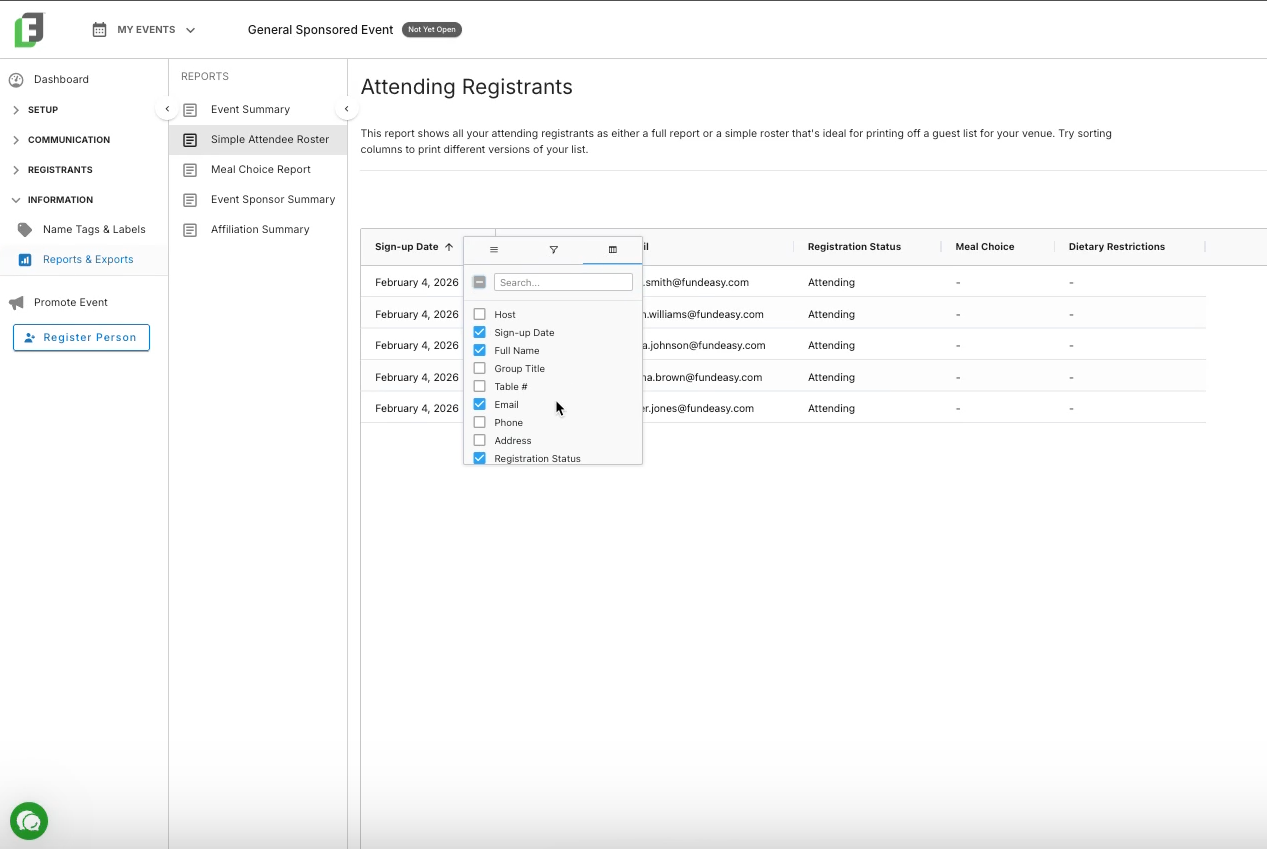
From any column’s hamburger menu, choose additional columns to add or remove from the custom version of your report.
Saving Your Custom Report for Future Reference
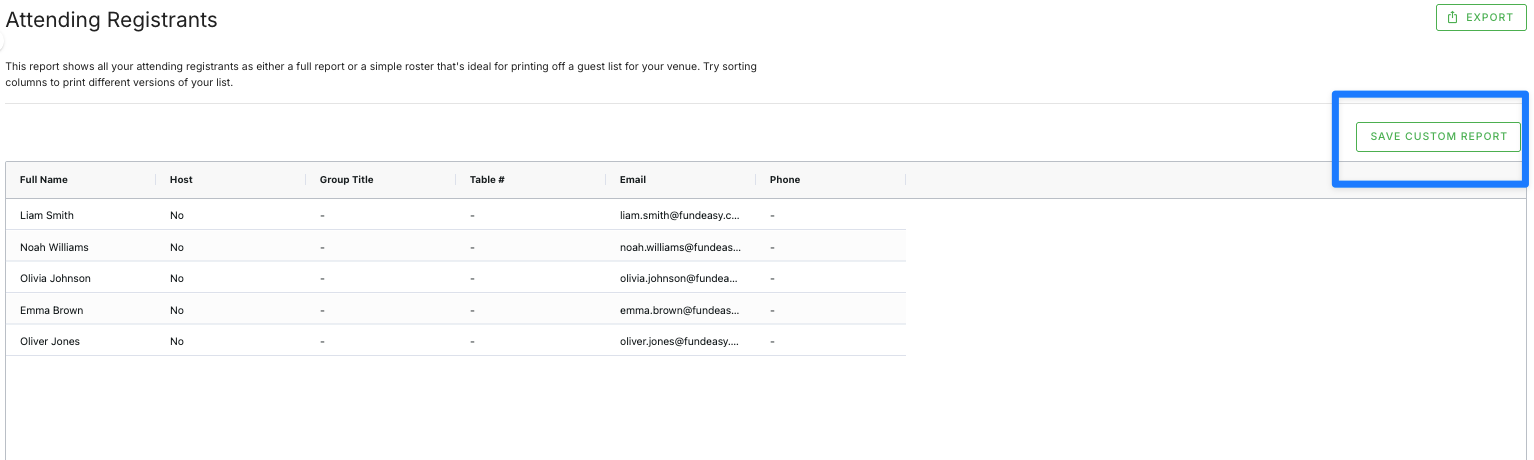
Now that you have arranged the report in the way that works best for you, you will need to save the report so that you can come back and easily refer to it in the future. You will use the option in the top right of your screen to “Save Custom Report.”
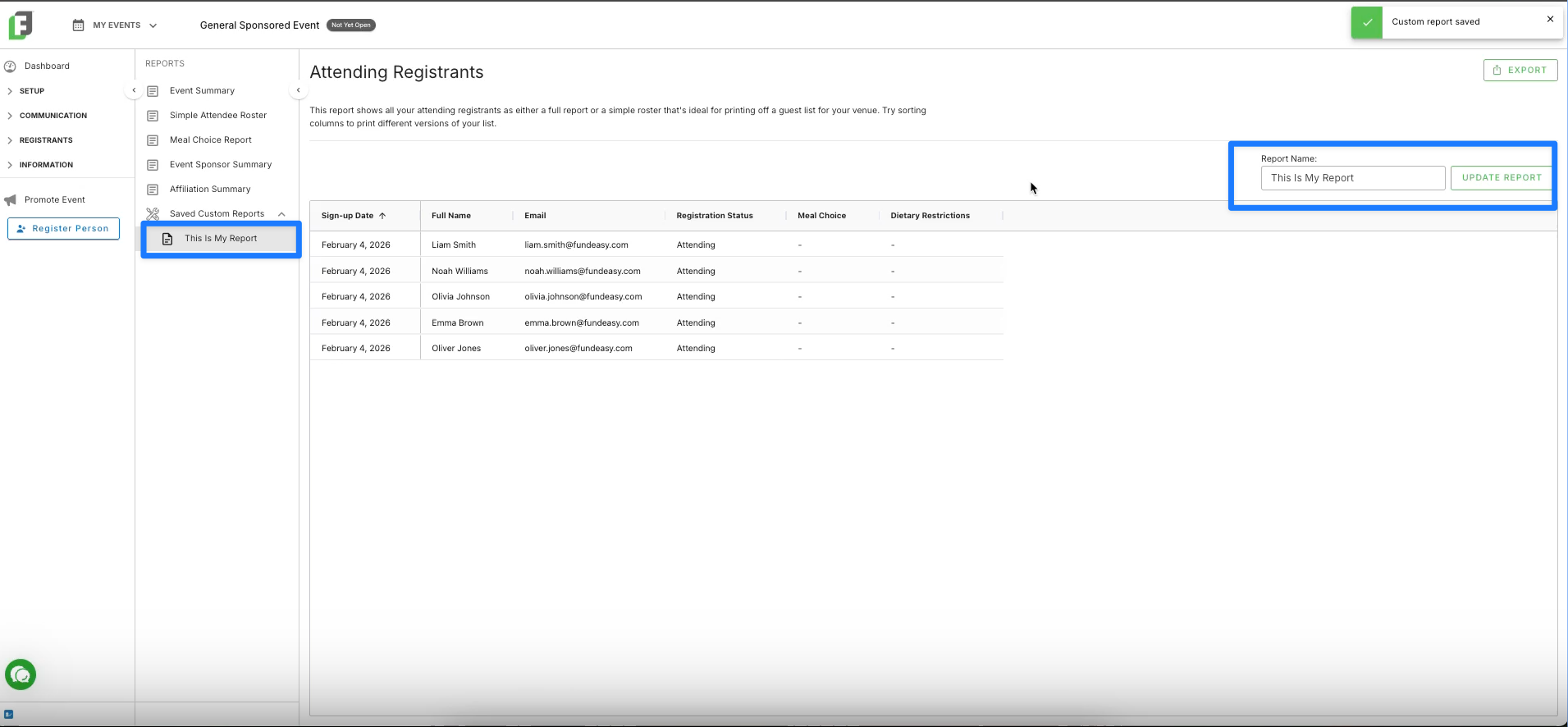
This will create a new category of reports in your sidebar, called “Saved Custom Reports.” You’ll see your brand new report here.
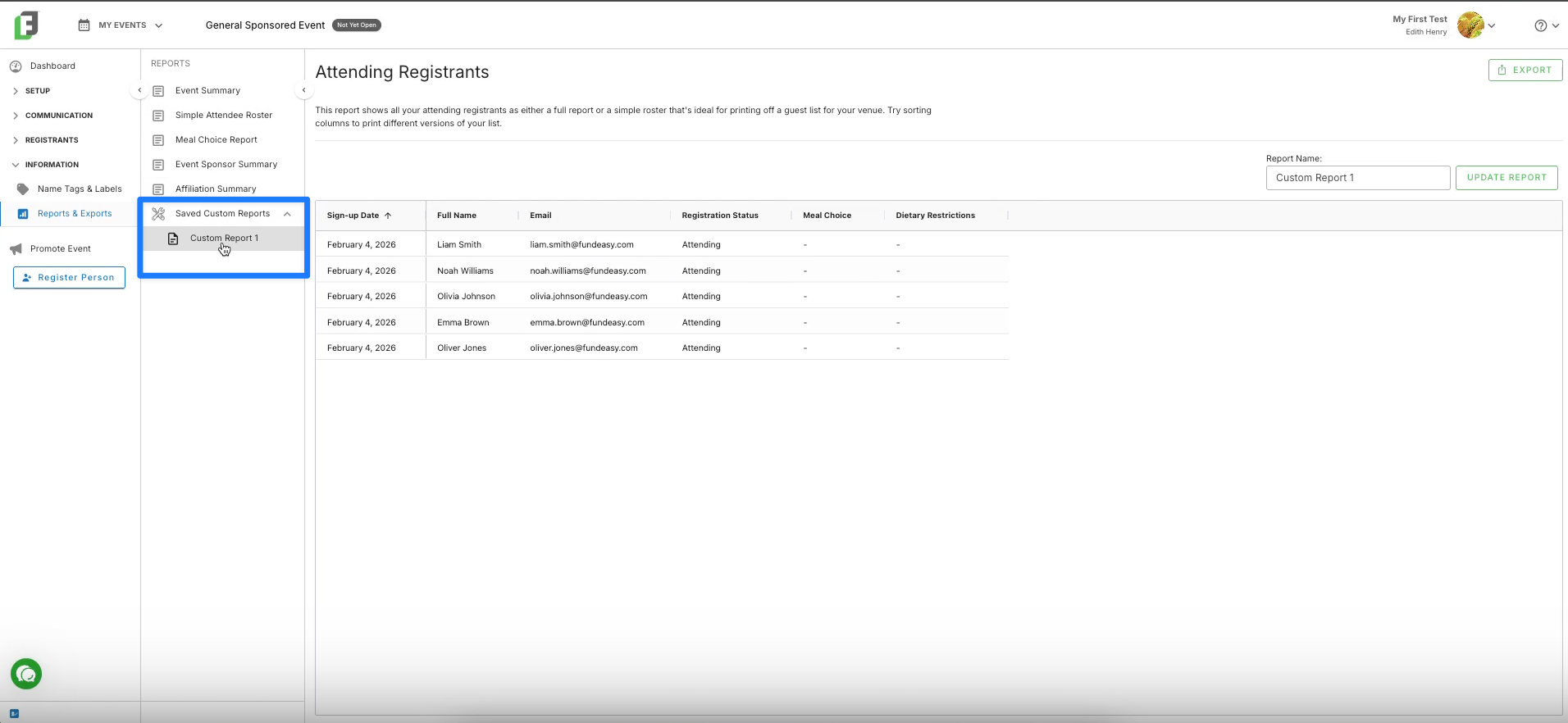
Rename your report and save the updates for easier reporting throughout the remainder of your event.