Creating a Refund from the Event Payments Manager Dashboard
Written By Edith Henry
Last updated About 1 month ago
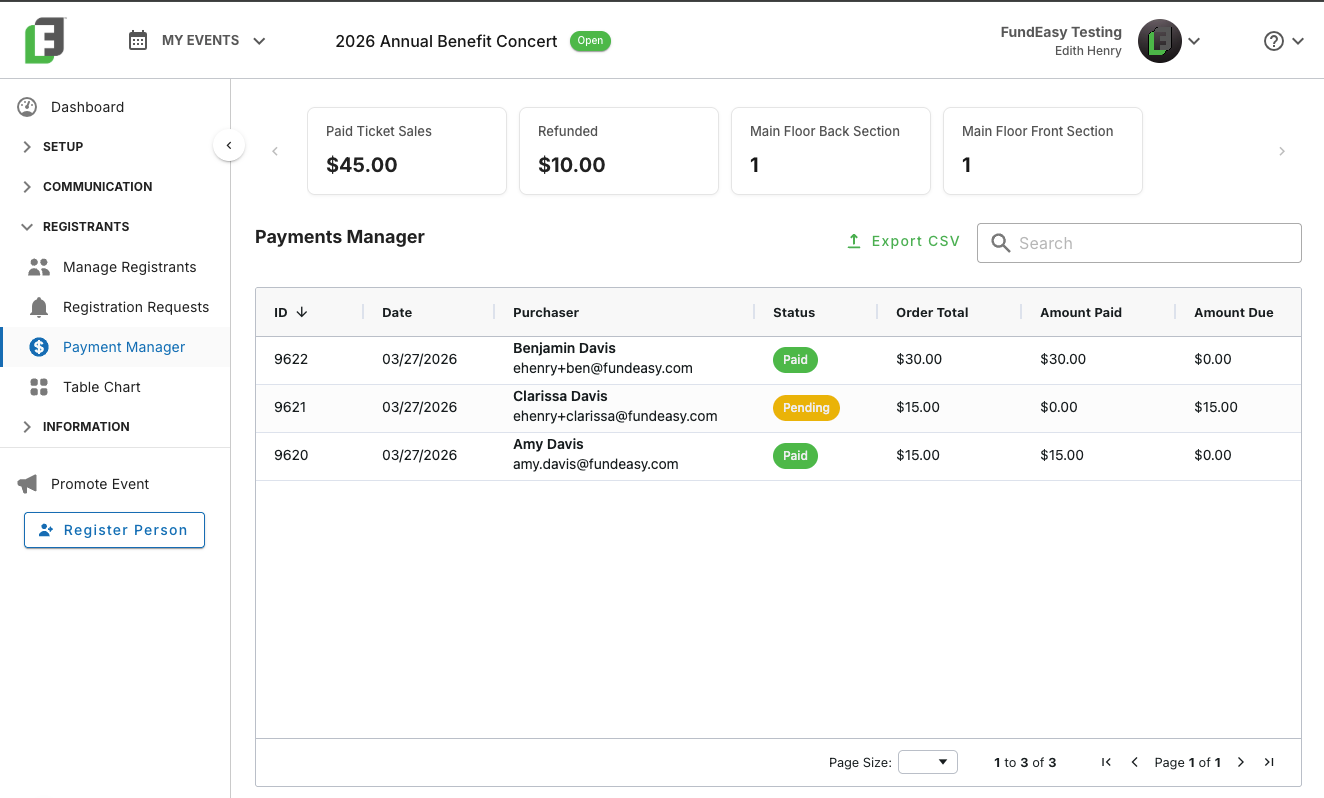
In addition to providing a comprehensive overview of all orders associated with your event, the Event Payments Manager also provides quick and user-friendly workflows for initiating full or partial refunds as well as tracking refunded amounts.
Note: Stripe does not return the original payment processing fees when a payment is refunded. This means the processing fees associated with the original payment will still apply even after the payment has been fully refunded.
Initiating a Full Refund
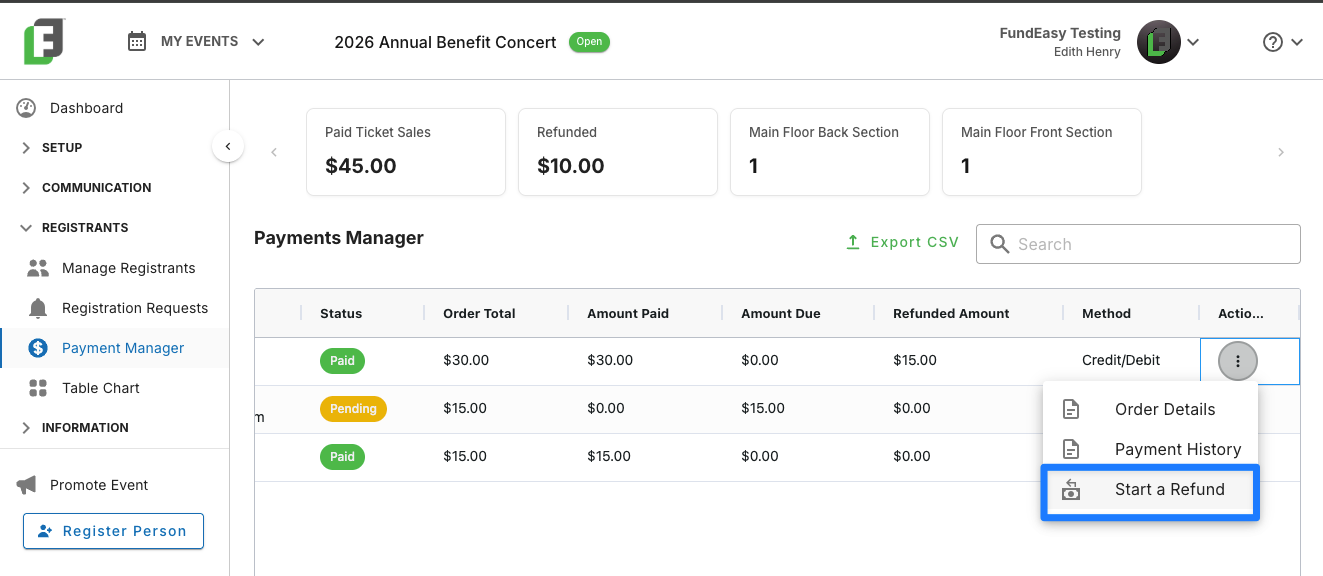
If you are wanting to refund an entire order, then simply find that line item in the Payments Manager and navigate to the ellipsis menu on the far right. You’ll see an option to start a refund.
The default amount shown in the Refund Amount box will be the amount equal to the order total (i.e., the entire amount paid at checkout, regardless of whether this was for one or for multiple guests).
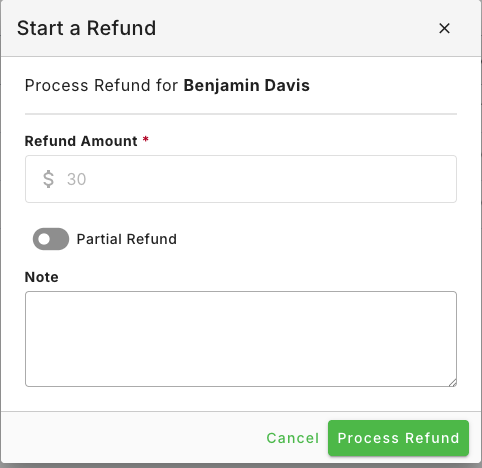
If you are wishing to refund the full amount, then you can simply click “Process Refund” and the money will be returned to the purchaser for this order.
Optionally, you can add an administrative note to log why you are initiating the refund.
Initiating a Partial Refund
If you do not wish to refund the full amount, but instead wish to refund only a partial amount, then simply flip the toggle option to issue a Partial Refund.
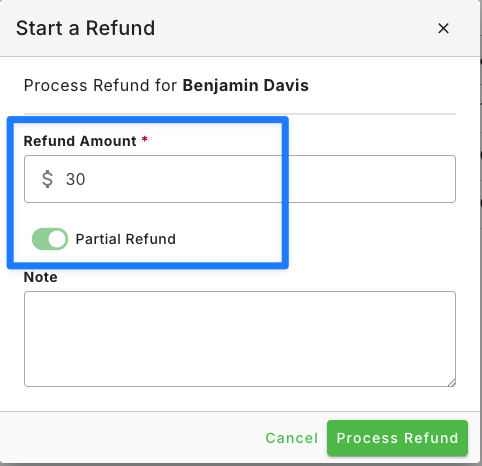
Flipping the toggle will enable you to add a custom amount, such as if you only want to refund $15 instead of $30.
How Refunds Update the Dashboard
Once a refund has been processed, then the amount of money refunded will be displayed in the “Refunded Amount” column of the event Payments Dashboard.
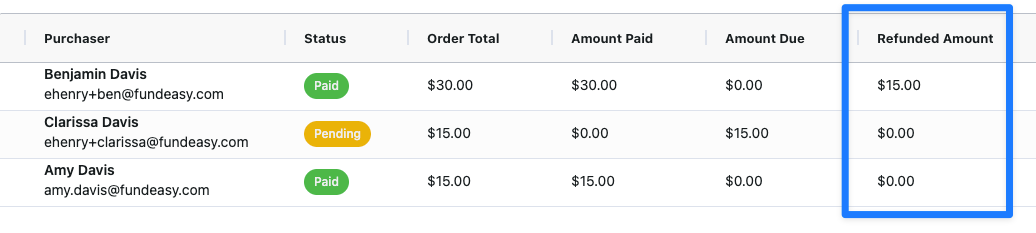
Once a refund has been issued, no further payment follow-up is required, so the order status remains “Paid.” In the example above, Benjamin’s order total is $30 and he has paid $30. Issuing a refund does not change the amount due—it remains $0, and the status stays “Paid.” This distinction helps differentiate fully paid orders that were later refunded from “Pending” payments, where additional funds are still expected.
I Started a Refund—Why does it still say $0 refunded?
Once you create a refund, the system will immediately update the refund status to “Refund Initiated” to let you know that the refund request has been submitted.
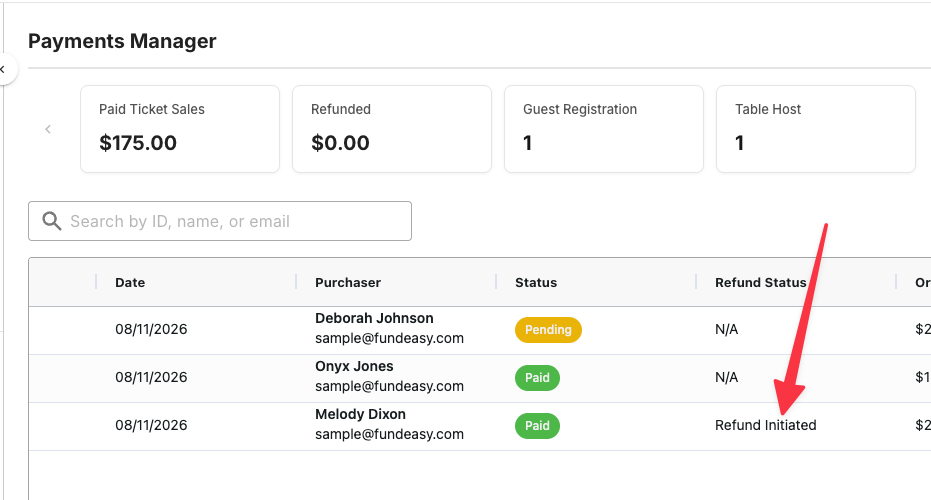
The Refunded Amount may still show as $0 while the refund is pending. Stripe submits the refund for processing right away, but the time it takes for the funds to appear in the customer’s account depends on their bank or card issuer.
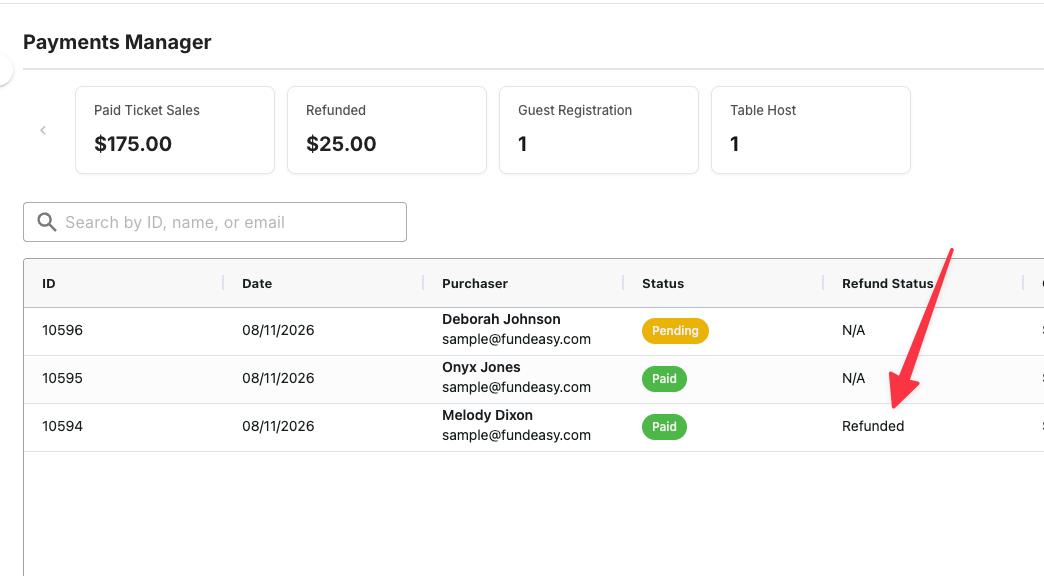
Once the refund has fully processed, the status on the Payments Dashboard will update to “Refunded,” and the Refunded Amount column will display the amount that was refunded.