The Event Sponsors Dashboard
Written By Edith Henry
Last updated About 2 months ago
The Event Sponsors Dashboard provides a centralized view of all event sponsors, allowing for easy management of their details and preferences. This documentation outlines the key features and functionalities of the dashboard, the approval workflow, the process for turning sponsors public, and an overview of sponsor stats such as impressions and clicks.
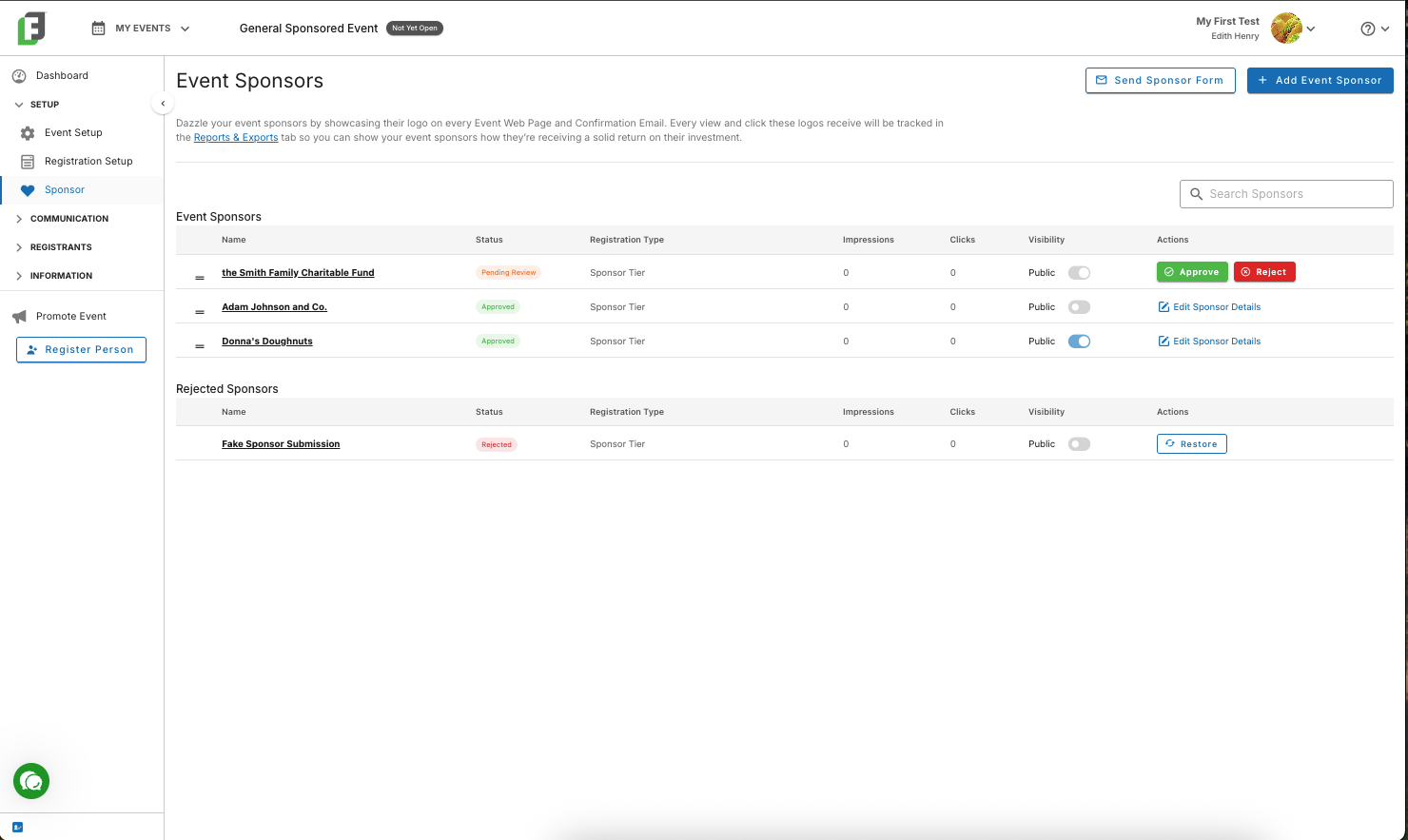
Navigating the Dashboard
The dashboard displays all individuals or organizations that have signed up as event sponsors. Sponsors can register through the public page, respond to an emailed sponsor form, or be added manually via the 'Add Event Sponsor' modal.
Every sponsor submission will channel that information here to the Event Sponsors Dashboard for further review. You’ll be able to quickly and easily see the status of each sponsor, including the sponsor has been approved or whether the sponsor is still under review.
Using the approval and rejection workflow for new sponsor submissions, admins can make informed decisions before allowing a sponsor to become publicly associated through the event (such as by being displayed on event web and email templates).
Illegitimate submissions can be rejected and moved to the 'Rejected Sponsors' list.
Rejected sponsors can be restored if deemed legitimate later.
Approved sponsors can be made public after approval.
Note that the anonymity of sponsors is respected; sponsors who choose to remain anonymous cannot be made public at any time without first altering their anonymous status in their registration details.
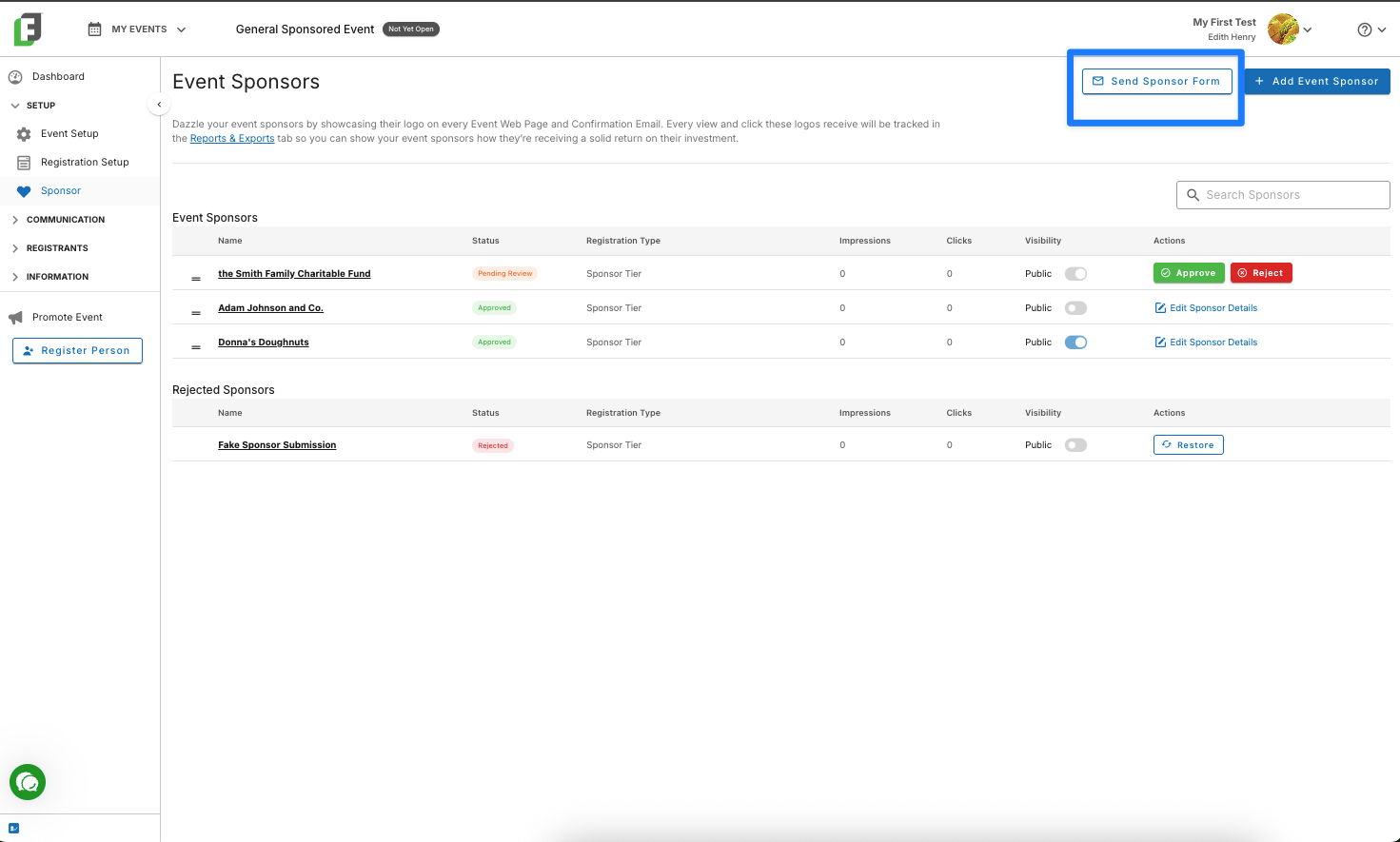
Using the “Send Sponsor Form” Feature
Sometimes it’s helpful to be able to email a potential sponsor rather than waiting for them to find your main event webpage. This could be particularly helpful if one of these is true:
You want to personally solicit sponsors rather than just seeing who will pick the sponsor option on your public registration page. In fact, you might want to turn your public sponsor form off so that only your specifically-recruited sponsors will be associated with your event.
You’ve been engaging with a sponsor who keeps promising to register, but they’re too busy to go find the event webpage and you want to solidify their details so you can start generating impressions and clicks for them.
In cases like these, the Send Sponsor Form tool is a great way to secure that sponsor submission through a friendly email. Customize your request with a friendly personal note.
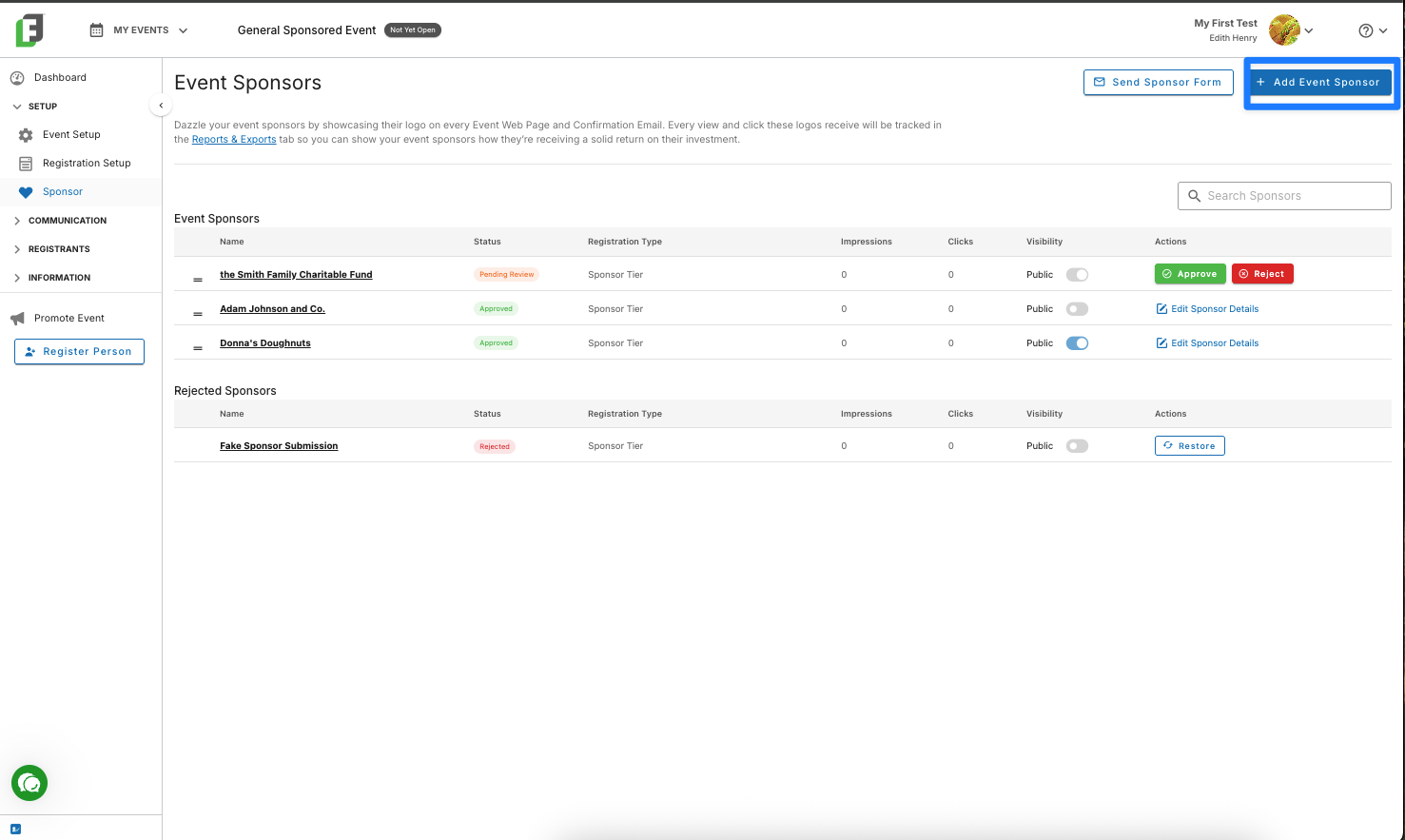
Using the “Add Event Sponsor” Feature
If you already know who your next sponsor is and have their permission to add them to your event, you can skip the public flow by using the Add Event Sponsor modal. This is especially helpful if you work with the same sponsors year after year and want to spare them from completing another registration form. It’s also a convenient option when a sponsorship is confirmed over the phone or during a conversation.
Customizing the Order for Your Sponsor Logo Displays
You have full control over the order in which sponsor logos appear throughout your event experience. From the Event Sponsors Dashboard, simply click and drag the handle beside each sponsor to rearrange them into your preferred order.
Any changes you make are applied automatically, updating the display order anywhere sponsor logos appear, including your public event webpages and event email templates.
Sponsors are displayed in the same order they appear in the dashboard. The first sponsor in your list appears first, followed by the remaining sponsors in order from left to right. Once a row is full, additional sponsors continue onto the next row. This makes it easy to feature your most prominent sponsors while keeping the rest organized in the order that best fits your event.
Tracking Impressions and Clicks
When you enable the sponsor logo and website fields in your form builder, sponsors can upload their logo and share their website URL. This allows you to track impressions and clicks as registrants explore the sponsors who help make your event possible.
Sponsors are prominently featured across web and email templates, giving them high visibility and ample opportunity to stand out.
If a sponsor does not provide a logo or website, their public recognition name will be displayed in place of the logo on web and email templates.