Using The Host Manager Tool (Host Information)
Written By Edith Henry
Last updated 6 months ago
The Group Host Manager is a webpage that allows Table Hosts to manage their own guest list. Each host has a unique Group Host Manager.
Becoming a Table Host (How to Sign Up for the Group Manager Tool)
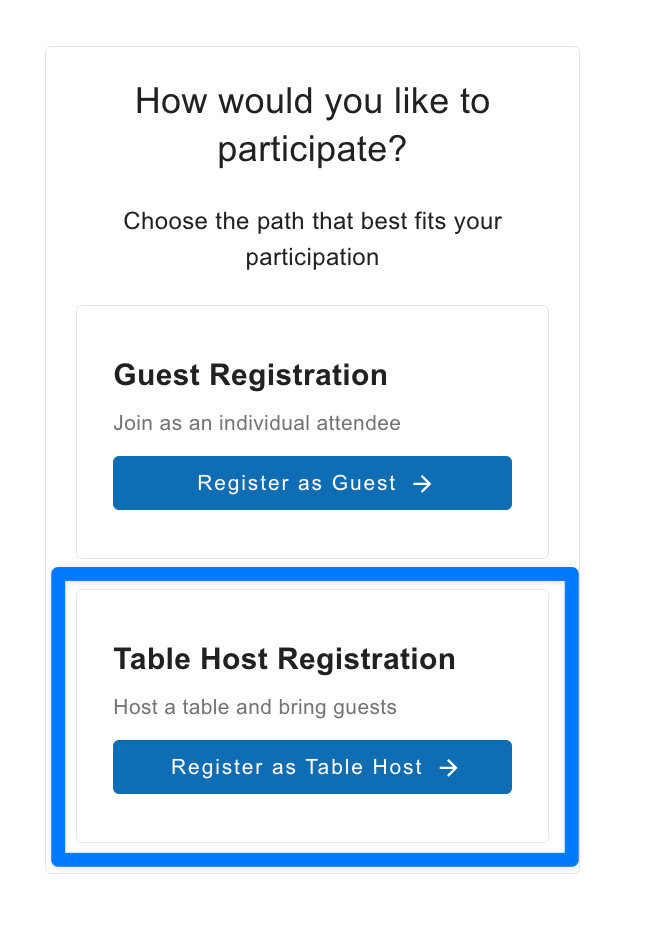
Table Hosts are created by selecting the “Register as Table Host” option on the event page. [Note: For events with invitation-only Table Hosts, this will not be an option on the public event page; but there will still be an option for admins to manually create hosts from their event dashboard.]
After registration, Table Hosts receive two emails. One of these is a simple confirmation email, but the other contains a special link to their personal Group Host Manager–a super user-friendly tool for managing their guest list!
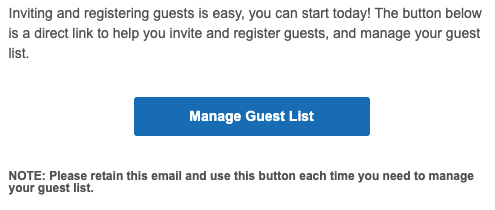
The link to the host’s Group Host Manager is only found in their Table Host Instructions email, so make sure to let your hosts know that they should NOT DELETE their Table Host Instructions email!
At any time a host wishes to resume working on his guest list, he can simply return to this email and click the button that says “Manage Guest List.” This will lead him to a separate page where he can register guests, invite friends, and view invitation details.
Registering Guests Manually (Registering on Behalf of a Guest)
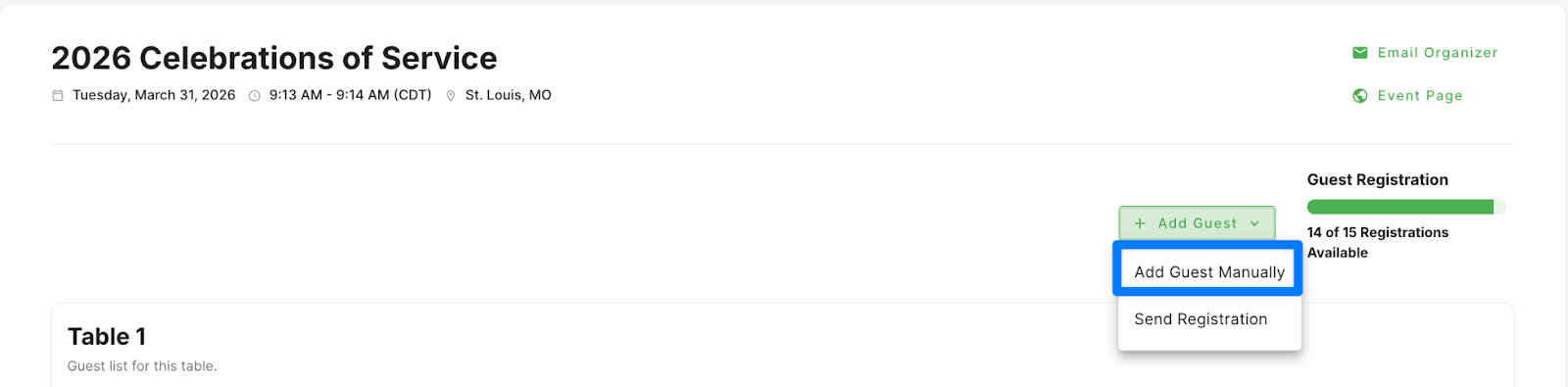
If a host wishes to register some guests manually, he can click the “Add Guest > Add Guest Manually” button up at the top of his Host Manager Tool. This will prompt him to complete the registration flow on behalf of his guest. When he fills out the information and clicks “Finished,” his guest will be added as if the guest had registered on their own (or responded to an invitation–see below regarding “Inviting Friends”).
Inviting Friends (Inviting Guests to Register Themselves)
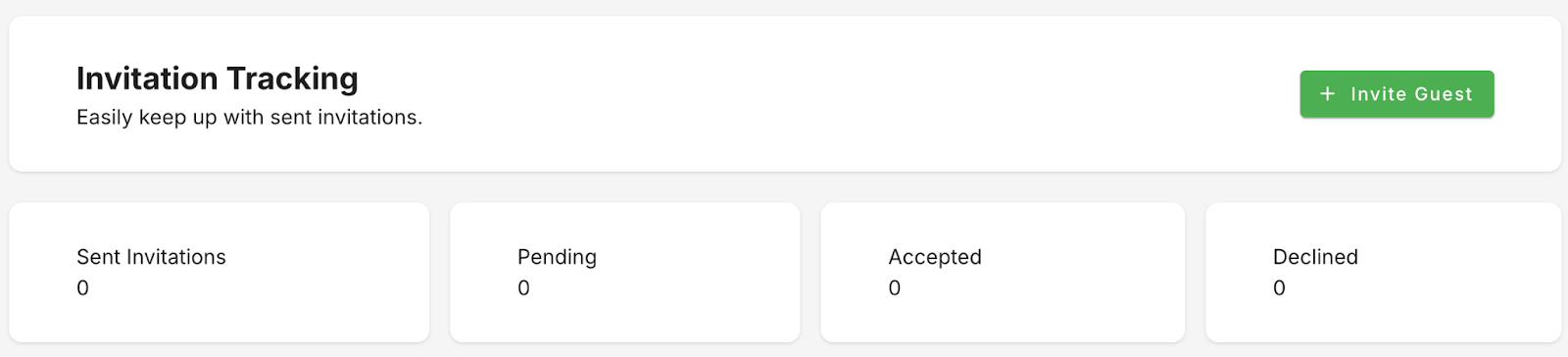
To invite a friend without filling in all the guest’s details, a host can click the button labeled “Invite Guest.” This allows the host to enter multiple email addresses (simply press “Enter” to add an additional email address). He will also have the opportunity to add a personalized note to his invitation email which will be sent to each of these emails.
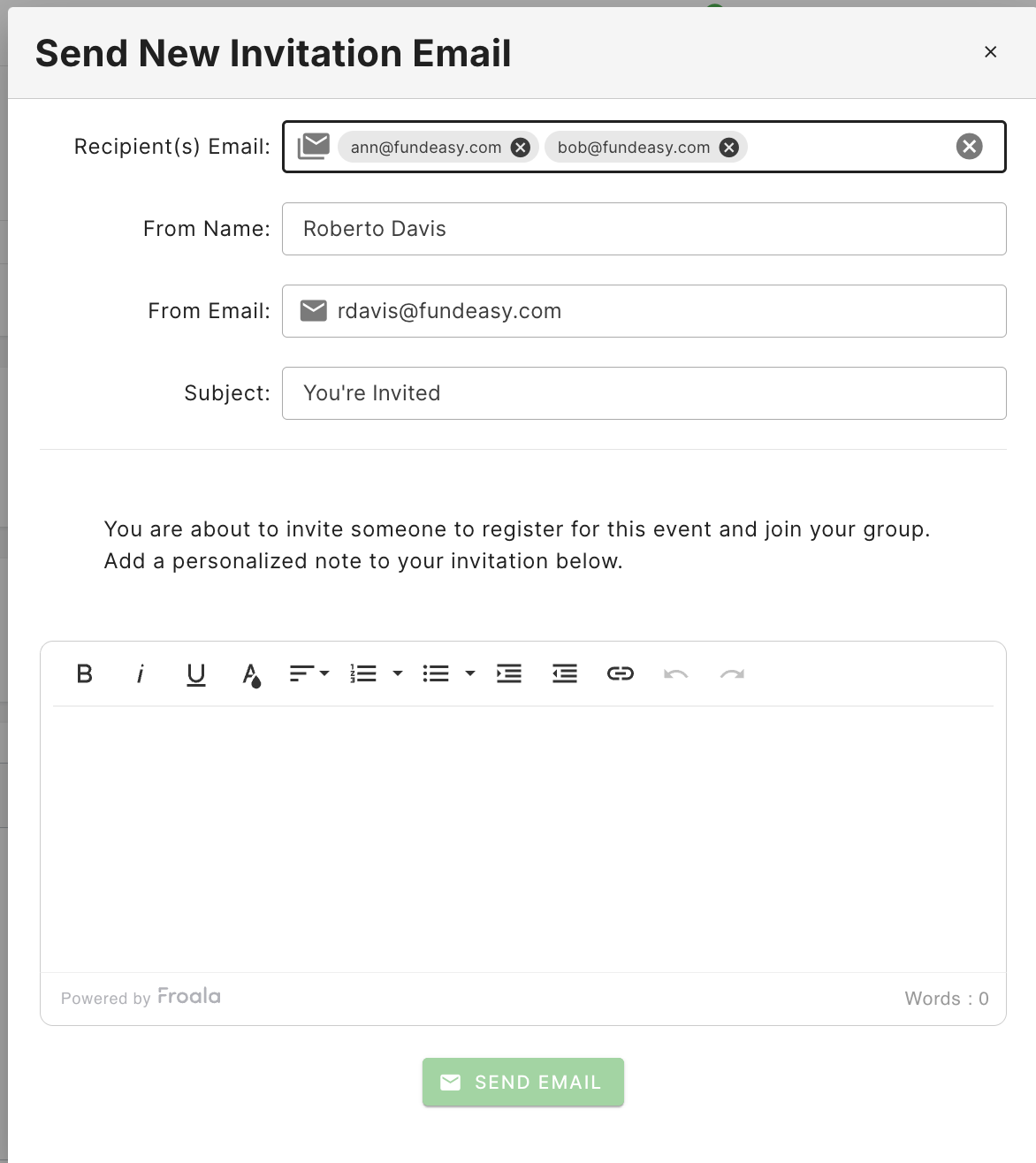
After the email addresses are added and the note is set, the host will simply click the button labeled “Send Email.” This will put those invitations in queue to send. From here, the host will be able to quickly see who has accepted and who has declined (pending invitations have been neither accepted nor declined).