Managing Parties
Party Management in Event Registration
Written By Edith Henry
Last updated 4 months ago
This documentation provides an overview of how parties are managed within the event registration system. It explains how to manage parties formed during checkout, how to manage seating workflows for parties, and how to handle special requests for seating that come in through registration requests.
Understanding Parties
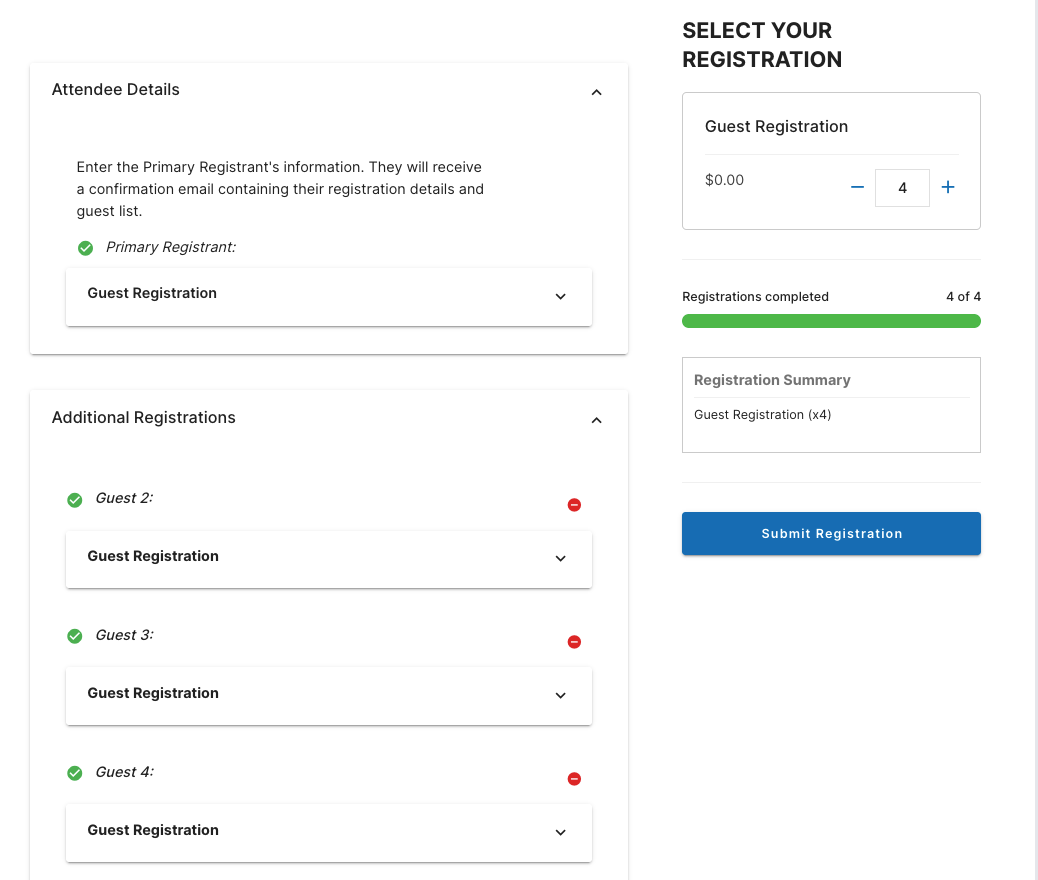
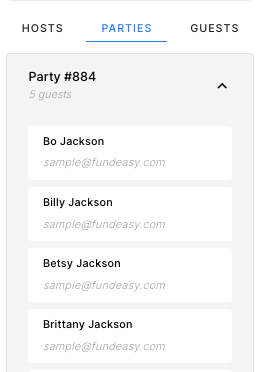
A party is automatically created when multiple guests check out at the same time. For example, if spouses Billy and Betsy Jackson register with their two children, Bo and Brittany Jackson, then they are grouped into a single party because they are all on the same checkout.
These parties appear in the Tables & Seating view, where they can be managed and assigned to tables either individually or as a group using drag-and-drop functionality.
Managing Parties in Seating
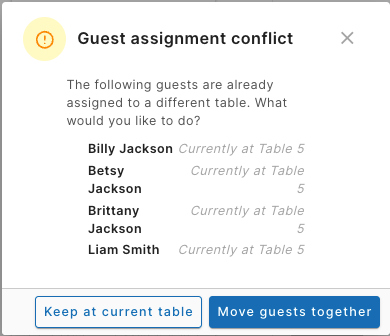
When placing a party into a table, the system will prompt you if any members of that party are already seated elsewhere. You can choose to keep existing seat assignments or move all members together into the same table. This ensures flexibility when organizing seating arrangements.
Overlapping Group Types
Guests may belong to multiple groupings simultaneously:
Host groups (based on who invited them)
Parties (based on checkout behavior)
Guest list (all attendees)
Because of this overlap, the same guest may appear in multiple tabs. The distinction lies in how you choose to organize and seat them.
Recommended Seating Strategy
To manage these overlapping groupings effectively, it is recommended to follow a structured seating strategy. A common approach is to seat guests starting with the largest groups and working down to smaller ones, ensuring that primary relationships and group needs are accommodated first. Individual, unassigned guests can then be seated last to fill in any remaining gaps after all host groups and parties have been placed.
To efficiently manage seating:
Start with the largest groupings, such as host groups.
Next, assign parties to tables.
Finally, seat individual guests (single registrations) to fill in any remaining gaps.
This approach helps ensure that key relationships and group preferences are prioritized.
Handling Guests Who Did Not Register Together
If guests who should be seated together did not check out at the same time, they will not automatically form a party. However, this can be addressed through registration requests.
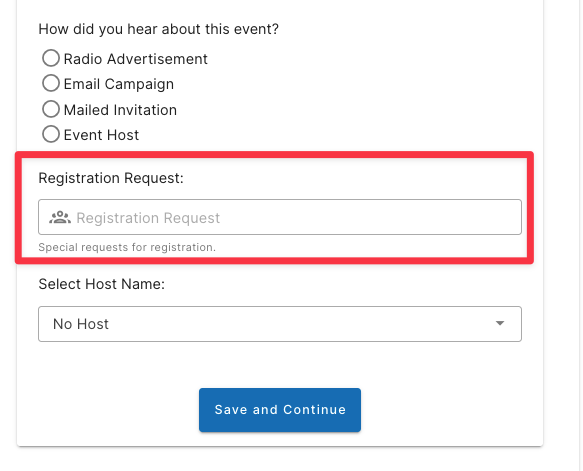
If the registration request feature is enabled on the public checkout flow, guests can specify seating preferences (e.g., “Please seat me with my spouse”). These requests can then be reviewed and managed from the Registration Requests Dashboard.
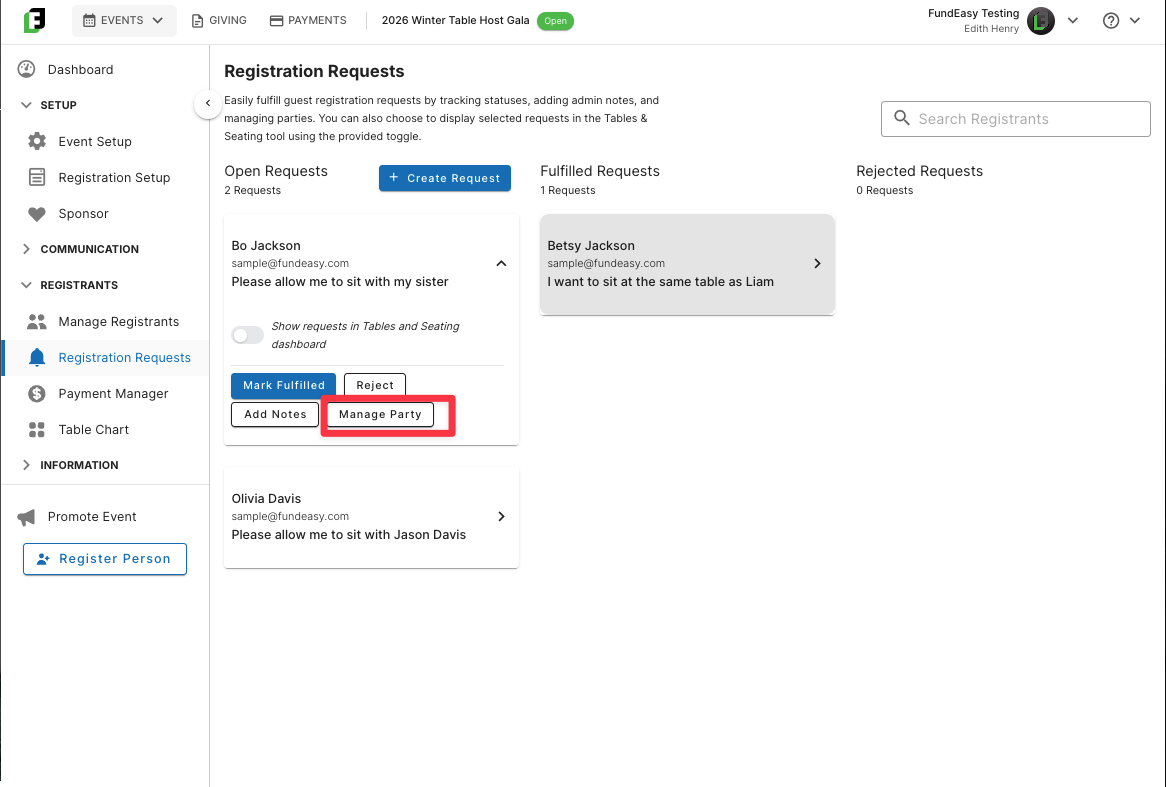
Using the Manage Party option within a request, you can:
Add an individual guest to an existing party (removing them from their current group), or
Merge two parties into a new combined party
The system will display a preview of the changes before you confirm them.
Once completed, the request can be marked as fulfilled. The updated party will then be reflected in the Tables & Seating view, allowing you to assign the newly grouped guests to a table together.