Enabling/Managing Offline Payments
Written By Edith Henry
Last updated 4 months ago
How to Enable/Disable Offline Payments in Your Event
All Pay-to-Attend event templates will include a payments step in the event setup. In that step, you'll be able to specify whether or not to allow offline payments.
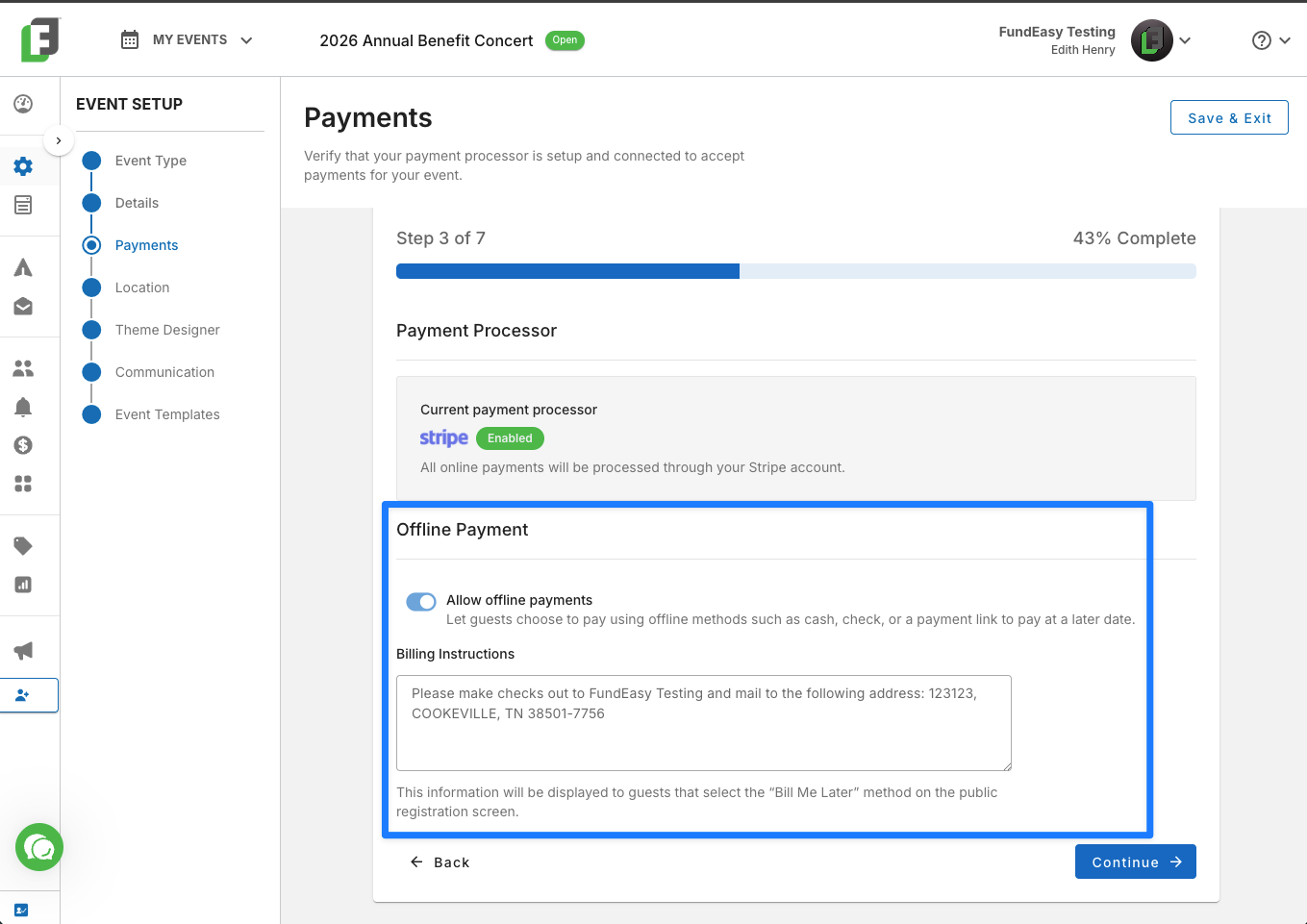
If you toggle on the option “Allow offline payments,” then your event guests will be able to choose “Bill Me Later” as an option at the time of checkout. This is especially helpful if you expect some or all of your guests to pay with an offline method such as cash or check. When the “Allow offline payments” toggle is flipped on, then your guests will be able to check out fully, receive their tickets, and be fully registered for your event, even without paying up front.
Notice that when you enable offline payments, there's a billing instructions section that appears in your event setup. Whatever you enter here will show up upon checkout so that guests know how you expect them to submit their payment at a future date (such as, where to mail their check). By default, the billing instructions will provide instructions to mail a check payment to your organization’s name at your organization’s mailing address. For your convenience, this information is already autofilled for you; however, if you want, you can click into the billing instructions box and edit the instructions however you wish. Whatever you enter will reflect what guests will see as they're going through the checkout flow.
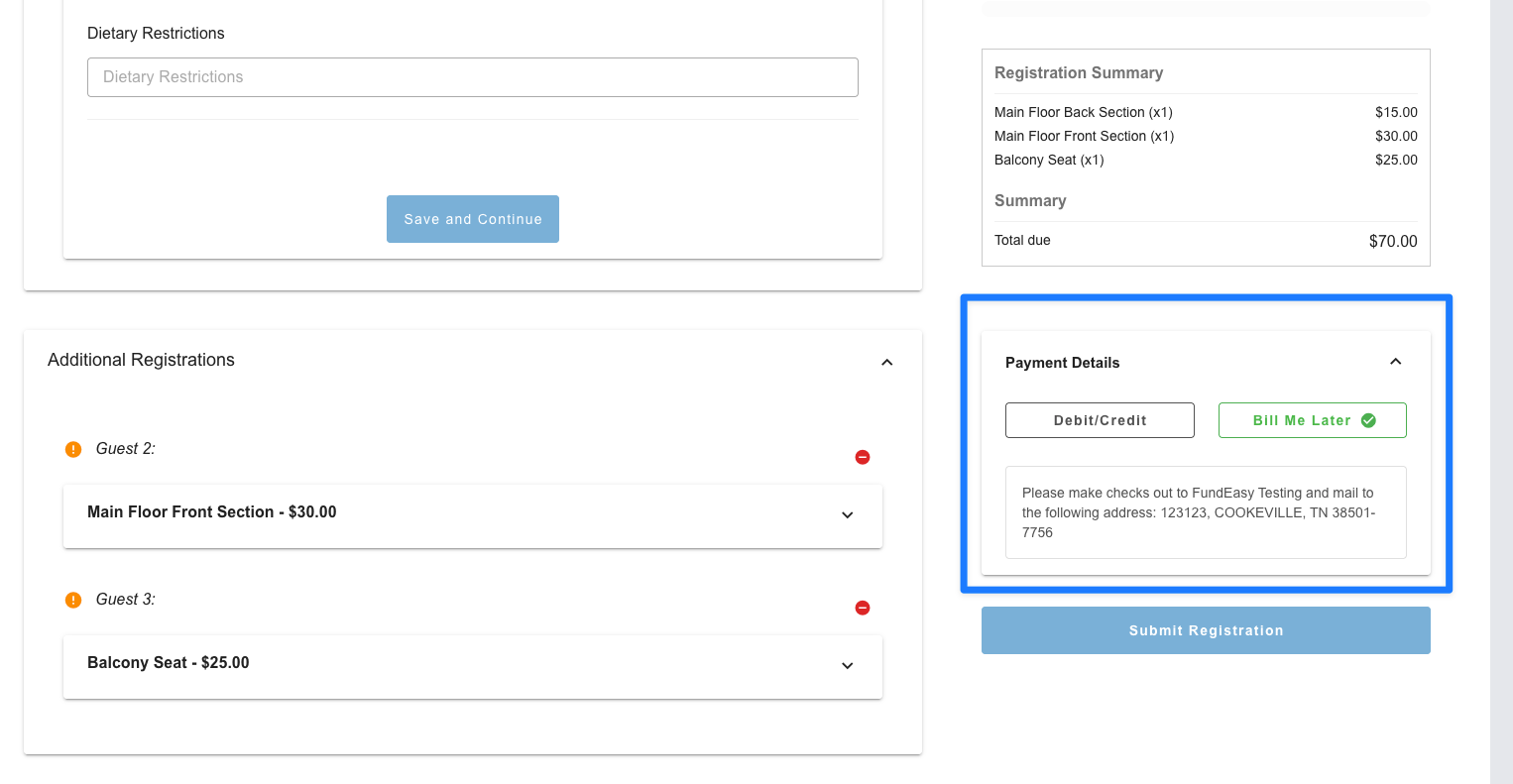
Note: If offline payments are toggled off, then the expectation is that in order for guests to check out, they would have to provide card information at that time.
How to Distinguish Offline Payments on the Event Payments Manager Dashboard
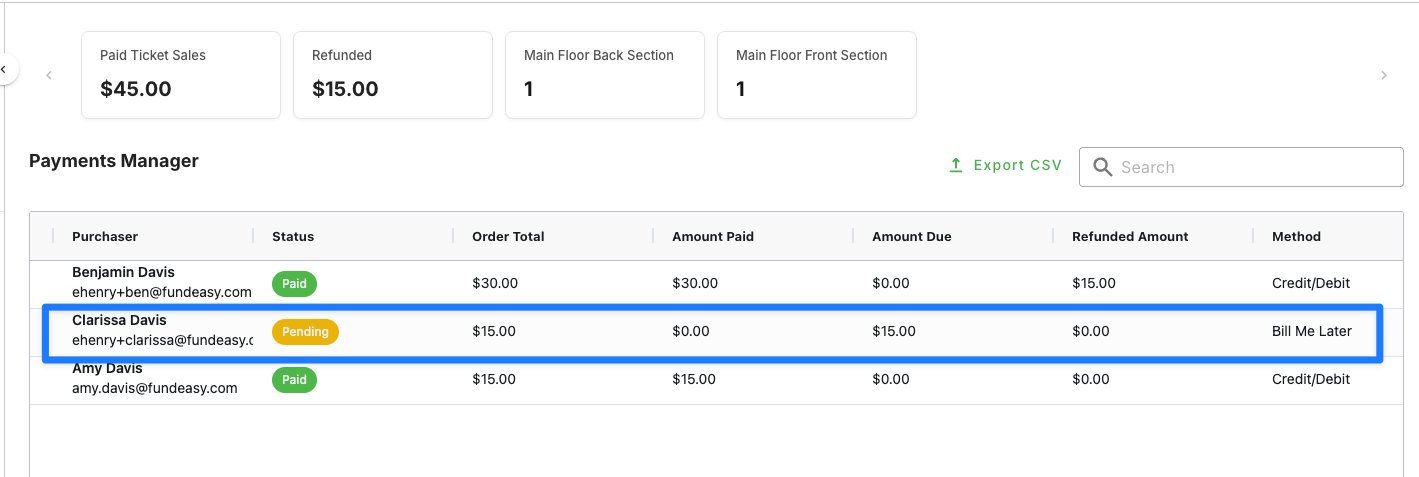
Once someone has checked out with a “bill me later” option, then they will show up on your event payments manager as a pending status. You'll be able to see their order total, what amount was paid to date, what is the amount due, and what is the pending method (bill me later).
For pending payments created through the “Bill Me Later” flow, you’ll be able to use the option “Payment History” (found in the ellipsis menu) to provide later payment updates. For example, when someone mails you a check or pays cash at the event entrance.
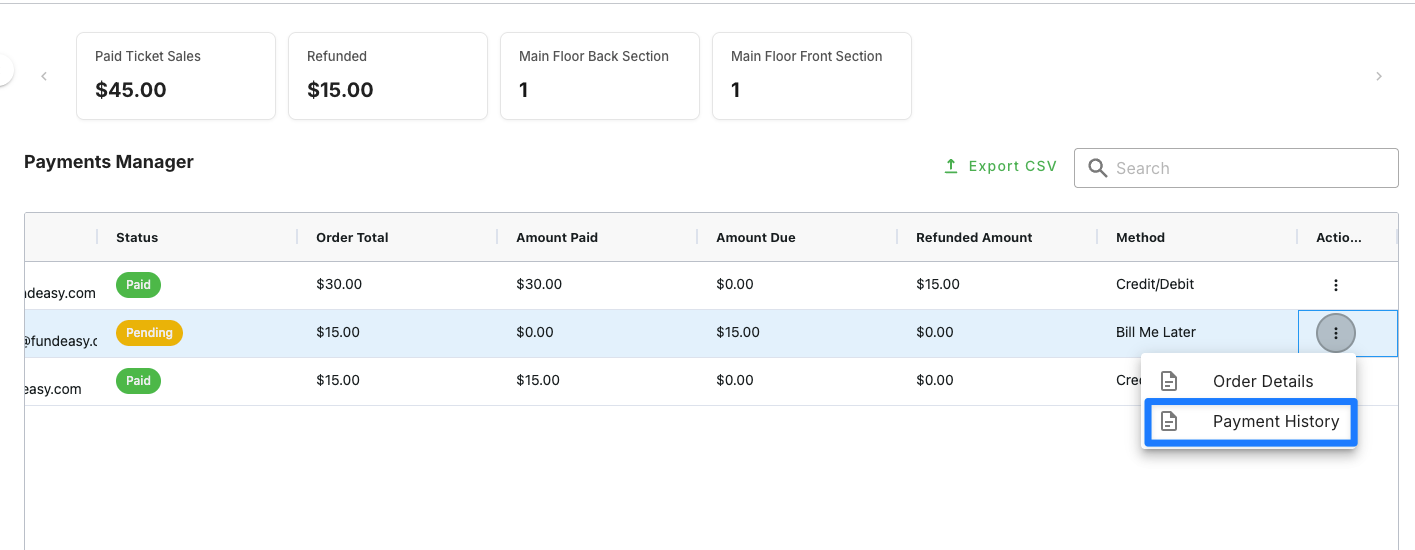
In the Payment History Modal, you’ll be able to add payment details manually to reflect the amount paid offline through cash or check. You’ll be able to enter details such as the payment date, method (check or cash), check number (if applicable), and amount. Once you submit the payment, the dashboard will update to reflect the money you received.
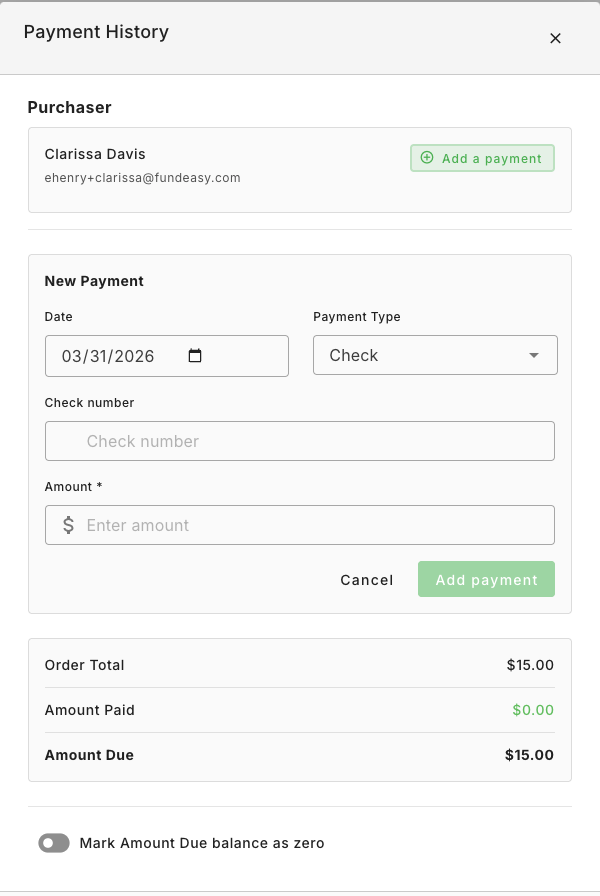
Alternatively, if you are not going to receive payment for an offline order (such as, you decide to comp the tickets, or you realize that the guest is not going to follow through with their payment intention), then you can manually mark the amount due as zero.